
Lauren uns
Participant
January 20, 2019
Answered

Photoshop PDF exports color differently

  • January 20, 2019
  • 4 replies
  • 18227 views

I am not a Photoshop pro by any means so this will be probably easy to answer.

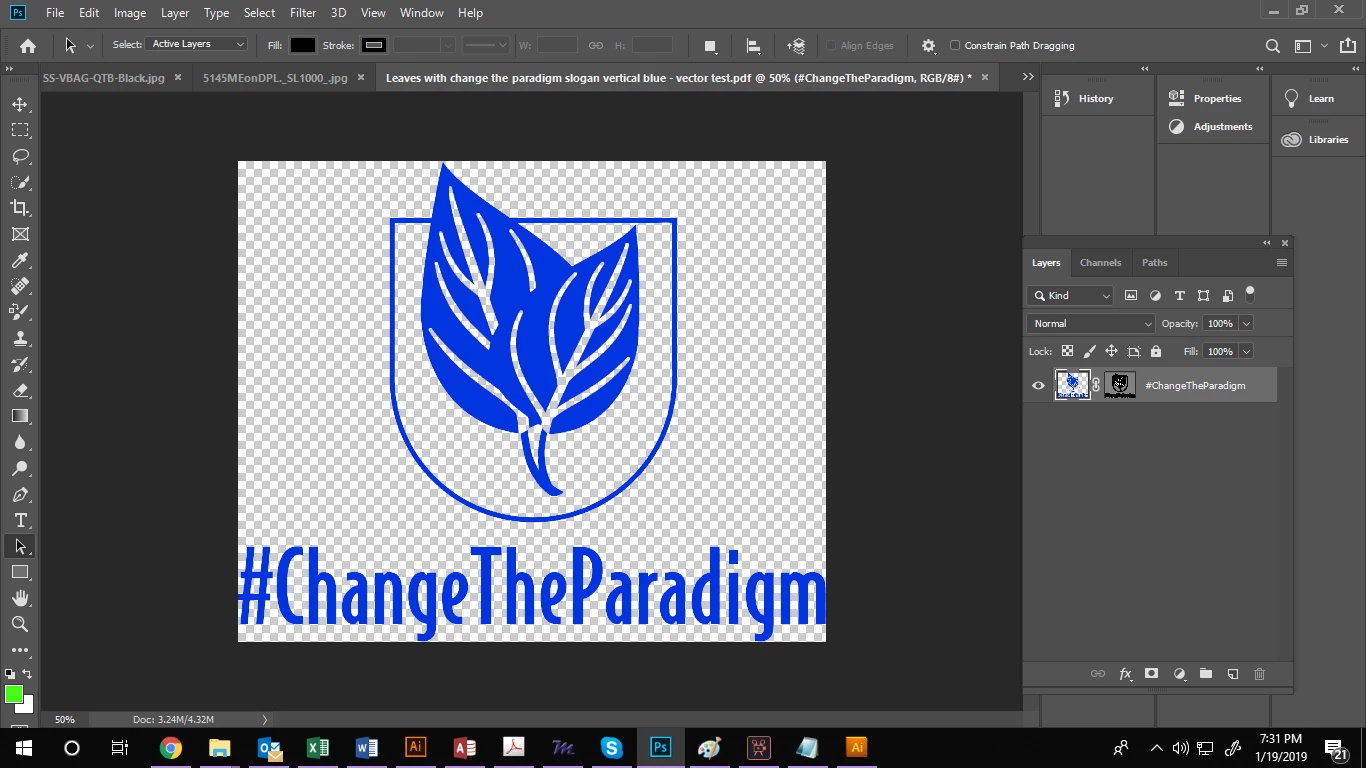
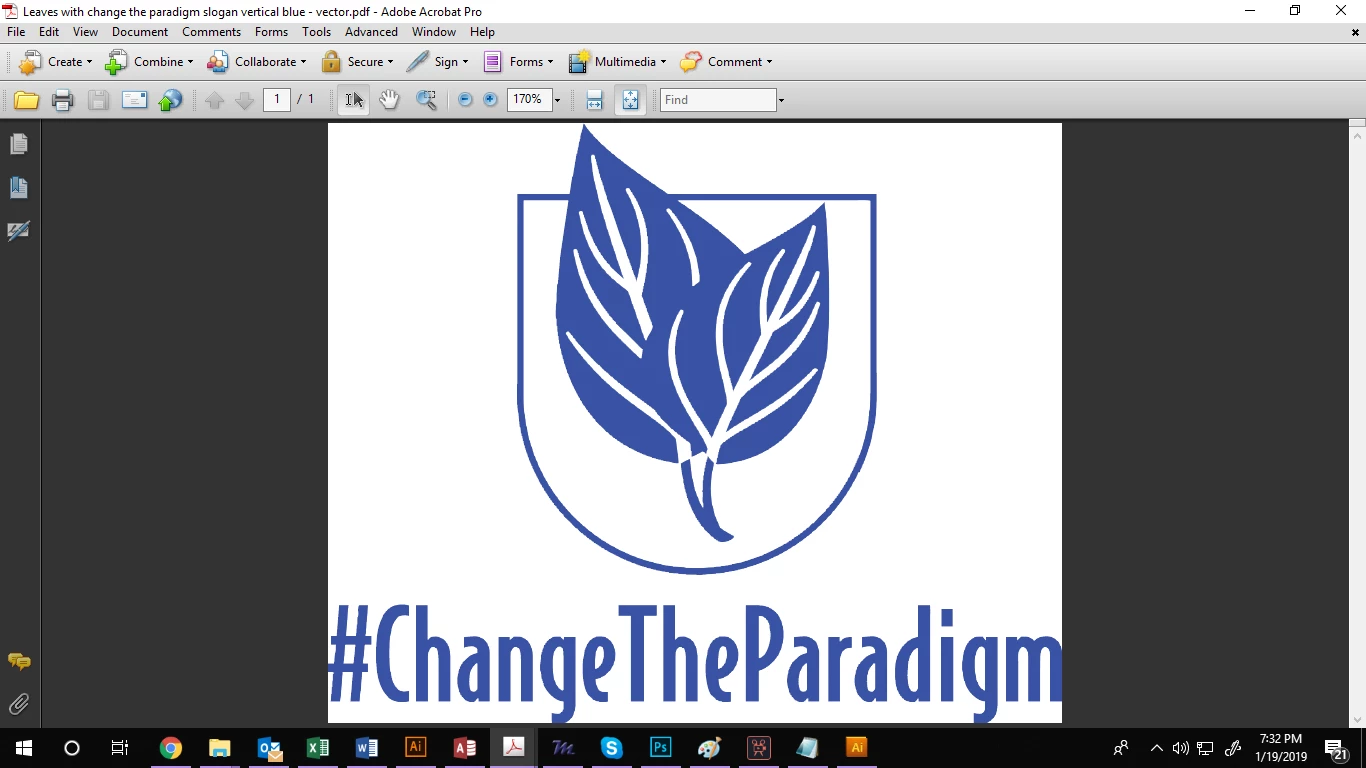
I turned my logo into a vector, then exported it as a PDF for my printer to run the job. The colors in my exported PDF are much more dull than the Photoshop artwork.

I tried exporting in both RGB and CMYK and this didn't change it. I also clicked "view" and checked "proof colors" to see what the export would look like, and of course its dull. How do I get my export to stay true to color?

See images below:

ARTWORK
EXPORT
This topic has been closed for replies.
Correct answer Daniel E Lane

And what color space are you exporting to? If you are working in RGB, then exporting to CMYK, you are going to lose your colors. The B (blue) in RGB is very different than the C (cyan) in CMYK. You will never get a vibrant blue like that in CMYK. Close, but not al the way to that brilliant color. You should try working as Barbara suggested and work on the original in CMYK. That will help you make the colors work better for you instead of converting when dumping to a pdf. Also, ask your printer if they can just accept an .AI file instead. Most printers I've worked with would prefer the original illustrator file instead of a pdf. Cleaner images, no compression, easier if they need to manipulate the file for it all to work for them.

4 replies

barbara_a7746676
Community Expert
Community Expert
January 20, 2019

https://forums.adobe.com/people/Lauren+uns  wrote

I am not a Photoshop pro by any means so this will be probably easy to answer.

I turned my logo into a vector, then exported it as a PDF for my printer to run the job. The colors in my exported PDF are much more dull than the Photoshop artwork.

I tried exporting in both RGB and CMYK and this didn't change it. I also clicked "view" and checked "proof colors" to see what the export would look like, and of course its dull. How do I get my export to stay true to color?

See images below:

ARTWORK

EXPORT

Note that the two Coated profiles also shift towards purple.

I second D Fosse's warning about the shift towards purple. Sometimes it is hard to detect on screen. That's why having printed swatch books are handy when color is critical.

D Fosse
Community Expert
Community Expert
January 20, 2019

Yes, spot color it is, if this blue color is ever going to get reproduced in print. CMYK inks just can't get anywhere near.

Here's how that original blue converts to some common CMYK profiles. This is where they hit their gamut boundaries:

Note that the two Coated profiles also shift towards purple. This is a side effect of color spaces not being perceptually uniform - a very technical business that I've never understood completely. Gernot Hoffman probably does if he reads this.

It's a bit odd, because it's possible to bring ISO Coated a lot closer with some tweaking, but still remaining within gamut:

Daniel E Lane
Daniel E LaneCorrect answer
Inspiring
January 20, 2019

And what color space are you exporting to? If you are working in RGB, then exporting to CMYK, you are going to lose your colors. The B (blue) in RGB is very different than the C (cyan) in CMYK. You will never get a vibrant blue like that in CMYK. Close, but not al the way to that brilliant color. You should try working as Barbara suggested and work on the original in CMYK. That will help you make the colors work better for you instead of converting when dumping to a pdf. Also, ask your printer if they can just accept an .AI file instead. Most printers I've worked with would prefer the original illustrator file instead of a pdf. Cleaner images, no compression, easier if they need to manipulate the file for it all to work for them.

barbara_a7746676
Community Expert
Community Expert
January 20, 2019

A good blue is one of the most difficult colors to produce in CMYK, which is what is usually required for print. Since your logo is only one color, it could be printed with a lovely blue if you use a Pantone Solid color, also called PMS. Photoshop is not the best application for using Pantone Solid colors. Illustrator would be a much better choice. But if you must use Photoshop, you could set up the logo in pure black (C 0%, M 0%, Y 0%, K 100%), and instruct the print vendor to print in a nice Pantone Solid blue, like #300 for instance.

Lauren uns
Participant
January 20, 2019

Hi Barbara, I did it in illustrator. I vectorized it and exported to PDF and the same thing happened

Top is illustrator file, bottom is PDF. I need it exported it the bright blue

Daniel E Lane
Inspiring
January 20, 2019

This worked! Thank you!!!


glad we could help.