
Participating Frequently
December 19, 2021
Answered

Photoshop referencing wrong monitor profile

  • December 19, 2021
  • 7 replies
  • 2806 views


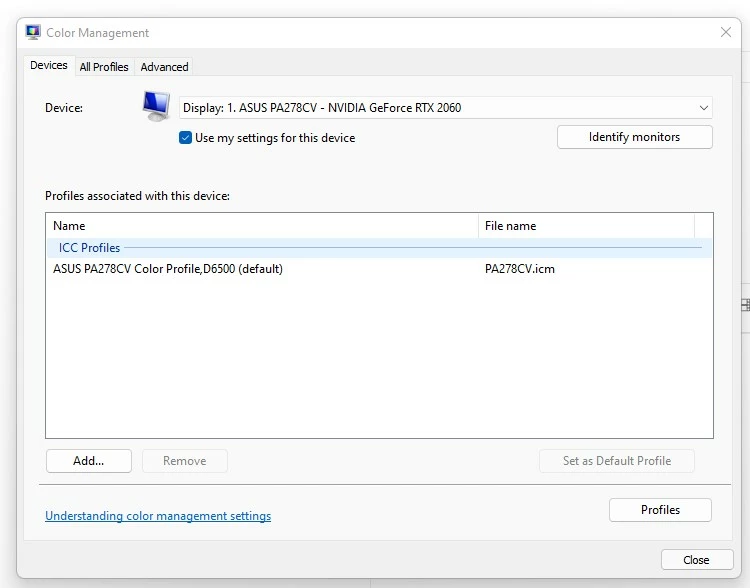
My current and only monitor is an ASUS PA278CV, and it's profile is setup correctly as default in Windows color management per below:
 

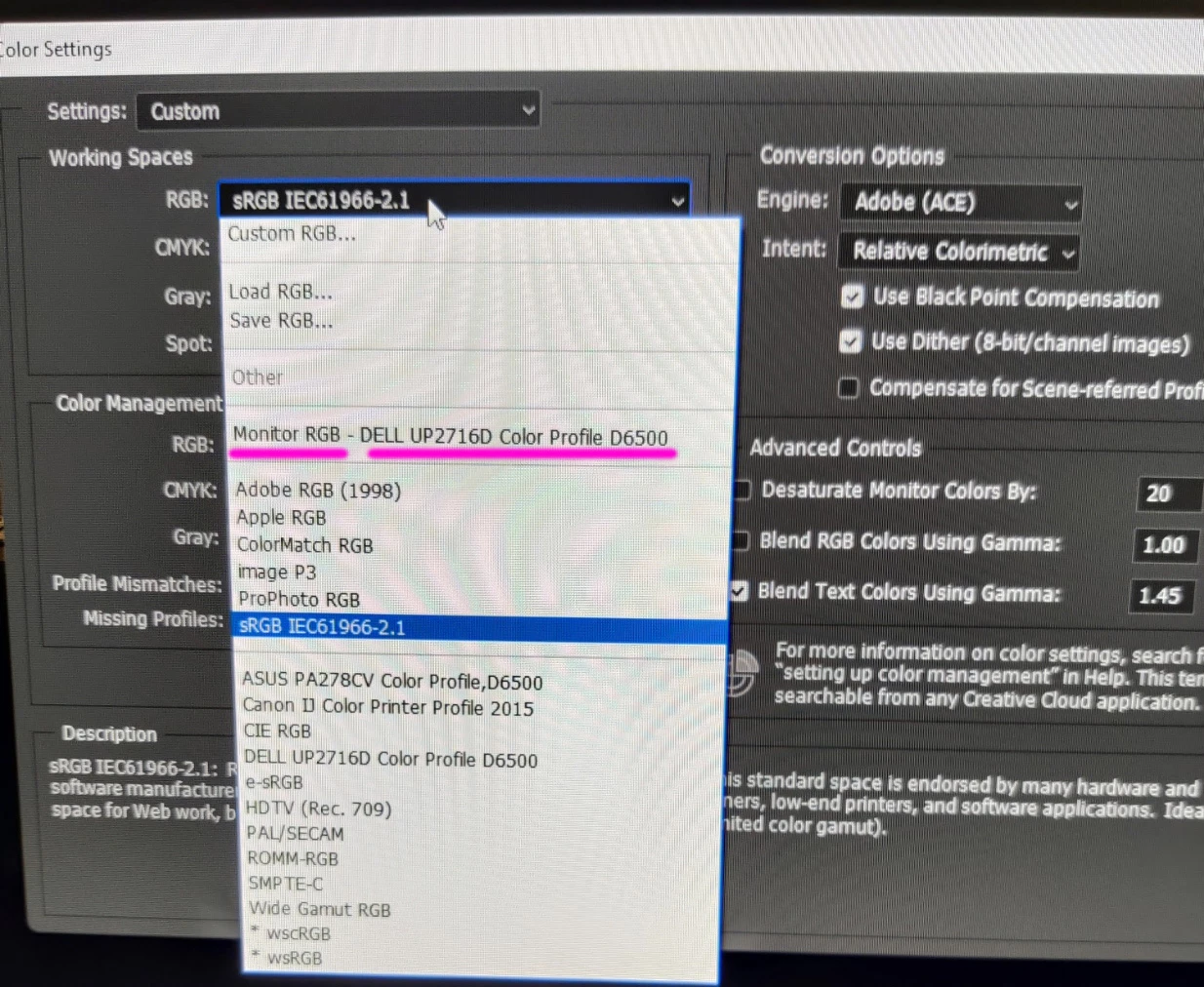
See below, somehow Photoshop is referencing an old monitor (wide gamut) Dell monitor profile which is causing me all sorts of headaches.  Note, the below is just to show the profile that Photoshop considers the monitor profile (I'm not using this as color space or anything like that).


I've tried uninstalling Photoshop and it's settings, and re-installing but the issue persists.


Note, Windows actually won't let me delete that old monitor profile from the spool.


Any suggestions would be most welcome.  Thank you.

This topic has been closed for replies.

7 replies

Known Participant
November 2, 2022

Ugh! Now it seems like Windows 10 is broken in the exact same way. Every inage I view with an Adobe product looks sickly since Windows keeps telling everything that the default profile is the one I made for the wide gamut mode of my Dell display even though I am in the REC709 custom calibration mode now and have the profile for that set in Windows as the default.


And every image I view in a web browser that has a color profile associated with it also looks sickly now.


The only things that work are programs that let you manually select your monitor's profile, so if I go to force Irfanview to use a specific profile then it works or FastPicViewer works if I tell it what to use.


How can Microsoft keep breaking this? Why do they even need to fiddle with whatever code sends out the link to the current default set profile? Why would they even need to change that single line of code? And how can they apparently keep re-breaking it again and again in various OS versions recently?


And why in the world does Adobe not let you manually chose a monitor profile like a lot of other special software and force you to be at the whim of the OS??


D Fosse
Community Expert
Community Expert
November 2, 2022

How do you change the display from native to the Rec.709 preset? In the monitor's OSD controls, or does the calibration software communicate with the display to do this? If the former, what is the procedure for switching to the corresponding monitor profile? And how is that profile made?


It has always worked correctly here on Windows 10, in two different systems, both using wide gamut Eizos. I sometimes switch to sRGB emulation when I need to use non-color managed applications, and that always works correctly too.


I've seen some cases here in the forum where this happens, but that has always, no exceptions, been on systems with an integrated display plus an external connected display. Mostly on MBP/iMacs, but also some cases with Windows laptops. There have also been a few cases with BenQ calibration software, known to be pretty buggy.


I don't think I have ever heard about this on desktop systems with only connected displays (aside from the quickly fixed Windows 11 problem).


Known Participant
November 3, 2022

My Dell has four modes that you can calibrate. A couple have calibrated to two different wide gamut modes and then a couple I have calibrated to REC709-type modes.


Using the monitor I have it currently set to a mode that I calibrated the monitor internally to be REC709 with Gamma 2.4.


When you calibrate a mode it also makes a monitor profile for that mode.


I currently set, under Windows 10, the default profile for the monitor to be the proper one for my monitor in REC709 Gamma 2.4 mode.


However, in Photoshop I see that it says Monitor RGB profile is one of the native wide gamut mode profiles which are only supposed to be used when I have it switched over to one of those modes.


And I see that any program that uses color management but does not let you manually pick the monitor profile but instead simply asks Windows which monitor profile to use, is getting sent, by Windows 11, the wrong profile, no matter what I do it appears to just be sending the wide gamut profile an dnot the one that actually is now currently set in Windows as the default.


So everything in Adobe programs looks sickly and so do any images that have color profiles when viewed in Firefox or Chrome, etc.


The same exact problem seems to have happened to the OP here, but in his case, about a year ago and on Windows 11 instead of Windows 10. He appears to have a desktop display with a connected monitor. EDIT: although I see you list that as a Windows 11 problem quickly fixed. So I don't know what to say, but the same problem now seems to have suddenly happened on Windows 10 about a year later. It seemed to happen after I updated adobe apps or maybe after I updated Windows 10.


Participating Frequently
December 19, 2021

Thanks, yep, I had tried that work-around also, but strangely it didn't solve it for me.   I'd noticed it worked for some but not others.  


Crazy that Microsoft can break something so fundamental in a major upgrade.  There must be a lot of users out there pulling their hair out, I hope MS is on top of it for future release. 

Participating Frequently
December 26, 2021
NB, colourmanagement
Community Expert
Community Expert
December 28, 2021

good to know, thanks for the info


neil barstow, colourmanagement net :: adobe forum volunteer

Brad @ Roaring Mouse
Community Expert
Community Expert
December 19, 2021

Ah, I get your issue now.

FYI, not that it matters since you've already downgraded back to Win 10, but apparently Microsoft has fixed the issue but has yet to release it, but someone suggested a temporary workaround which is to open “Color Management”, go to the “Advanced” tab and, in “Device profile”, choose your monitor’s device profile there as well. This works only for a one-monitor setup, as it would apply the profile to all connceted monitors. ( I don't have a Win11 system to test this theory myself, however.)

Participating Frequently
December 19, 2021

Thanks for the reply, however as stated in my post, I'm not using the monitor profile as my color space in PS color settings, the image was just a way to show that PS was not seeing the correct monitor profile.

Participating Frequently
December 19, 2021

After some exhaustive research (and as alluded to by jazz-y) it turns out that color management is broken in Windows 11.  Color mangaged apps aren't able to reference the monitor profile set in Windows color manangement.  


Down-grading to Windows 10 has fixed the issue.  Thanks Microsoft....urgh....

jazz-yCorrect answer
Legend
December 19, 2021
Brad @ Roaring Mouse
Community Expert
Community Expert
December 19, 2021

Your monitor profile only needs to be set at the OS level. This is separate from the RGB profile setting in Adobe's color settings workflow. You should not use your monitor profile there, instead pick a nice wide RGB gamut like AdobeRGB.

In your workflow, your monitor is essentially an output device, so the ICC profile assigned to it in your OS translates the information in your documents to display them as best as possible. If you use that profile as your RGB working space, you are actually limiting your gamut. Not what you want