
Exit
  • Global community
    • Language:
      • Deutsch
      • English
      • Español
      • Français
      • Português
  • 日本語コミュニティ
  • 한국 커뮤니티
0

Photoshop request - Alpha Transparency

New Here ,
Jan 22, 2020 Jan 22, 2020

There used to be a great special plugin for PSD that stripped white on alpha channel to achieve transparency but that stopped working/ stopped being supported a few versions ago - I've had to install GIMP to get this useful function.


It would be wonderful if it could be added to photoshop to improve workflow.
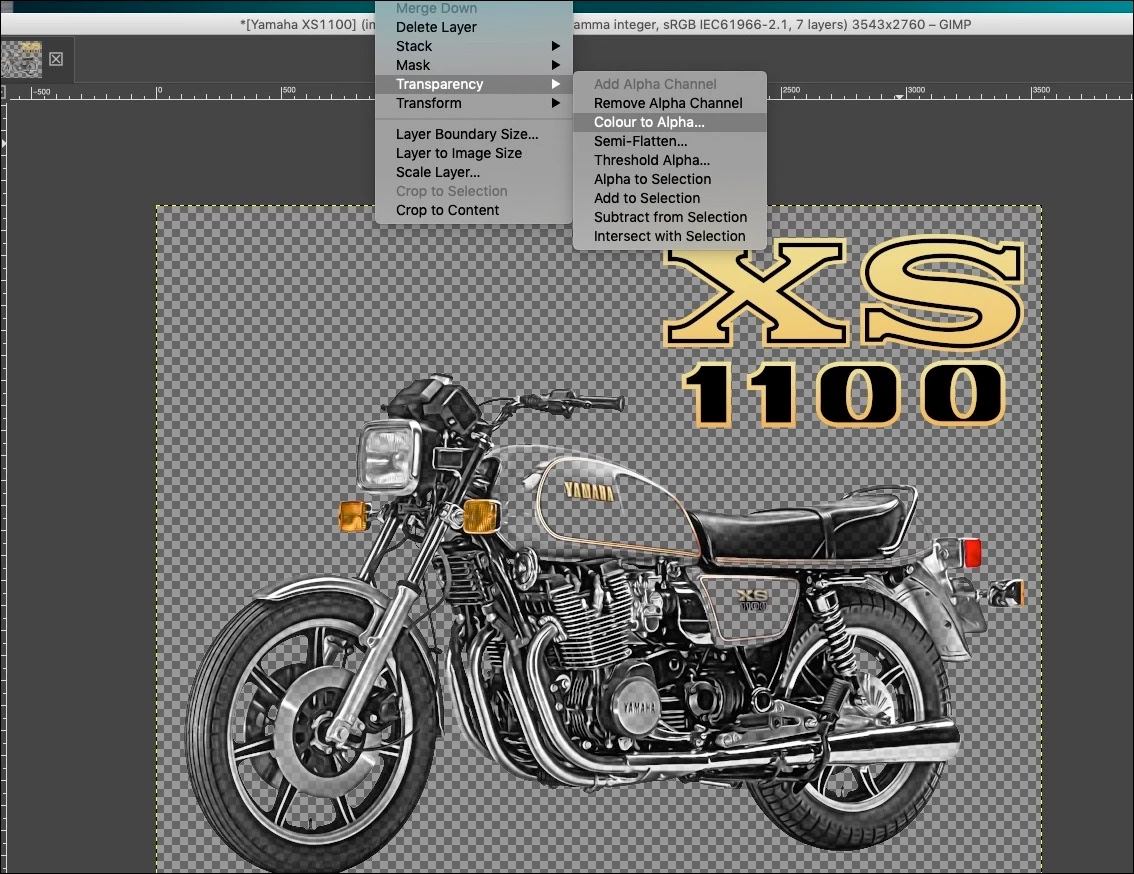
 

screenshot_1779

655
Translate
Report
Community guidelines
Be kind and respectful, give credit to the original source of content, and search for duplicates before posting. Learn more
community guidelines
Adobe
Community Expert ,
Jan 22, 2020 Jan 22, 2020

>wonderful if it could be added


This is a public forum with "some" Adobe staff participation, use the links below to make a report or request
-for Video & Audio & Animator programs https://adobe-video.uservoice.com/
-https://www.adobe.com/cfusion/mmform/index.cfm?name=wishform

Translate
Report
Community guidelines
Be kind and respectful, give credit to the original source of content, and search for duplicates before posting. Learn more
community guidelines
Community Expert ,
Jan 22, 2020 Jan 22, 2020

Have you tried any of the select subject or remove background features in the new Photoshop?
It auto creates a mask.

https://www.adobe.com/creativecloud/photography/discover/background-remover.html 

Translate
Report
Community guidelines
Be kind and respectful, give credit to the original source of content, and search for duplicates before posting. Learn more
community guidelines
Community Expert ,
Jan 22, 2020 Jan 22, 2020

You can do this using the blending sliders. Make sure your image is a regular layer, not the Background layer, and but a new blank layer below it. Right click on the image layer, and click Blending Options. In the "Blend if" area, chose Gray. Drag the white triangle leftward. If you Alt+drag one side of the triangle, you can split it to get a transition range.

image.png

Translate
Report
Community guidelines
Be kind and respectful, give credit to the original source of content, and search for duplicates before posting. Learn more
community guidelines
Community Expert ,
Jan 23, 2020 Jan 23, 2020

How would you then convert that to an Alpha Channel?

Translate
Report
Community guidelines
Be kind and respectful, give credit to the original source of content, and search for duplicates before posting. Learn more
community guidelines
Community Expert ,
Jan 24, 2020 Jan 24, 2020
LATEST

To get an Alpha cahnnel, you could Stamp Visible Control+Alt+Shift+E), load the resulting layer's transparency as a selection, and save this selection as an Alpha.


Another approach would be to Control+click on the thumbnail for the RGB composite in the Channels panel, to load the luminosity as a selection. Enter Quick Mask mode (Q), Press Control+I to invert, and use Image > Adjustments  > Levels to adjust the transition. Exit Quick Mask, and save the selection as an Alpha..


Translate
Report
Community guidelines
Be kind and respectful, give credit to the original source of content, and search for duplicates before posting. Learn more
community guidelines