Participant
November 8, 2020
Question

Photoshop save for web optimization

  • November 8, 2020
  • 1 reply
  • 854 views

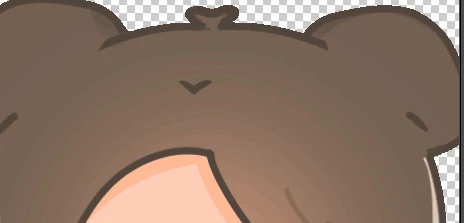
hi i have problem and i don't know what to do  when i export (save for web) the colors changes  all because the photoshop optimize the photo just like you see in the photo 
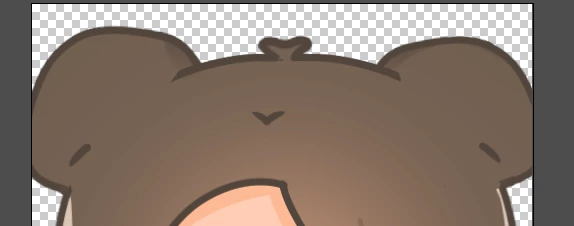
this is the original 


this is how it looks when the photoshop optimized it look at the colors in the hair , i don't know how to stop the photoshop from optimized it 

please help 

This topic has been closed for replies.

1 reply

Nancy OShea
Community Expert
Community Expert
November 8, 2020

Banding typically occurs when files are saved as low res GIF.  For best results, do not use legacy Save for Web. 

Instead, use File > Export > Export As > PNG with transparency.  


Nancy O'Shea— Product User & Community Expert
MandhomAuthor
Participant
November 9, 2020

sry i forgot to say this but i am making a gif not png 

D Fosse
Community Expert
Community Expert
November 9, 2020

Banding like this happens in reduced color bit depth, and it is cumulative.


You will always see some banding in an 8 bit image, but GIF is especially exposed because those 8 bit colors are re-encoded into a restricted palette of 256 individual color steps.


Every time you push 8 bit data through another 8 bit process, another layer of banding is imposed and added to the original. GIF encoding is one extra step. Your display is one more - most laptop/office displays actually work in 6 bit depth, and the extra two bits added by dithering.


You will get a slightly better result with PNG (not jpeg, aside from not supporting transparency it uses destructive compression which in itself adds a lot of banding).


The standard way to eliminate it with 8 bit data is to add a tiny amount of noise, which breaks up the banding. But again, you can't do that with GIF and the restricted palette. But you could do it with PNG.