
Inspiring
September 19, 2020
Question

Photoshop says image is centered but it's not

  • September 19, 2020
  • 3 replies
  • 517 views

Hi all,

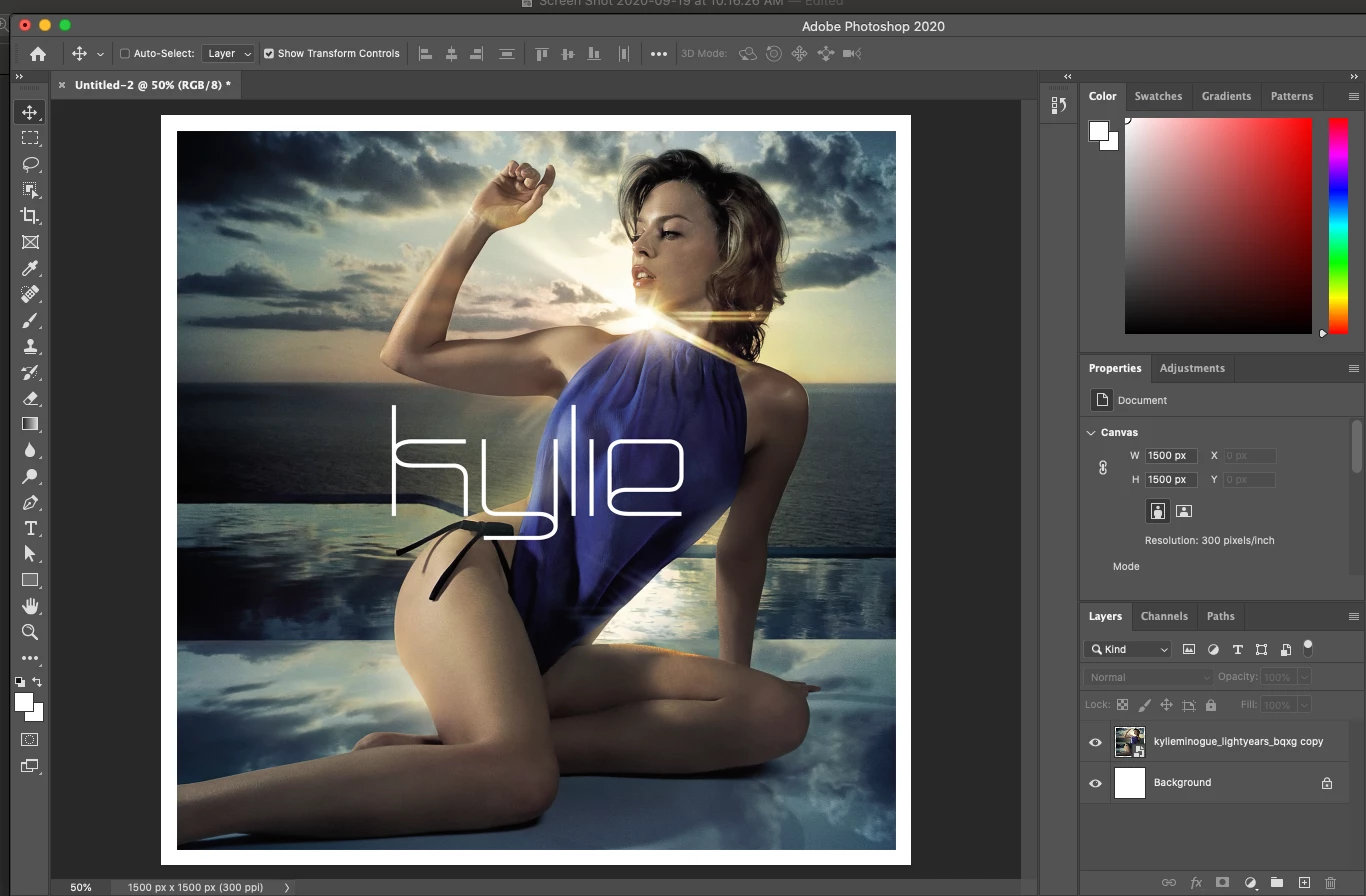
I'm a bit stumped as if you look closely, you can see the image below is not centered. It is slightly too far over to the right, and too far from the top, despite Photoshop telling me with its pink line markers that the image is centered. Is there something I am missing?


Any help is appreciated. Thank you.

This topic has been closed for replies.

3 replies

Leslie Moak Murray
Community Expert
Community Expert
September 19, 2020

I'm not seeing it either; having said that, though, at times we have to do what's "optically centered," going with what our eyes tell us when the mathematics tell us otherwise.

JJMack
Community Expert
Community Expert
September 19, 2020

I made the message in my script easier to understand You can have Photoshop show your layer center relative to the document center.


// enable double-clicking from Mac Finder or Windows Explorer
#target photoshop 									// this command only works in Photoshop CS2 and higher
app.bringToFront();									// bring application forward for double-click events
var startRulerUnits = app.preferences.rulerUnits;	// Save the current preferences
app.preferences.rulerUnits = Units.PIXELS;			// Set Photoshop to use pixels 
try{
	var LB = activeDocument.activeLayer.bounds;
	var LWidth = (LB[2].value) - (LB[0].value);
	var LHeight = (LB[3].value) - (LB[1].value);
	//MarkX(activeDocument.width.value/ 2);
	MarkX((LB[0].value + LWidth/2));
	MarkX(LB[0].value);
	MarkX(LB[2].value);
	//MarkY(activeDocument.height.value/2);
	MarkY((LB[1].value + LHeight/2));
	MarkY(LB[1].value);	
	MarkY(LB[3].value);
	alert("'" + activeDocument.activeLayer.name + "' Layer Bounds\nTop Left " +  LB[0].value + "X," +  LB[1].value + "Y   Bottom Right "  +  LB[2].value + "X," +  LB[3].value
		+ "Y\nWidth " +  LWidth + "px   Height " + LHeight +"px" 
		+ "\nLayer center " + (LB[0].value + LWidth/2) + "X," +  (LB[1].value + LHeight/2) +"Y"
		+ "\nDocument center  " + (activeDocument.width.value/ 2) + "X," +  (activeDocument.height.value/2) +"Y"
		+ "\nRelative difference  " + ((LB[0].value + LWidth/2) -(activeDocument.width.value/ 2) )+ "X," + ((LB[1].value + LHeight/2) -(activeDocument.height.value/2)) +"Y"		
		, "Layer Bounds Info");
}
catch(e){alert("Requires a layer targered");}
app.preferences.rulerUnits = startRulerUnits;			// Return the app preferences
function MarkX(x) {
// =======================================================
var idMk = charIDToTypeID( "Mk  " );
    var desc61 = new ActionDescriptor();
    var idNw = charIDToTypeID( "Nw  " );
        var desc62 = new ActionDescriptor();
        var idPstn = charIDToTypeID( "Pstn" );
        var idPxl = charIDToTypeID( "#Pxl" );
        desc62.putUnitDouble( idPstn, idPxl, x);
        var idOrnt = charIDToTypeID( "Ornt" );
        var idOrnt = charIDToTypeID( "Ornt" );
        var idVrtc = charIDToTypeID( "Vrtc" );
        desc62.putEnumerated( idOrnt, idOrnt, idVrtc );
    var idGd = charIDToTypeID( "Gd  " );
    desc61.putObject( idNw, idGd, desc62 );
executeAction( idMk, desc61, DialogModes.NO );
}
function MarkY(y) {
// =======================================================
var idMk = charIDToTypeID( "Mk  " );
    var desc63 = new ActionDescriptor();
    var idNw = charIDToTypeID( "Nw  " );
        var desc64 = new ActionDescriptor();
        var idPstn = charIDToTypeID( "Pstn" );
        var idPxl = charIDToTypeID( "#Pxl" );
        desc64.putUnitDouble( idPstn, idPxl, y );
        var idOrnt = charIDToTypeID( "Ornt" );
        var idOrnt = charIDToTypeID( "Ornt" );
        var idHrzn = charIDToTypeID( "Hrzn" );
        desc64.putEnumerated( idOrnt, idOrnt, idHrzn );
    var idGd = charIDToTypeID( "Gd  " );
    desc63.putObject( idNw, idGd, desc64 );
executeAction( idMk, desc63, DialogModes.NO );
}
JJMack
kirbydooAuthor
Inspiring
September 19, 2020

Thank you. I didn't know it was possible to analyze an image like that.

JJMack
Community Expert
Community Expert
September 19, 2020

I do not see that problem on Windows PS 2020 version 21.2.3.


JJMack
davescm
Community Expert
Community Expert
September 19, 2020

What does it look like at 100% zoom?

At the 50% zoom of your screenshot the white border is 16 screen px wide on the left and 15 screen pixels on the right. Bearing in mind you have to move in whole pixels is your image an even number of pixels smaller than your canvas? If not, you would need to scale it first.

Dave

kirbydooAuthor
Inspiring
September 19, 2020

Zooming in to 100%, it does appear to look how it should. It's puzzling to me how my eyes see it differently when I'm zoomed out. The image itself is an even 1500 x 1500.