Participant
September 12, 2020
Answered

Photoshop spot healing brush leaving black spots

  • September 12, 2020
  • 7 replies
  • 11339 views

Hi! 
I have a strange problem. 
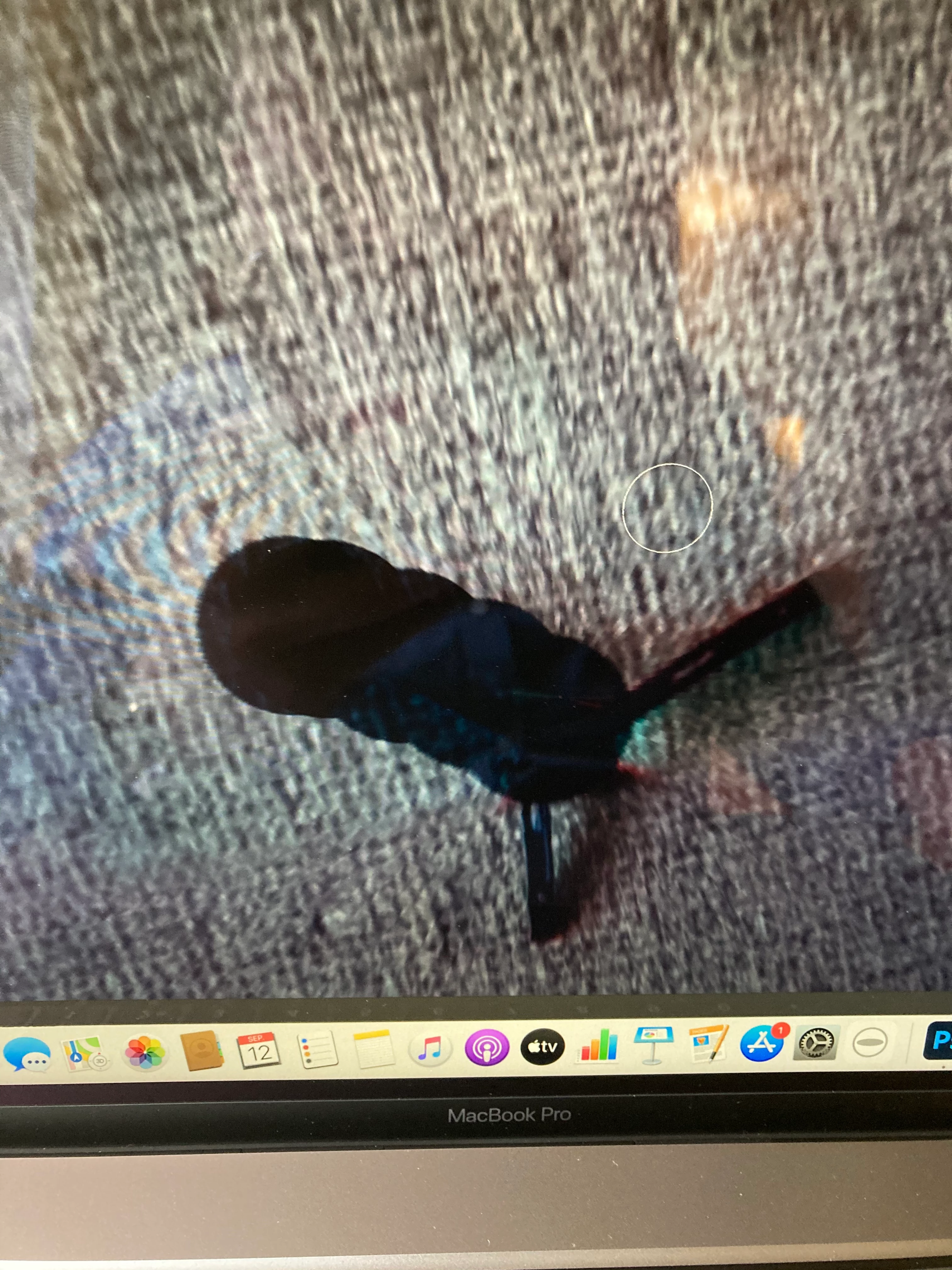
my spot healing brush are leaving black stains. (Se photos) 
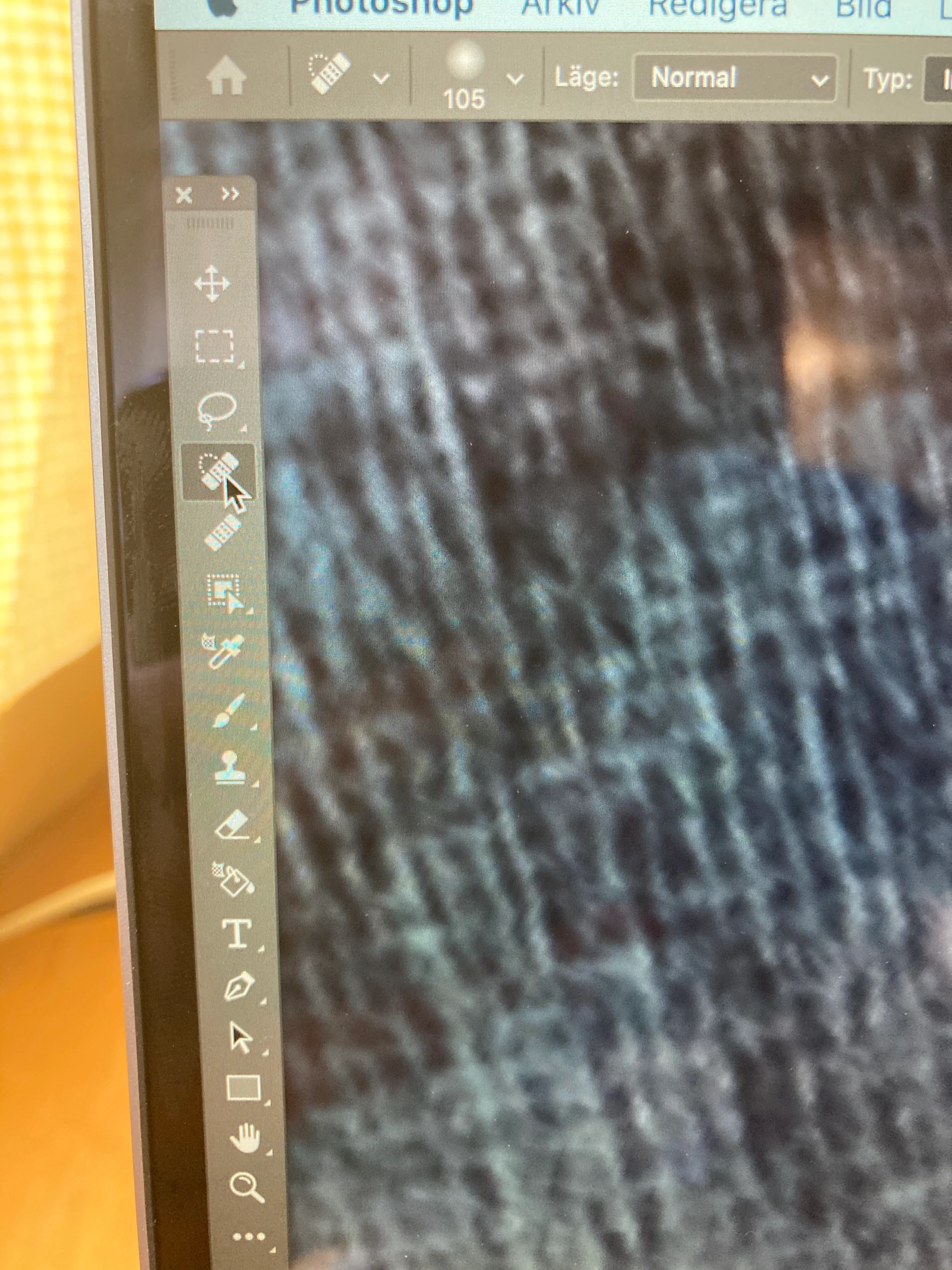
also I have a simulator problem with my clone stamp where when I can pick up the clone but after I tries to add the clone over my tripod here, it takes a few seconds and a big black mark is added. 
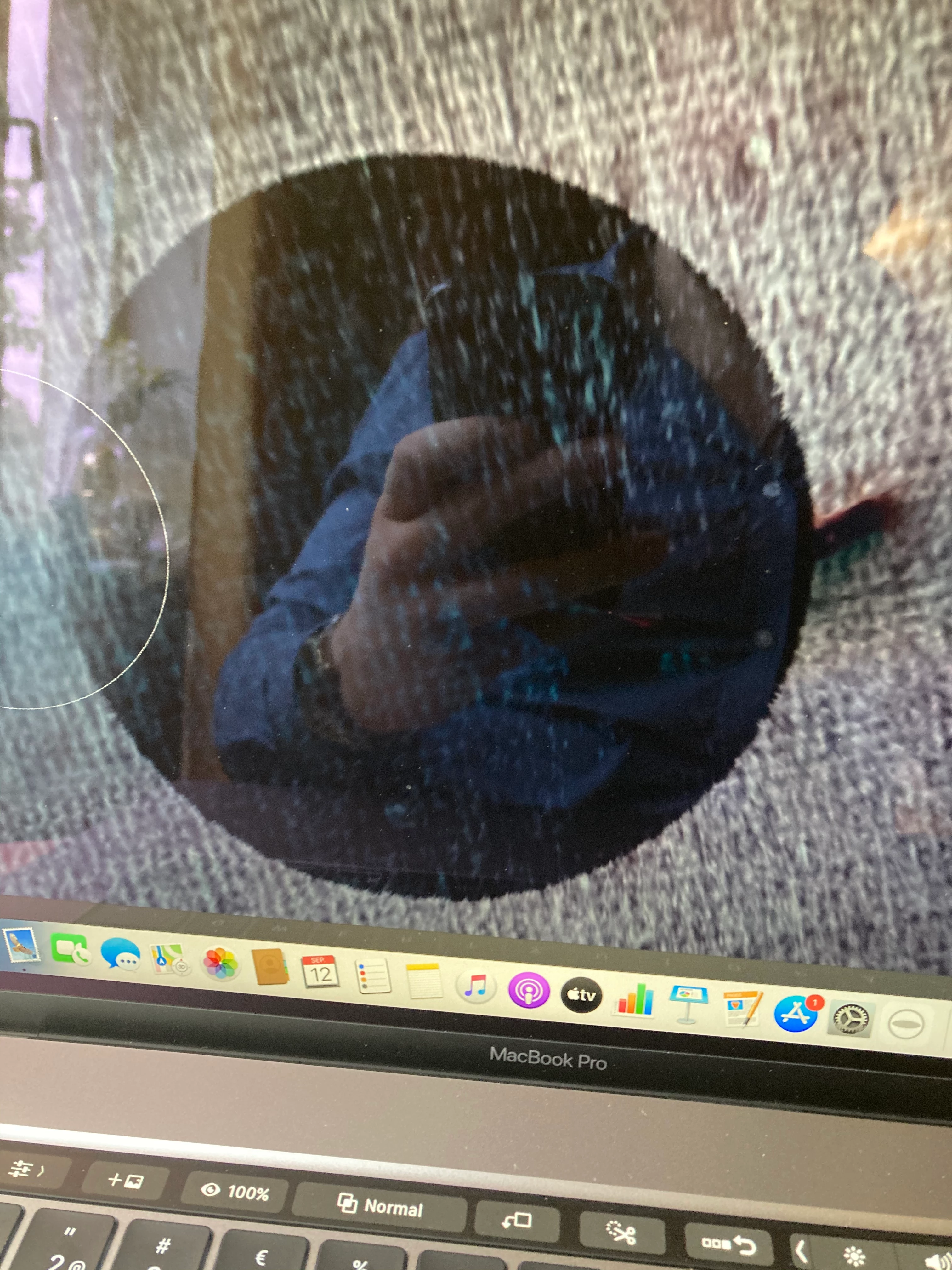

does anyone have similar problems or know how to fix this issues. 
I am a beginner at Photoshop. 
//Freddy

This topic has been closed for replies.
Correct answer gladysa

Problem is fixed!!!  I reset the preferences.

EDIT-->  PREFERENCES -->  GENERAL -->  Check off  RESET PREFERENCES ON QUIT. Close Photoshop then start it back up. Preblem resolved.

7 replies

Participant
July 1, 2023

I'm having a problem with the new Remove Tool in Photoshop v 24.6.0, the tool is not working correctly, it's leaving a big black mark on the place where I use it I followed the instructions you mentioned 

Photoshop - Settings - General - Reset References on Quite - OK, then must Restart the Computer, not enough to restart Photoshop, the (Remove Tool) is working normally with Photoshop and Photoshop (Beta) July 1, 2023

Participating Frequently
October 4, 2022

Resetting prefs will help. Til it comes back. If I click on a different layer, the spots will disappear.

Participant
June 25, 2021

I had this too...so ******** annoying!  Try going to top left of workspace, and control click to "reset tool."  That worked for me. 

Participant
June 14, 2021

Hi....
I'm having the same problem is is driving me crazier. The only way to get rid of the black spot or line...is by moving the image I'm working with, using the mouse, and goes away, but that is not normal, this started after last update. Performance graphics prosessor is unchecked and greyed out, I reseted the preferences, etc, and no change.

gladysa
Inspiring
June 15, 2021
Problem is fixed!!! I reset the preferences.

EDIT--> PREFERENCES --> GENERAL --> you have to Check off

-> RESET PREFERENCES ON QUIT <—

Close Photoshop then start it back up. Preblem resolved.

Sent from my iPhone. Please excuse any typo errors in my text.
Participant
June 17, 2021

Mine is checked off.. still same problem. Its been since 2 updates ago

thekohlervillager
Known Participant
October 9, 2020

Same. Only way to get rid of it is to zoom in or out.

gladysa
Inspiring
November 10, 2020

Hi.. I'm having the same issue. I get the black painting where I'm spot healing. It only goes away when I zoom in or out. I have tried resetting the tool. It keeps happening.

gladysa
gladysaCorrect answer
Inspiring
November 13, 2020

Problem is fixed!!!  I reset the preferences.

EDIT-->  PREFERENCES -->  GENERAL -->  Check off  RESET PREFERENCES ON QUIT. Close Photoshop then start it back up. Preblem resolved.

Participant
September 16, 2020

I am having the same problem. Every area I try to heal just leaves black as if I were painting. Have gone from 16 bit to 8 bit, worked in both RGB and Grayscale. Same result.  

Chuck Uebele
Community Expert
Community Expert
September 12, 2020

Without seeming your full screen, it's hard to say, but it looks like you might have an adjustment layer above the layer that you are retouching, and it is adding that extra correction to your retouching. Make you you have the tools set for current layer only, or turn off any adjustment layer.