

JohnG1990
Inspiring
August 15, 2022
Answered

Photoshop to PDF issues

  • August 15, 2022
  • 5 replies
  • 5164 views

I have been working on making a large PDF file. I am building the pages in photoshop, as they have multiple images and shapes. I then am making them into PDFs to form into one book. I am having two issues as I make this.

1. Some of my text is coming out blurry. I am using the same font throughout the entire book. For some reason this font is coming out blurry when I form it into a PDF. While others come out perfectly clear.

2. I am not able to highlight some of the font. This is often the same font that is coming out blurry. Once again, the same font is being used throughout each page.

I would like to solve both issues and feel they are somehow connected. I have looked online and in these forums and have not been ablet to find a solution.
This topic has been closed for replies.
Correct answer JohnG1990

So after messing with everything. Going through everyones suggestions, I was finally able to find a solutions after weeks. I have no idea why or how this worked but it did.


Step 1

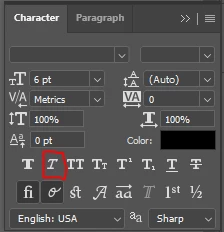
Within the text settings in photoshop I had to turn the Faux Italic setting off. Show below.


Step 2

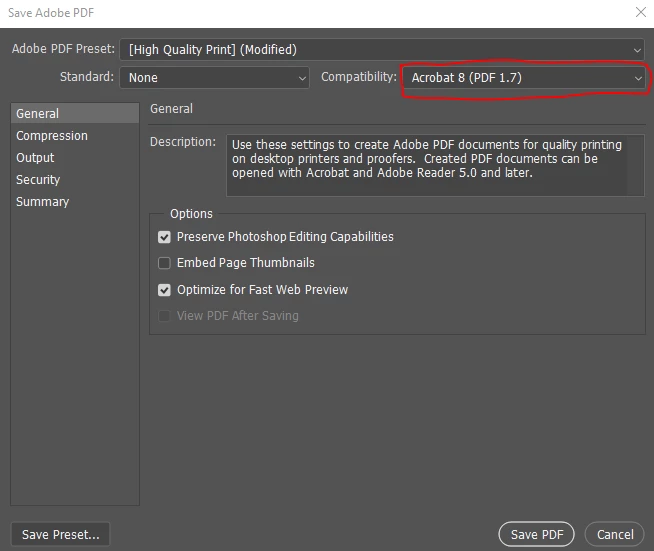
I had to save the file as a PDF, not a presentation via automate. I then had to select Acrobate 8 (PDF 1.7) for combatability.


5 replies

JohnG1990
JohnG1990AuthorCorrect answer
Inspiring
August 23, 2022

So after messing with everything. Going through everyones suggestions, I was finally able to find a solutions after weeks. I have no idea why or how this worked but it did.


Step 1

Within the text settings in photoshop I had to turn the Faux Italic setting off. Show below.


Step 2

I had to save the file as a PDF, not a presentation via automate. I then had to select Acrobate 8 (PDF 1.7) for combatability.


Conrad_C
Community Expert
Community Expert
August 18, 2022

Although it would be better to use InDesign, it should also be possible for this project to turn out well the way as Photoshop PDF pages. But there are things to watch out for, which leads to a some questions.


If you open any of the Photoshop documents you are having trouble with, when you choose Image > Image Size, what are the settings for width, height, and ppi resolution?


How are you creating the PDF files? Are you using File > Save As, with the format Photoshop PDF? Or are you using amother command such as File > Export > Artboards to PDF, or File > Automate > PDF Presentation?


If you are using File > Save As, when you select Photoshop PDF whicih Adobe PDF Preset and Standard are selected? (I know you said “the default” but I’m not sure which one that is, because I’ve changed mine from time to time.)


What are the names of the fonts that have trouble? Do you know if they are OpenType, TrueType, PostScript Type 1?


@JohnG1990 wrote:

I have been working on making a large PDF file. I am building the pages in photoshop, as they have multiple images and shapes.


Although that is the case, be aware that InDesign is also able to easily combine layers of many images/shapes/text. It has many of the same Photoshop features for opacity, layer blending modes, masks, feathered/gradient masks, shape building, cropping to any shape, and so on.


Yet it can preserve the maximum resolution of all page elements because unlike Photoshop, InDesign is not locked to a specific number of pixels in the document. And that’s in addition to having proper support for multiple pages (such as automatic page/section numbering), and excellent control over generating PDFs for professional print jobs.


Of course it’s too late for the current project, but keep that in mind for the future.

JohnG1990
JohnG1990Author
Inspiring
August 18, 2022

Thank you very much for the response. Here are answers to your questions.


What are the settings for width, height, and ppi resolution?

W: 1736 H: 2456 PPI: 300


How are you creating the PDF files?

I have actually attempted both methods you mentioned here. When using the automate function the text that cannot be selected comes out blurry. So, I saved it as a PDF instead. The second method you mentioned. The text was clear but still could not be selected.


The default settings I am using are as followed.


What are the names of the fonts that have trouble?

The name of ther font is Bookmania. I have used it in other places on the document and it is not having this issue.


OpenType, TrueType, PostScript Type 1?

I do not know.

J E L
Community Expert
Community Expert
August 18, 2022

Hi @JohnG1990 I'm jumping in to add to the other good advice you've already received with a few more questions and ideas. Can you tell us the end point for your book? Are you planning on having it printed yourself, or will this be a print-on-demand title? I'm wondering why your dimensions are set up in a non-traditional book trim size. Are you adding in any type of bleed or crop marks? What do you expect the final trimmed and bound book size to be?


You now have 5.787" x 8.187". I'm thinking you'd get to 5.5" x 8" — but a .287 and 1.87 bleed/cut line is unusual. (Centimeters are 14.7 x 20.79.) Your cover template needs to reflect the number of pages to get the spine width correct. Is this something you've already set up with the printer? Maybe you are going to add trim lines with Acrobat? Just curious.


One test for the blurry text is to export to PDF without flattening any of your layers. Also, the order of your type layer in relation to other layers might make a difference. Use Save as PDF and start with the Preset Press Quality, change to Standard PDF/X-4:2010 and Maximum Image Quality without any Compression. The file size will be larger, but that may improve the text output. All worth a try as a process of elimination.


Check your character panel and view your text at 100%. Are you setting Bookmania to strong, crisp, or something else? (It's an Adobe font with your subscription, so should be fine to use.)


Finally, yes, InDesign is the best app to use. It might not be too late to reconstruct your files there if your book doesn't have a lot of pages. You can import the image/shapes layers and rebuild the text frames with copy/paste. But if that's too much, you should be able to get readable text from Photoshop and a print quality PDF. Let us know how it's going!

NB, colourmanagement
Community Expert
Community Expert
August 17, 2022

A 'vector' page design application handles text far better than Photoshop. InDesign is a program made for exactly this.

With certain procedures, Photoshop will make [rasterise] text into pixels, whereas with a vector application text stays "pure" until eventually rasterised.

InDesign is made for creating PDF's 


This may help explain: https://www.selfmadedesigner.com/what-are-vector-graphics/


I hope this helps
neil barstow, colourmanagement net :: adobe forum volunteer:: co-author: 'getting colour right'
google me "neil barstow colourmanagement" for lots of free articles on colour management


JohnG1990
JohnG1990Author
Inspiring
August 18, 2022

"With certain procedures, Photoshop will make [rasterise] text into pixels"

How do I prevent photoshop from doing this?

D Fosse
Community Expert
Community Expert
August 18, 2022

You're still missing the point. This isn't about what Photoshop does; it's about what Photoshop is: a raster image editor. Photoshop's whole purpose is to output pixels.


You ask how to prevent Photoshop from doing that. The only answer I can give is to not do what you have been doing. If you have text elements in your document that have survived as vector; that's the way to do it.


Whatever vector capabilities Photoshop has, they are all intended as aids for making raster-based masks and selections. They are not intended for final vector output. If you're getting vector output from Photoshop, it's by accident.


Chris 486
Community Expert
Community Expert
August 15, 2022

Hi Josh!


How are you creating the PDFs from the photoshop file you are working? Are you retaining the layer information? 

JohnG1990
JohnG1990Author
Inspiring
August 15, 2022

Yes, I merged the photo's and shapes into one layer. Then kept all the fonts seperate and made sure the layer infromation was maintained.

D Fosse
Community Expert
Community Expert
August 15, 2022

Use InDesign! It cannot be emphasized enough: Photoshop is the wrong tool for this.


The blurry text has probably been rasterized. Photoshop can not normally output vector data, except in a very few special circumstances.

Semaphoric
Community Expert
Community Expert
August 15, 2022

You should really be doing that in a page layout program, such as InDesign.

Jumpenjax
Community Expert
Community Expert
August 16, 2022
  • I agree with Semaphoric, then it will be all set in same ppi. Then I would  package your file and it will have everything in a neat little package including a pdf. When you go to package you can change the pdf setting to what you need and save. This way any changes you do after will follow when you package again. Also packaging will let you know of any potential problems.
Lee- Graphic Designer, Print Specialist, Photographer
JohnG1990
JohnG1990Author
Inspiring
August 17, 2022

Do you know what settings need to be adjusted? I am just using the default settings when saving it as a PDF from photoshop.