Bink58
Inspiring
May 17, 2018
Answered

Photoshop tools sub menu too big!

  • May 17, 2018
  • 1 reply
  • 607 views

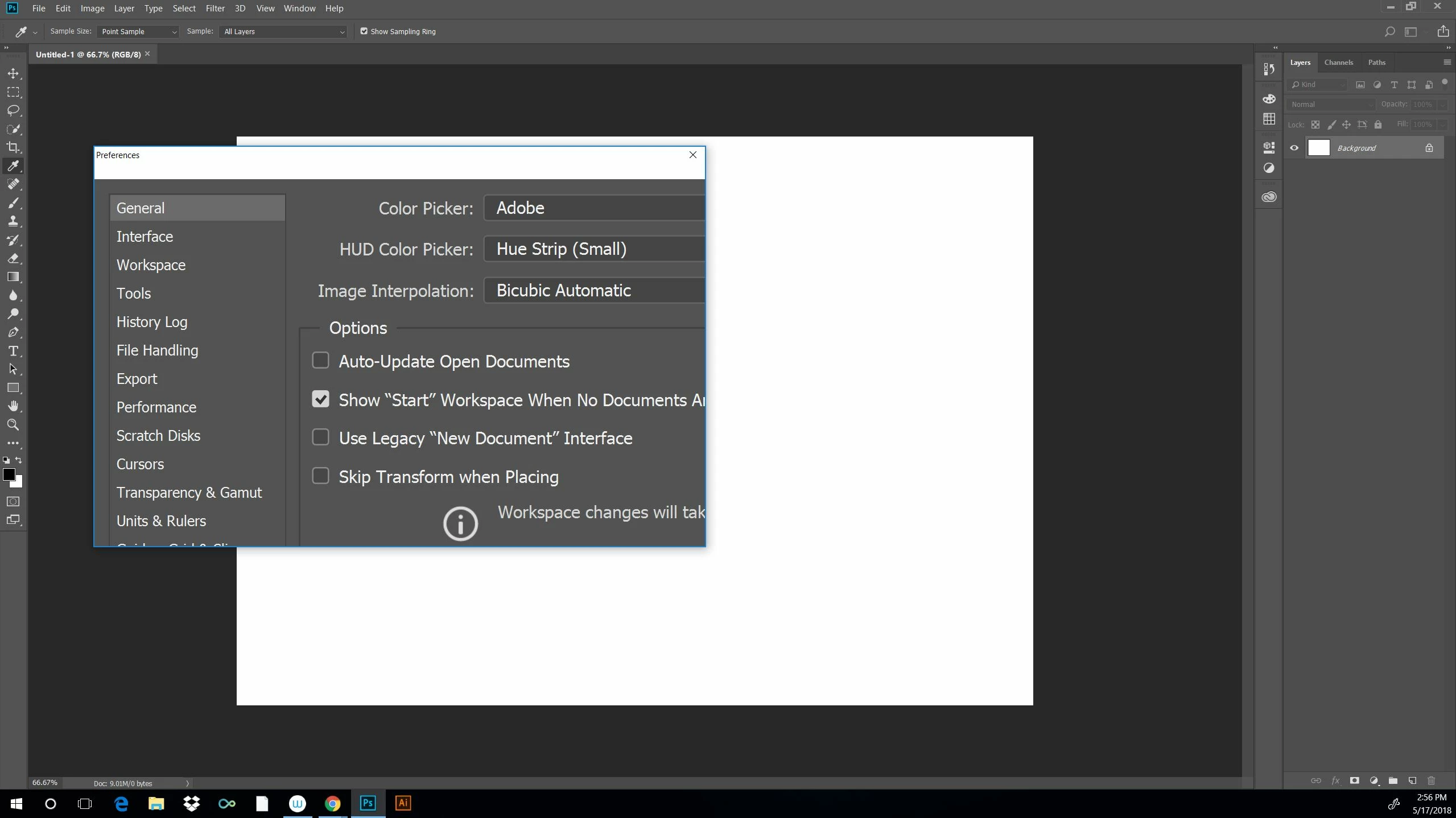
Has anyone seen this before? I've had no less than 3 "experts" try to help me fix this with no success. It happened when I got a Windows update the same day as a Photoshop update. I'm using a Cintiq. Preferences, color picker, etc. are huge and cut off. Not to mention the tiny unreadable UI.

This topic has been closed for replies.
Correct answer Bink58

Thanks for the response Mr. Pfaffenbichler.

I couldn't try your graphics processor suggestion since the preferences sub menu was rather useless. Ironically there was no way to click the OK button. But I really appreciate the input.

I did however find a work around. After searching for a solution to the tiny UI issue I found a video. It not only fixed the teenie UI but it also fixed the submenus as an added bonus. So all is well at least until I get another update of some type.

Here is the video I found. It includes links to files that resolved things. If you ever check it out I'd love to hear what you have to say about it.

How To Make Adobe Software Display Larger On High Resolution Monitors - YouTube

Many thanks on your reply!

1 reply

c.pfaffenbichler
Community Expert
Community Expert
May 18, 2018

Does turning off »Use Graphics Processor« in the Performance Preferences (Photoshop > Preferences > Performance > Graphic Processor Settings) and restarting Photoshop have any bearing on the issue?

What have you done for trouble-shooting so far?

Restoring Preferences after making sure all customized presets like Actions, Patterns, Brushes etc. have been saved might be a good starting point:

https://helpx.adobe.com/photoshop/kb/basic-trouble-shooting-steps.html

Also check out

HiDPI and Retina Display support FAQ for Photoshop

Bink58
Bink58AuthorCorrect answer
Inspiring
May 18, 2018

Thanks for the response Mr. Pfaffenbichler.

I couldn't try your graphics processor suggestion since the preferences sub menu was rather useless. Ironically there was no way to click the OK button. But I really appreciate the input.

I did however find a work around. After searching for a solution to the tiny UI issue I found a video. It not only fixed the teenie UI but it also fixed the submenus as an added bonus. So all is well at least until I get another update of some type.

Here is the video I found. It includes links to files that resolved things. If you ever check it out I'd love to hear what you have to say about it.

How To Make Adobe Software Display Larger On High Resolution Monitors - YouTube

Many thanks on your reply!