
Known Participant
November 16, 2022
Question

Photoshop Unacceptably Slow

  • November 16, 2022
  • 4 replies
  • 3141 views

Windows 11 Pro 22H2, build 22621.819

i9-9900k, 64gb RAM, RTX3080ti + GTX1650 on latest drivers

1tb NVMe SSD + 500gb SATA SSD

1440p144 G-Sync main display (3080ti-driven, all work being done here)

2x 4k60 secondary displays (1650-driven, no work being done here)


Opening photoshop takes a very long time, and always has a weird hitch that creates a black border around the bottom right of the splash screen.  Clicking during this time triggers Windows' non-responding application window:
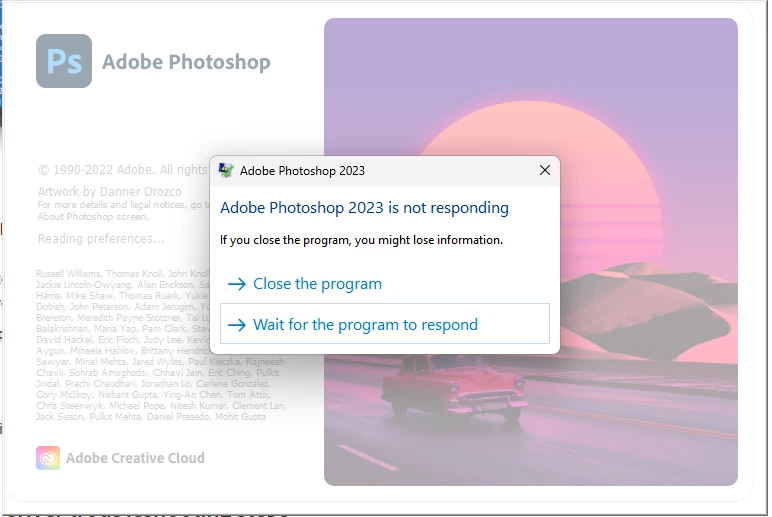


Once Photoshop is loaded (8-20 seconds later), I can create a new document.  The new document window, new or legacy, sometimes takes several seconds to render.


Creating a new document will either instantly bring me to the blank canvas as expected, or have a long delay before presenting me with the blank canvas, the panes loading up asynchronously in a jerky fashion.


Paste in my clipboard, such as the image pasted above.  This usually happens instantly, but sometimes takes a very long time (5-15 seconds).  Resolution does not impact this.


Ctrl+T to begin transforming the layer I'm on, which is my pasted content.  This reliably freezes Photoshop for up to 30 seconds.


After doing these operations, Photoshop is highly responsive as expected for these specific operations -- pasting in a new image, transforming it, etc..


Other operations have a significant initial performance issue, but then are fine for subsequent uses.  It's as if the procedure hasn't been loaded.  If I close and reopen Photoshop, I'm back to square one and the first use of these functions have significant load times.


Performance settings are default -- 70% memory allocation, 3080ti GPU-accelerated with full compatibility listed.


I have tried:

- Resetting to default preferences

- Reinstalling Photoshop entirely, including preference deletion

- Adjusting memory allocation down to 10gb

- Disabling GPU acceleration

- Closing every other running application on the computer

- Switching to legacy modes for new document window, transform, etc.

- Installing Adobe Genuine Service

- Closing Creative Cloud


I'm at a loss here.  Previous editions of Photoshop (~2020?) did not have this issue.  It's been getting progressively worse since March or so of this year.  I have not tried installing an old version of Photoshop, but now that I write this, I will later today.

This topic has been closed for replies.

4 replies

Kevin Stohlmeyer
Community Expert
Community Expert
November 18, 2022

No one has pointed this out yet but you list two graphics cards in your post. Photoshop can only manage one and having two active can lead to issues. Here's how to resolve:

https://helpx.adobe.com/photoshop/kb/troubleshoot-gpu-graphics-card.html#multiple-gpus


NB, colourmanagement
Community Expert
Community Expert
November 18, 2022

Perhaps try resetting Photoshop preferences?

(read this entire post before acting please)

Resetting restores Photoshop's internal preferences, which are saved when Photoshop closes.

If they become corrupt then various issues can occur.


Here’s some info on how to do that:

https://helpx.adobe.com/photoshop/using/preferences.html

Manually removing preferences files is the most complete method for restoring Photoshop to its default state: 

https://helpx.adobe.com/photoshop/using/preferences.html#Manually


Note re macOS: The user Library folder is hidden by default.

To access files in the hidden user Library folder, see here for how to access hidden user library files.

https://helpx.adobe.com/x-productkb/global/access-hidden-user-library-files.html


Unexpected behavior may indicate damaged preferences. Restoring preferences to their default settings is a good idea when trying to troubleshoot unexpected behaviors in Photoshop. check out the video

https://helpx.adobe.com/photoshop/using/preferences.html#reset_preferences


Learn how to access and modify Photoshop preferences and customize per your frequent workflows

https://helpx.adobe.com/photoshop/using/preferences.html


And here’s an earlier forum discussion as an aid to understanding

https://community.adobe.com/t5/photoshop-ecosystem-discussions/quick-tips-how-to-reset-photoshop-preferences/td-p/12502668


You may want to backup your settings and custom presets, brushes & actions before restoring Photoshop's preferences.

Here is general info about that:  https://helpx.adobe.com/photoshop/using/preferences.html#BackupPhotoshoppreferences


Before you reset your preferences

in case of future issues, I suggest you make a copy as Adobe may need one to check problematic references. 

Quit Photoshop.
Go to Photoshop's Preferences folder

Preferences file locations: https://helpx.adobe.com/photoshop/kb/preference-file-names-locations-photoshop.html\


  [on MacOS see: Users/[user name]/Library/Preferences/Adobe Photoshop [version] Settings

  Note for those on macOS: - be aware that the user Library folder is hidden by default on macOS.

  https://helpx.adobe.com/x-productkb/global/access-hidden-user-library-files.html

  In the Finder, open the “Go” menu whilst holding down the Option (Alt) key.

  Library will now appear in the list - below the current user's “home” directory. ]


Now you can drag the entire Adobe Photoshop [Version] Settings folder to the desktop or somewhere safe as a back-up of your settings.


Note for those on macOS:

Preference preservation is affected by macOS permissions,

you’ll need to allow Photoshop ‘Full Disk Access’ in your Mac OS Preferences/Security and Privacy


It may even be time to reinstall Photoshop.


It’s recommended that you use the Adobe CC cleaner tool to remove all traces first.

(See above about preserving preferences though! Its worth preserving them unless they are corrupted.)


https://helpx.adobe.com/creative-cloud/kb/cc-cleaner-tool-installation-problems.html

Uninstall Photoshop BUT make sure to choose the option “Yes, remove app preference”.


Once that process finishes, start the installation process and look into the “Advanced Options”. Uncheck “Import previous settings and preferences” and choose to “Remove old versions”.


I hope this helps

neil barstow, colourmanagement net :: adobe forum volunteer

google me "neil barstow colourmanagement" for lots of free articles on colour management

Known Participant
November 16, 2022

My test:

- Screencap something ~500x500 using Snipping Tool

- Open PS

- CTRL+N for a New Document

- New Document from Clipboard

- CTRL+V to paste clipboard

- CTRL+T to transform pasted content


Photoshop 22.2 takes about half as long to do this as Photoshop 24.0.1 with G-Sync disabled.


However, with G-Sync disabled for the application, the entire application window flashes black very frequently as it rerenders itself.

davescm
Community Expert
Community Expert
November 16, 2022

I can't replicate that here. Photoshop is smooth and fast across two displays.

As a test, can you reduce the frame rate for Photoshop to say 60Hz. It might sound counterintuitive but given that Photoshop is not trying to create smooth gaming video, but is now using the GPU for layer blending, it would be worth trying to see if it makes a difference on your system.


Dave

Known Participant
November 16, 2022

No difference.  I've had this as my primary working display since 2015.

davescm
Community Expert
Community Expert
November 16, 2022

Have you tried disabling G-Sync in the GPU driver?


Dave

Known Participant
November 16, 2022

Interesting thought.  Led me to look up if this has been a common issue, found this from a couple years ago:

https://www.reddit.com/r/photoshop/comments/ilitsc/psa_if_youre_experiencing_ludicrous_slowdowns_and/


Just tried G-Sync on windowed+fullscreen, fullscreen-only, and off.


Fullscreen-only and off completely are the same, and are both markedly improved over having G-Sync enabled.


I've adjusted program-specific settings as listed in the above screenshot and have G-Sync enabled for windowed+fullscreen applications.   The performance is the same as with G-Sync globally disabled, so that's a win.


However, the performance is still far worse than what one would expect, and significantly worse than what I recall of older versions of Photoshop.