Participant
November 12, 2019
Answered

Photoshop won't allow me to edit a text layer

  • November 12, 2019
  • 10 replies
  • 76634 views

When I select a text layer, select the text tool and click on the text, it does not allow me to edit that text. Instead it creates a new text layer. ??????

Correct answer Leslie Moak Murray

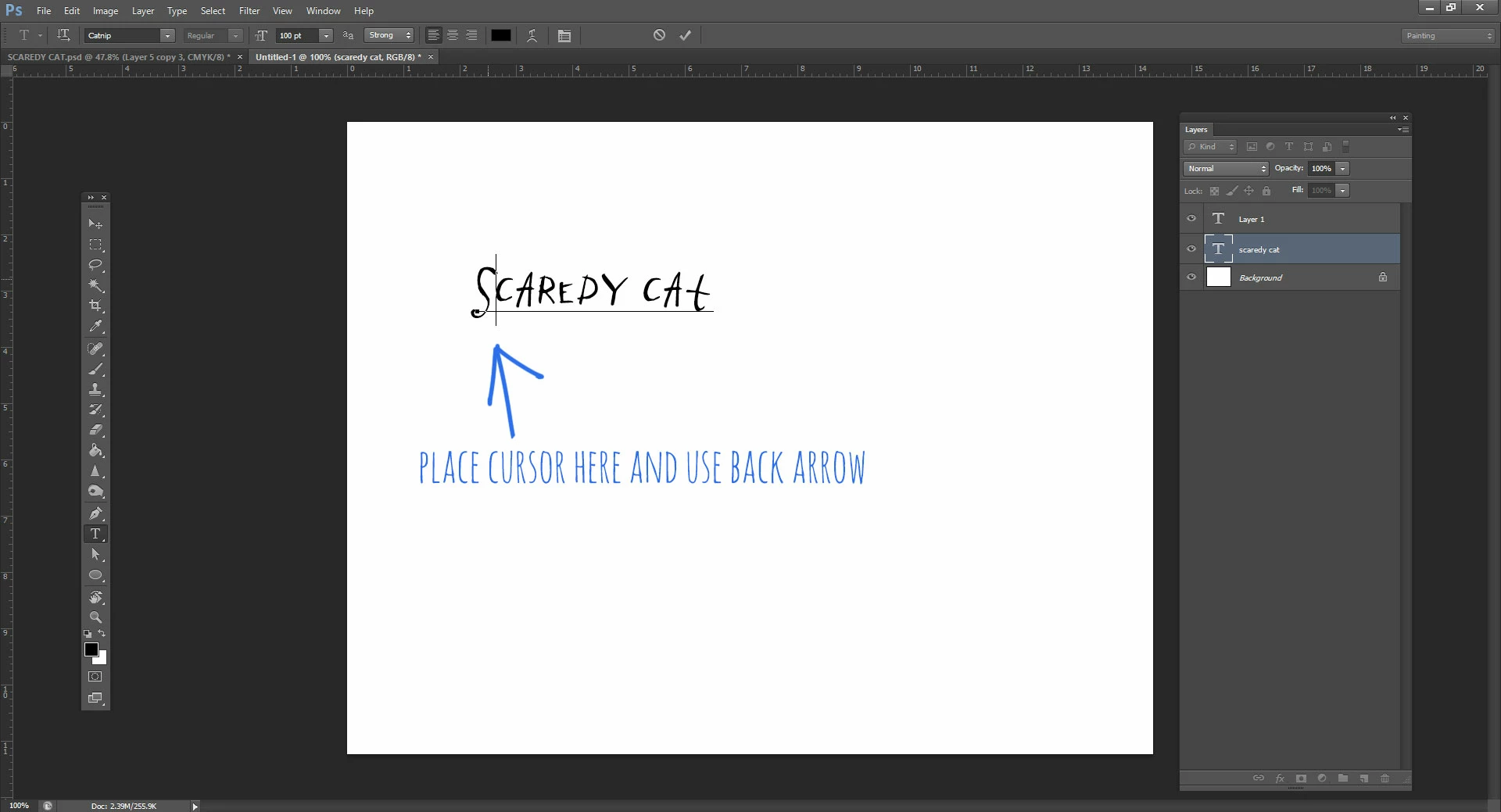
Try placing the cursor just after the first letter in your type layer and using the back arrow to get where you want to be (or the forward arrow, depending), and the type layer instead of a new layer will be the active area:
 

10 replies

Participant
April 10, 2025

Try checking whether your 'Num Lock' is on. If so turn it off, that may work. 🙂

Participant
October 27, 2024

ing the same problem. i think it's just a bug adobe needs to fix becasue I tried everything and I still can't cahnge it and just a week ago it worked jsut fine. 

Participant
January 10, 2024

What found after having the same problem was that, there is a kind of glitch in the program. What I did was: On history, I went back some steps, until the moment I did create the text, on that point it allowed me to edit it. nope, it wasn't converted to smart before, or other things people asked you.  It was just a text.


jane-e
Community Expert
Community Expert
January 10, 2024
quote

What I did was: On history, I went back some steps, until the moment I did create the text, on that point it allowed me to edit it.

By @defaultp3gj6guy6kfh


What did you see in the history after the step where you created the text that would have caused you to not be able to edit it? If you took a screenshot before you lost the history, please post it and we might spot it.


Jane


Participant
January 10, 2024

Nothing, literally nothing. That is why I said that it is a glitch. By the moment I tried to that I was one hour behind my dead line just fixing that problem....

Participant
November 1, 2023

The correct answer is not right at all - at least for me.  After makeing multiple adjustments to the text layer (just changing text), and saving it as a PNG file - the text layer goes "stupid" and will do exactly as the original poster (OP) indicates.  There is no secret placement of your cursor, or incantation that can correct this.  You have to use your UNDO history to go back to a point several steps before the bug occurs.  Yes - this is a bug. 

gshooty
Participating Frequently
February 21, 2024

I agree totally; an Adobe bug that needs to be fixed by Adobe.  In my case I have two lines of text both having their own text layer.  For whatever reason when I try to edit on the more recent layer it will snap back to the previous layer. So the obvious fix to me is lock the previous layer and all will be calm and well.  Hardly, that's when it wants to create a new text layer.  No matter what fancy little trick I try it will never place the cursor into the second layer of text... meaning you have to use your histroy feature and start that part over.  That is a bug every day of the week and it needs to be fixed!

Legend
February 21, 2024

Placing the text cursor can be difficult. I never go directly to the Text tool to edit text. Use the Move tool and double-click or double-click the text layer to edit. ONLY use the Text tool if you really want to create a new text layer.

Participant
April 13, 2023

I know this isn't the answer to your problem, but I had a similar problem and wanted to post my solution for future trouble-shooters. I wasn't able to double-click to edit text in photoshop 2023. I had artboard and a frame on the bottom layer. Apparently, the double-click text feature doesn't work if you have a frame on the artboard/canvas. The solution is to temporarily hide the frames while editing and turn them back on when you're done.

Participant
September 29, 2023

Having this iexact issue today, September 29, 2023.  I know that i DID NOT rasterize my text.  This is been an issue off and on for months and months and months.


Today, Adobe Photoshop had so many glitches that I wanted to screem.  My Selection Tools ARE NOT WORKING, haven't worked for over a week.  I folllowed the Reset Tools suggestions, NOPE.  


I saw a post on another issue and the poster said, "Make it easy like CANVA".  I thought, yeah, Canva is not a bad option at all to move to.  It seems that when PS touches one thing, or adds a "new" feature, a multitude of others go haywire.  Doesn't anyone test anything any more before rolling out to the masses?

macamilliøn56
Participant
June 29, 2022

Were you ever able to find a solution???? this [cursing removed by moderator] continues to be a problem for me


[keep your language civil]


Neckman
Participant
January 13, 2023

Today is 1-12-23 and was having the same issue and fixed it by making sure set leading is set to auto instead of 0. see attached image for reference.

jane-e
Community Expert
Community Expert
January 13, 2023

@Neckman wrote:

... making sure set leading is set to auto instead of 0.


Your issue is not the same as the OP's.


Gutenberg used typesize plus two. In your example, typical leading would be 13 pts for your 11pt type (not a hard rule). Auto leading is (by default) 120% of the point size. Zero for the leading means the lines all display on top of each other.


Best practice is to avoid autoleading and use a specific leading. Autoleading can cause a multitude of issues.


Jane


Leslie Moak Murray
Community Expert
Leslie Moak MurrayCommunity ExpertCorrect answer
Community Expert
April 30, 2022

Try placing the cursor just after the first letter in your type layer and using the back arrow to get where you want to be (or the forward arrow, depending), and the type layer instead of a new layer will be the active area:


Inspiring
November 2, 2022

Thank you so much Leslie! How  did you discover this 'secret handshake' ?🤣🤣. I couldn't get my cursor to move between the first and second letter, but the forward and back arrows work wherever the cursor lands. Thank you very much. I had to redo each line of type before finding this. Much appreciated and hope it gets fixed.

Participant
June 24, 2021

Check if your text layer is still a a "text layer". It happened to me recently that I trasnformed it by accident and spend like 20 minutos figuring out. lol

Participating Frequently
April 30, 2022

I have the same problem. I can't edit text because my layer is no longer a text layer. It's thumnail is now grey and white cheques. Can you please tell me how to change the layer back to a text layer.... The instructions I found don't seem to work. Thanks very much....

Participant
April 19, 2023

This was it.
Go to your history and clear the Rasterize Layer entry.


where do you click for that? I go to settings, then, history & content credentials, and there's no "clear Rasterize layer" option

jane-e
Community Expert
Community Expert
November 12, 2019

When you move your Type tool, look closely at the cursor. If there are dotted lines around it, that indicates that you are about to create a new text layer when you click. If there are no dotted lines, you are about to click inside existing text. It you want to edit text, either click in the middle — don’t get too close to the edge — or use the layers panel and double-click the T in the thumbnail area.


If it still doesn’t work, reset preferences.


~ Jane

Participating Frequently
November 2, 2022

Same frustrating issue...yes there are dotted lines around curso. Cannot edit the text. Has not been rasterized. No matter where I click, wants to make new layer. Giving up, opening my PS CS4 to finish this job.


PECourtejoie
Community Expert
Community Expert
November 2, 2022

Hi, can you post a screen capture, showing the layers panel as well?

Andrew Sender
Community Manager
Community Manager
November 12, 2019

Are you able to double click the text layer and then move your arrow key to move the cursor?

Participant
November 12, 2019

Double-clicking the actual text object (is that what you are asking) has no effect. If I select the layer in the layers palette, and then select the text tool, I click on the text and it creates a new text layer. The layers are not locked, so I do not know what is going on. Been a PS user since CS3, and this has never happened before.

Andrew Sender
Community Manager
Community Manager
November 12, 2019

I was referring to double clicking the text layer (specifically the thumbnail) in the layer's palette.

I'm not sure why clicking the text in the canvas is creating a new layer instead of selecting the current text.  That would probably require a remote session to disect the issue.