
Participating Frequently
February 1, 2020
Answered

Photoshop wont let me use high saturated colors

  • February 1, 2020
  • 5 replies
  • 8394 views

Whenever I try to pick a colour I want to use, the program shows a smaller swatch with a warning triangle next to it and changes to the colour in that swatch instead of the one I picked.
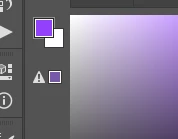
 

it generally goes for a more pastel, less saturated colour that I don't want and I would really appreciate if it would stop backseat driving so to speak. Anyone know how to fix this??

Correct answer D Fosse

My, this threaded organization of the forum with nested replies really makes a mess of it sometimes. Good luck to anyone trying to follow this... 😉


Anyway. It's simple to convert to RGB. Edit > Convert to Profile, and pick your preferred RGB profile. If you're not sure, pick sRGB IEC61966-2.1. That's always safe.


There's also an Image > Mode command that directly switches between RGB and CMYK (and other modes), but I always advise people against using this, because it just takes you to whatever you have set as your working space. That may not be what you need. Image > Mode is a relic from the time before color management was invented. It has its use, but it's always better to know which profile.


5 replies

Participant
April 10, 2023

I don't know if your still having the issue, but all i had to do was up the bit from 8 to 32.


Participant
September 25, 2020

I have just had this problem crop up in Windows 10 after an update.  None of the replies in this thread helped, nor did restarting the computer.

However, going to Settings | Windows Update | Optional Updates  now revealed a swag of driver and associated updates. With some trepidation, I just selected All, installed and rebooted.  Everything worked normally again.

This may only help a few people with this problem, but it certainly helped me!

gener7
Community Expert
Community Expert
February 2, 2020

Ok, Neil. I'm willing to accept "best practices" over "clear, simple and wrong."

NB, colourmanagement
Community Expert
Community Expert
February 2, 2020

Hi gener7,

you commented:

Please feel free to speak from your expert point of view, I'm just coming from a position that the subject of color management is daunting to a beginner and I'm trying something simple


my 10C worth:

"simple" solutions to colourmanagement questions can be useful, of course, unfortunately, though, they can also set off users down the wrong path and may form bad habits. Using image/mode can be one of those. Taking control of this conversionincreases familiarity with colourspace, that’s good - right? And its hardly complicated when described in steps.

. We are here to help but also to educate, I feel.

Dag gave a simple explanation of the process to convert, that way the user gets to see what she is doing. 


neil barstow, colourmanagement.net

[please do not use the reply button on a message in the thread, only use the one at the top of the page, to maintain chronological order]

gener7
Community Expert
Community Expert
February 1, 2020

It's just an old warning if you are going to print, that the color you picked is not suited for print (box) or web (caution sign) It is not a command, nor will that color be chosen against your will. It can be turned off by checking web safe colors, but you won't want that.

D Fosse
Community Expert
Community Expert
February 1, 2020

That's a CMYK document! The color you're trying to pick is a color that is out of gamut in your CMYK profile. It can't be reproduced as CMYK. There's no point in trying. It has nothing to do with Photoshop.


The color picker/color panel shows available RGB colors. That's the document RGB profile if it's an RGB document, but your working RGB if you're in another color mode.


For CMYK, the picker/panel isn't automatically restricted to available gamut. Instead, you get the out of gamut warning you see, the triangle and exclamation mark.

D Fosse
Community Expert
D FosseCommunity ExpertCorrect answer
Community Expert
February 1, 2020

My, this threaded organization of the forum with nested replies really makes a mess of it sometimes. Good luck to anyone trying to follow this... 😉


Anyway. It's simple to convert to RGB. Edit > Convert to Profile, and pick your preferred RGB profile. If you're not sure, pick sRGB IEC61966-2.1. That's always safe.


There's also an Image > Mode command that directly switches between RGB and CMYK (and other modes), but I always advise people against using this, because it just takes you to whatever you have set as your working space. That may not be what you need. Image > Mode is a relic from the time before color management was invented. It has its use, but it's always better to know which profile.