
Participating Frequently
November 3, 2025
Answered

Photoshop wont Print nor show ICC Profiles

  • November 3, 2025
  • 4 replies
  • 509 views

Hi. My problem is that Photoshop Print Menu is not showing the Epson ICC Profiles. I deinstalled and reinstalled the Epson driver, updated the firmware etc and it made it worse. The print menu now is not only missing the ICC Profiles, it is also missing some sections, plus a bogus menu comes instead of the original one. It wont even read the custom paper sizes. Even if I hit print, it won't print due to a 'missing software' issue. Anyone?
Correct answer Conrad_C

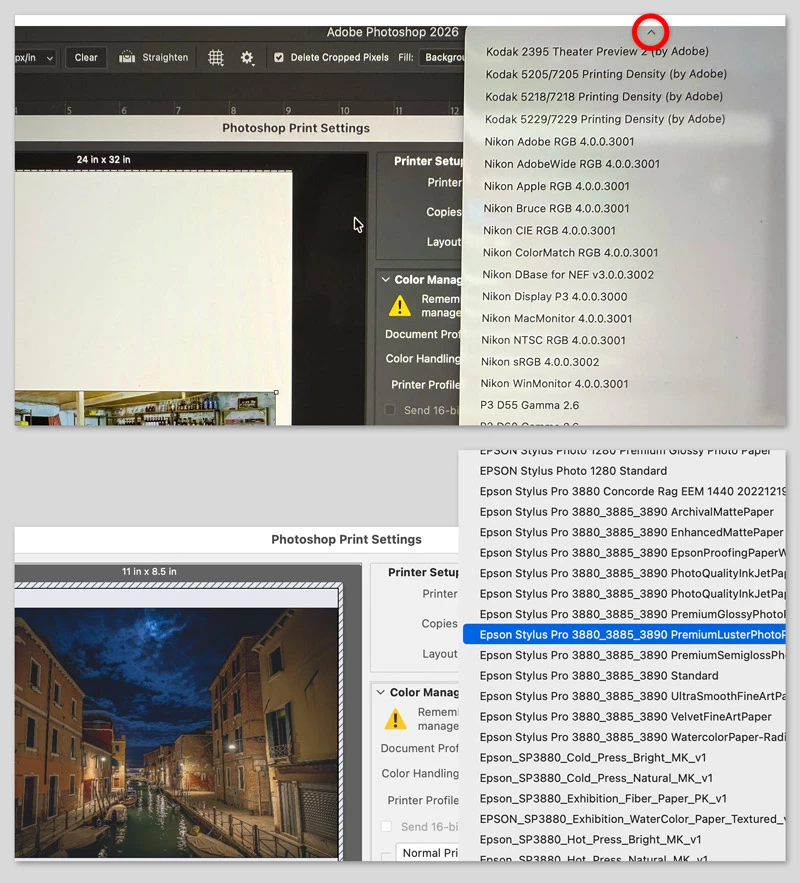
The Print dialog box should be listing profiles alphabetically, so why is your attached image IMG_4554.jpg showing K through R? Can you see the Epson profiles if you scroll up to where the E names would be listed? 


The Photoshop profile menu can be very long, partly because for some unknown reason the Printer Profile menu lists profiles that have nothing to do with printing, like ACES and Rec.2020 which are for video editing only. Here is a tip for quickly scrolling to the Epson profiles: After clicking open the Printer Profile menu, type E to go to the first menu item starting with E.


If the profiles are properly installed, they should show up in the E names as shown in the bottom half of picture below. 


4 replies

Participating Frequently
November 17, 2025

Hi, it's not quite clear to me whether the issue is resolved for you, but having spent the last 7 hours also wrestling with this infuriating issue too, I'm sharing the solution that eventually worked for me - this time at least. Pay particular attention to parts in bold; this appears to be the problem, which I suspect is down to Apple rather than Adobe (although one would hope Adobe would know about it!).


Setup: Mac M3 Sequoia 15.6.1 and PS V 27.0.0 


  1. Quit PS and LrC
  2. Mac settings > Remove printer
  3. Epson > download and install latest printer driver. (Yep, again, even if you did just update it to latest version via Epson S/W Updater. No idea why, I can only share what worked or didn't, and updating via Ep S/W Installer didn't help).
  4. Epson Media Installer > check desired ICC profiles are still downloaded and show as On PC / On printer. (If not, Refresh. If that doens't work, select profiles > Download again).
  5. Mac Settings > add printer > Use: [your printer model]. (💡Don't apply logic here and skip this!! Seeing correct printer in this field doesn't guarantee it's the printer PS is looking at. CLICK ON PRINTER NAME to reveal hidden menu.
  6. Select software > pick correct printer from list > Add. (On mine it defaults to the second one down, Dymo. This appears to be the issue causing our problem. (This time anyway).
  7. Check Kind shows [your printer model] and Mac O/S hasn't hijacked it to use AirPrint (ie Kind: shows Epson, not AirPrint. If it does show AirPrint, hit Remove and start again).
  8. Re-start Photoshop
  9. Print > color handling: Photoshop > ICC profiles should now visible in Printer Profile list.


Hope that works for you.


NB, colourmanagement
Community Expert
Community Expert
November 18, 2025

@ZappaJul Yeah as I explained above that's the AIRPRINT driver issue, selecting that in "use" when adding the printer loads a generic driver missing a load of features like proper paper names etc.. 


I THINK the OP's [ @guillermosh ] issue was mainly not seeing ICC profiles listed in the 'Photoshop Manages Color' list, but they were apparently also using what looked like the AIRPRINT driver, which wouldn't have been helping print appearance. 


I hope this helps

neil barstow colourmanagement - adobe forum volunteer,

colourmanagement consultant & co-author of 'getting colour right'

See my free articles on colourmanagement online

Help others by clicking "Correct Answer" if the question is answered.

Found the answer elsewhere? Share it here. "Upvote" is for useful posts


Participating Frequently
November 18, 2025

Hi @ZappaJul and NB, I have followed all your recommendations and still nothing.

The one thing that is not popping up is the AirPrint option.

These are the steps you recommend, with their corresponding screenshots:

1- Delete printer


2- Download and install Epson Driver

3- Add printer and click Use.

4- Select Software. Select the printer name. OK.


4- 


4- Reopen Photoshop. Look for the Epson ICC Profiles. *Nothing comes up!*

NB, colourmanagement
Community Expert
Community Expert
November 6, 2025

@guillermosh a bit more detail on the "Airprint" thing ( and its not just relevant to Epson printers) :

Epson / Mac: Add printer, AirPrint issue, here are some notes about Apple’s built in (default) Gimp Print / Gutenprint based printer drivers.

Best avoided.  It can print quite differently from the manufacturer's own driver software. 


Does the print driver look different? some options have changed?

Are media names the same as previous drivers you've used, e.g.. is 'Premium Luster Photo Paper' mentioned or are the media types just simplified names like matte or gloss? 


You'll be aware, I'm sure, that the selected media name in the driver must match the selection made when printing ICC profiling patches, (so the ICC profile and media type selection are linked) . BUT is the media name selected previously actually there in the list?

IF the media names listed differ (and have been simplified) then you are perhaps inadvertently using Apple’s default Gimp/ Gutenprint driver rather than Epson’s own. It's not just a matter of installing Epson driver software, you have to select it too. I do know it's very important to use Epson's own driver software. I tripped over this myself on a client site, the driver looked different and I put it down to an OSX update imposed style - took a while to work that one out.


Here's an example of what I'd expect to see in an Epson driver under "Media Type" for media name options:

Can you access print settings in an application other than Photoshop, try Preview?

If not, a thorough purge may be in order, perhaps install drivers (downloaded from Epson or your own printer manufacturers site) again: 


1. Delete all instances of Epson printers from 

System Settings (or System Preferences depending on Mac OS version) / Printers & Scanners -or- System Preferences>Print & Fax, whichever you have.

2. Then go to /Library/Printers and trash the whole Epson folder.

3. Delete the Epson LFP Remote Panel (IF you are using that utility).

4. Then go to Epson online and download the printer drivers yourself.

Do not let the Mac install the printer driver for you.


There’s one more tripwire - in System Settings (or System Preferences depending on Mac OS version) / Printers  - - - , when adding the connected printer

[i.e. click the padlock, enter your password and click the “+” button]


- watch out for the “Use" selection - I recommend you do not select "Airprint" there under "use", but, rather, manually set "use” to the printer name, which will then call on the manufacturer’s own software rather than the default Apple driver (that’s based on Gimp Print / Gutenprint, which misses out some printing options such as specific manufacturers media names). 


Ted Landau mac Guru had the same issue:https://www.macworld.com/article/224167/the-trick-to-finding-the-right-printer-driver-for-your-mac.html


I hope this helps

neil barstow colourmanagement - adobe forum volunteer, colourmanagement

consultant & co-author of 'getting colour right'

See my free articles on colourmanagement online

Help others by clicking "Correct Answer" if the question is answered.

Found the answer elsewhere? Share it here. "Upvote" is for useful posts

Participating Frequently
November 13, 2025

Thank you for answering. I am not using "Airprint driver" nor it pops up in any window that you have mentioned as I followed your step by step. (FYI I am using a USB cable from printer to computer.) Still in the dark here. Shall I do a thorough purge as you suggested? I have deleted the printer, deinstalled the epson drivers and reinstalled everything from the epson page at least 5 times. 

Conrad_C
Community Expert
Conrad_CCommunity ExpertCorrect answer
Community Expert
November 13, 2025

The Print dialog box should be listing profiles alphabetically, so why is your attached image IMG_4554.jpg showing K through R? Can you see the Epson profiles if you scroll up to where the E names would be listed? 


The Photoshop profile menu can be very long, partly because for some unknown reason the Printer Profile menu lists profiles that have nothing to do with printing, like ACES and Rec.2020 which are for video editing only. Here is a tip for quickly scrolling to the Epson profiles: After clicking open the Printer Profile menu, type E to go to the first menu item starting with E.


If the profiles are properly installed, they should show up in the E names as shown in the bottom half of picture below. 


Conrad_C
Community Expert
Community Expert
November 3, 2025

The options shown in the screen shots are more basic, so it looks a lot like the perennial problem where the Mac is using the basic default Epson printer driver software installed by macOS (it may appear as an “AirPrint” driver), and not the full professional Epson driver that shows all features and profiles.


The traditional way to fix this is to go to the Epson web site, download the latest available Epson driver installer for your specific printer model and version of macOS, and run that installer.


For more general background about this problem, read this 2014 article by Macworld magazine:

https://www.macworld.com/article/224167/the-trick-to-finding-the-right-printer-driver-for-your-mac.html

Legend
November 3, 2025

Its also a good idea to reset the printing system, then install the correct Epson driver.

https://support.apple.com/guide/mac-help/reset-printing-system-mac-solve-a-problem-mh14001/mac

D Fosse
Community Expert
Community Expert
November 3, 2025

That's not the Epson driver, that's a generic MacOS driver.


Reinstall again.