Participant
February 15, 2018
Answered

PhotoshopCC 2015 - Move tool changing layer order

  • February 15, 2018
  • 1 reply
  • 403 views

Doesn't seem to matter what I do the move tool now changes the layer to the top of the layer order. I was looking around the boards but all of them were answered with the fact that "auto-select - layer" was turned on, but mine is off (tried turning it on and off anyways, but it didn't change anything). It originally started with a 2 linked layers, but I tried single layers as well and it is still happening. Oddly enough all my layers were out of order when I opened the file yesterday, but even then I didn't have this issue (As you can imagine I am getting annoyed with layer problems).

So will those smarter, wiser, more knowledgeable, helpful, and benevolent people of the world please help solve my problem and bring one more useless comic into this world...

This topic has been closed for replies.
Correct answer Barb Binder

Barb,

Yeah I just select and drag the layer. As you can see in the two pictures I barely even moved the oddly shaped speech bubble that says ,"Hey Cane" and it sent it to the top layer of the artboard. Considering I have to edit all those type layers I really don't want to have to move every single one back (though I suppose I could do them all at once afterwards, but it just seems to be a bigger pain than it should be. The odd thing is it is moving it right out of the group it is in.


Ok, that's not normal, nor is there anything abnormal about your screen shots.

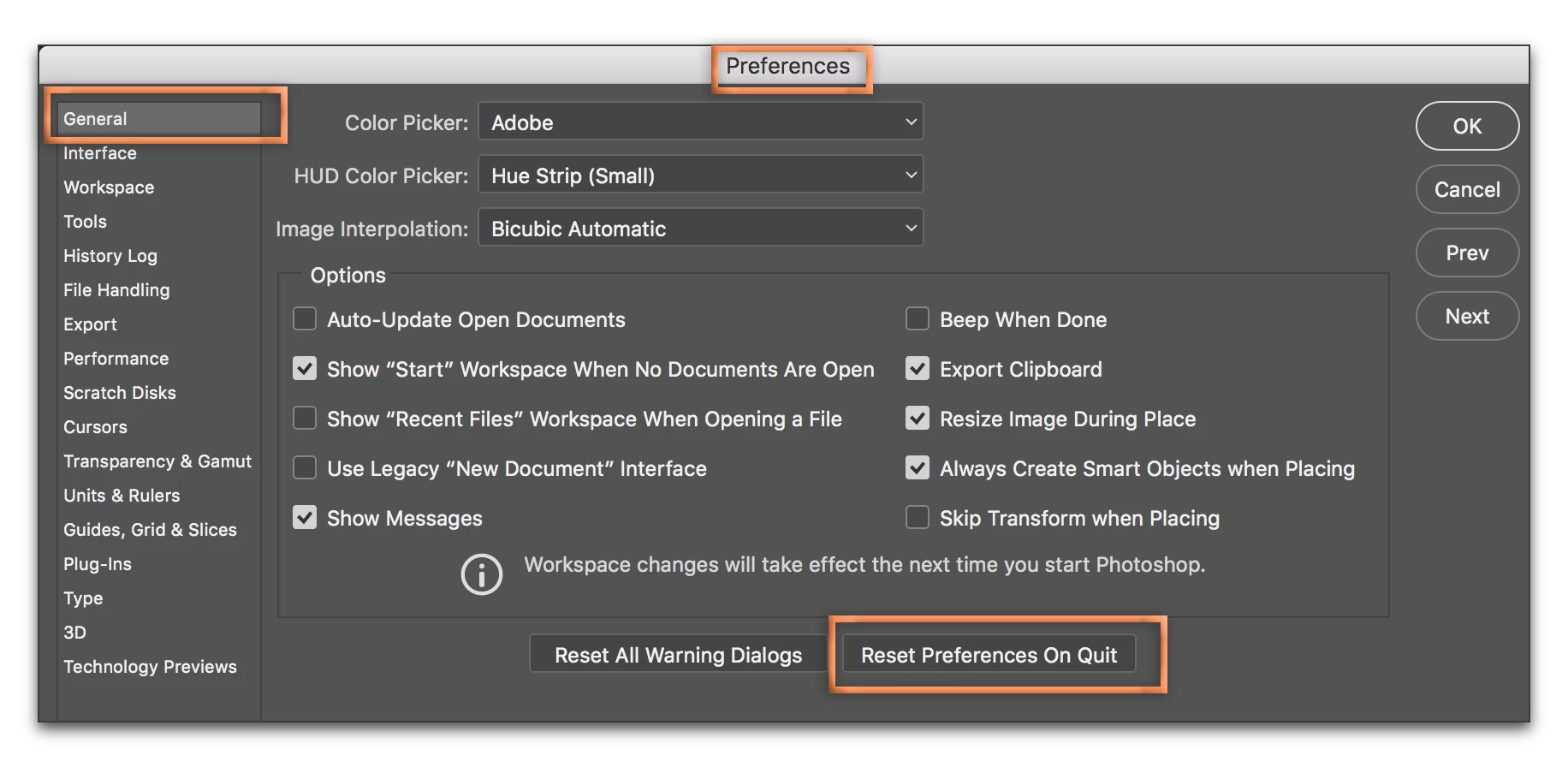
Have you tried resetting preferences? Be sure to save any custom brushes, etc. before you do, though.

~Barb

1 reply

Barb Binder
Community Expert
Community Expert
February 15, 2018

Hi Desidus:

Would you please share a screen shot of the file with the following:

  1. The Move tool selected
  2. The Options bar visible
  3. The entire image visible
  4. The Layers panel open and showing all of the layers

~Barb

~Barb at Rocky Mountain Training
DesidusAuthor
Participant
February 15, 2018

Barb,

Unfortunately I don't think there is a way to show all of the layers... way too many. However for the rest I can do so.

Barb Binder
Community Expert
Barb BinderCommunity ExpertCorrect answer
Community Expert
February 15, 2018

Barb,

Yeah I just select and drag the layer. As you can see in the two pictures I barely even moved the oddly shaped speech bubble that says ,"Hey Cane" and it sent it to the top layer of the artboard. Considering I have to edit all those type layers I really don't want to have to move every single one back (though I suppose I could do them all at once afterwards, but it just seems to be a bigger pain than it should be. The odd thing is it is moving it right out of the group it is in.


Ok, that's not normal, nor is there anything abnormal about your screen shots.

Have you tried resetting preferences? Be sure to save any custom brushes, etc. before you do, though.

~Barb

~Barb at Rocky Mountain Training