planet88
Participating Frequently
January 28, 2022
Question

Pixels blur/ distort when rotating image

  • January 28, 2022
  • 1 reply
  • 3152 views

hi there, any help would be appreciated


Since updating to Adobe Photoshop CC (I used to use Photoshop CS5 many years ago) I've noticed when I rotate images, the pixels blur and distort.

I've followed advice from others posts in these forums and nothing seems to work!


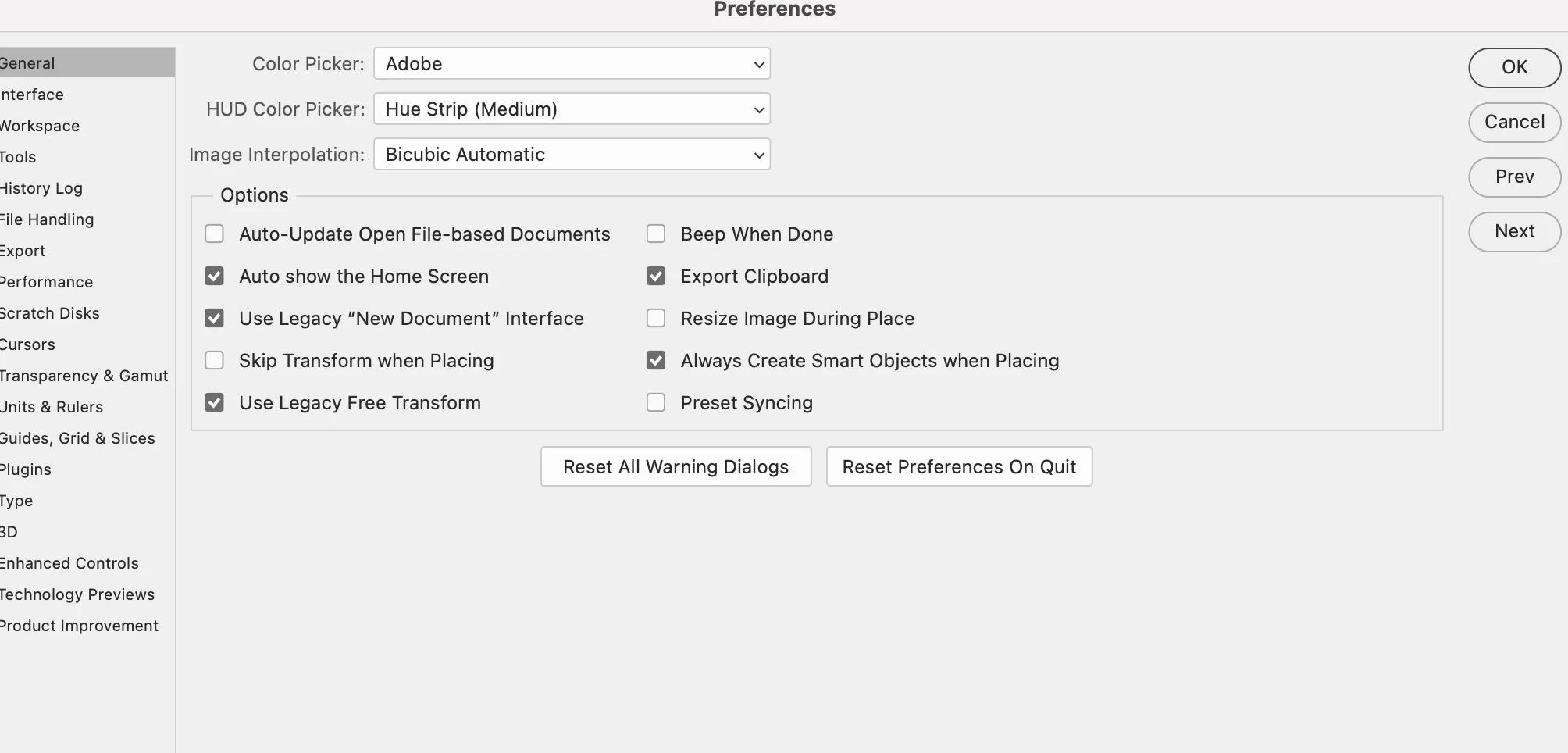
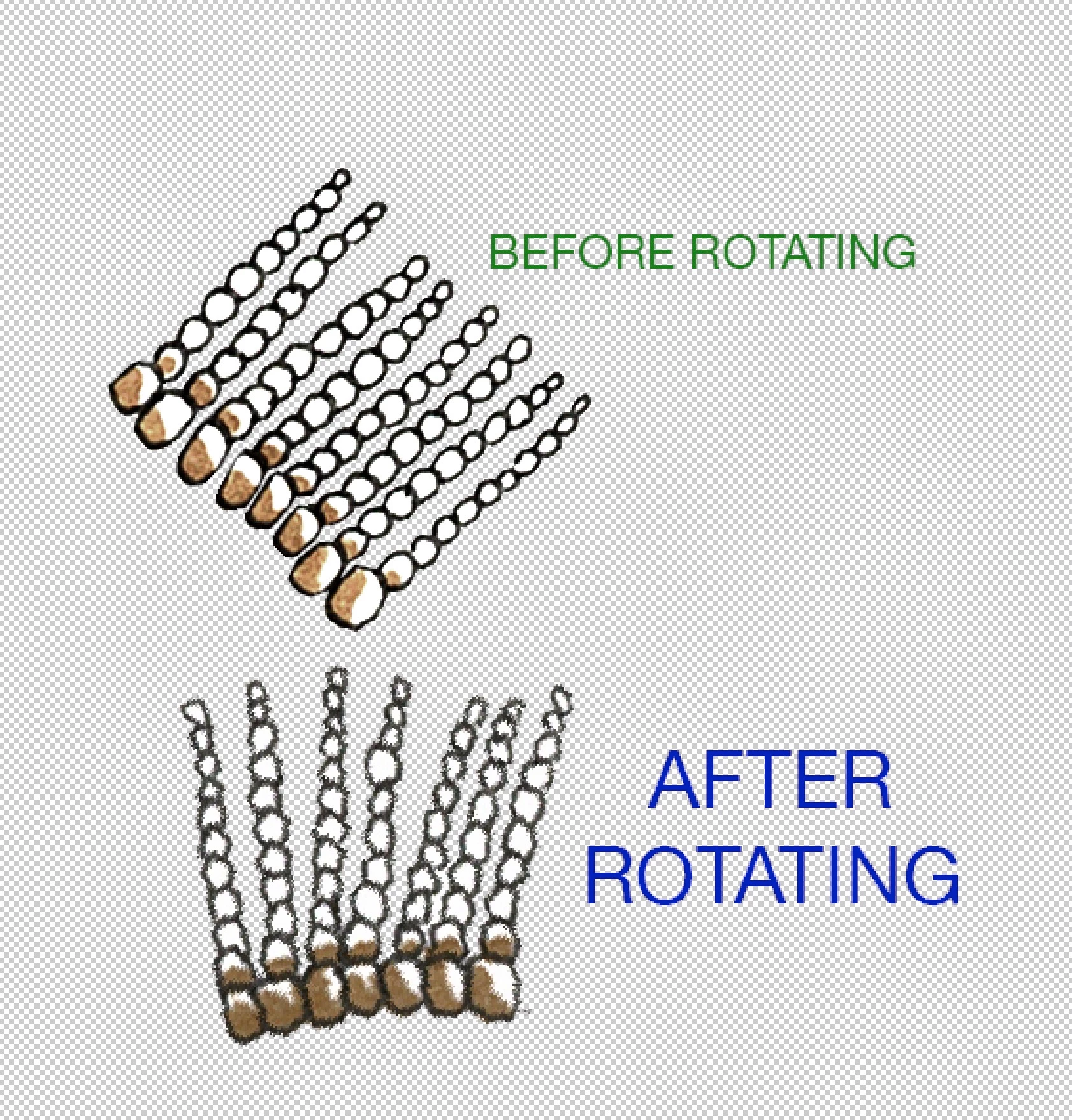
Here is an example below, along with the Interpolation settings currently set .

As you can see, my pen drawing is clean - then becomes blurred after rotating. I never had this issue when I used to use CS5 years ago. 

Any thoughts appreciated. 

Thanks in advance! 
This topic has been closed for replies.

1 reply

Bojan Živković11378569
Community Expert
Community Expert
January 28, 2022

Something is wrong. Can you post screenshots before and after in 100% zoom? Press Ctrl + 1 to display at 100%.

planet88
planet88Author
Participating Frequently
January 28, 2022

This happens regardless of the motif, or style I am working in. 

I typically draw in ink, by hand, scan at a high resolution - then composite the final work together in Photoshop. 

If I rotate the motifs, they become 'furry' or blurred like the screenshot. 

D Fosse
Community Expert
Community Expert
January 28, 2022

In the original example you posted, you haven't just rotated, you have also rearranged the elements relative to each other. So that suggests you have performed repeated transforms - in other words, cumulative resampling.


Every time tou resample the pixels, it gets slightly softened. That's just because it's made of individual pixels.


To minimize this, use smart objects. You will still get one final resampling when done, but you avoid the cumulative effects. A smart object always contains an unchanged reference original embedded in the file.


You can also try different resampling algorithms. Note that this can be set individually for many tools, which will override the preference setting.


Oh, and as Bojan suggests, always view at 100% to judge the result. This maps exactly one image pixel to exactly one screen pixel, so you get a true representation on screen of the full pixel data.