



bartonlew
Legend
February 29, 2020
Answered

pixels changing when using Edit>Transform>Warp

  • February 29, 2020
  • 1 reply
  • 2043 views

I am trying to apply Tranform>Warp to a layer and when doing so, the appearance of the image changes.  It's hard to see but in the 1st attachment, the image is not transformed.  In the 2nd, a Warp is applied and you can see more tiny white pixels in the red circled area.  Is the image breaking up as a result of being transformed, or something like that?  I have never encountered this before.  Thanks.
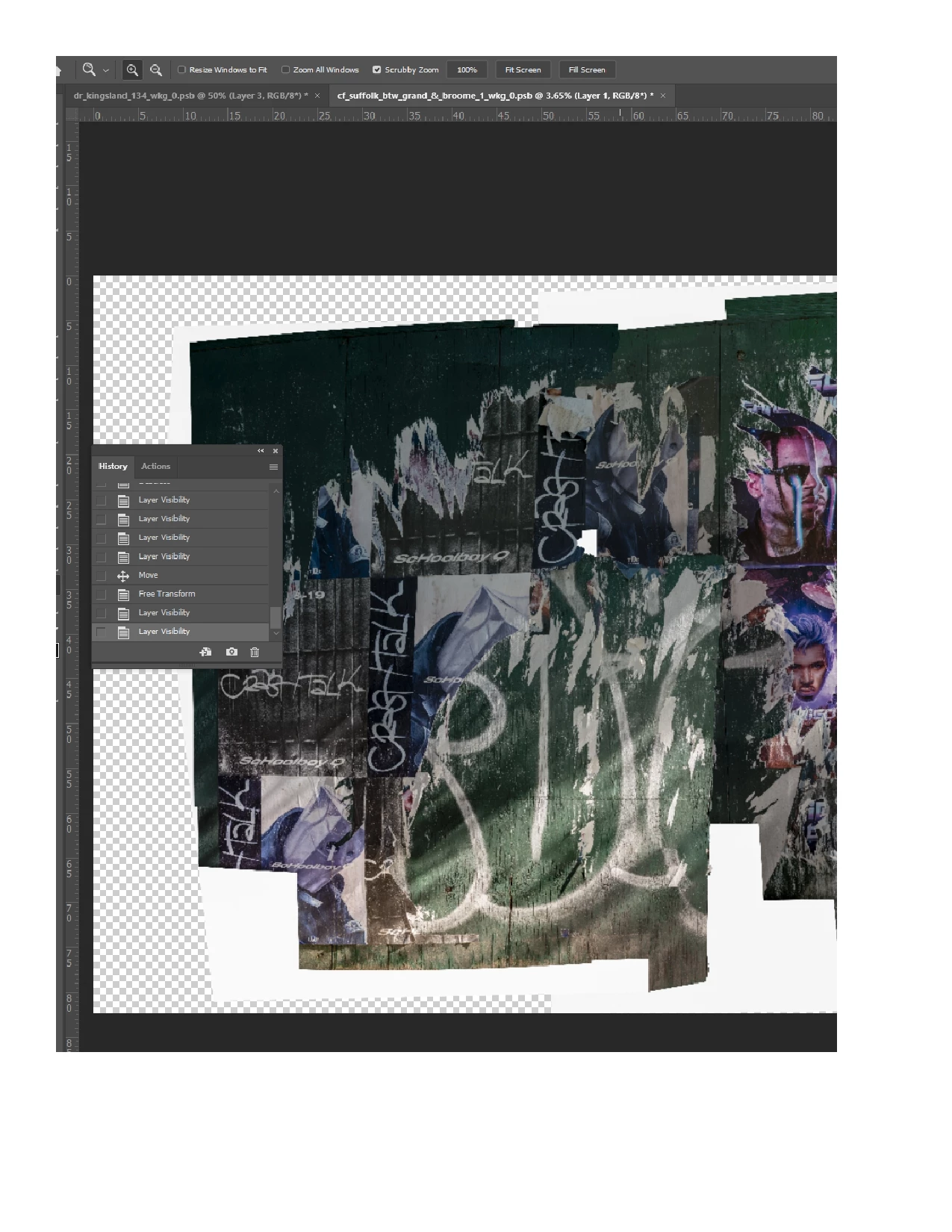
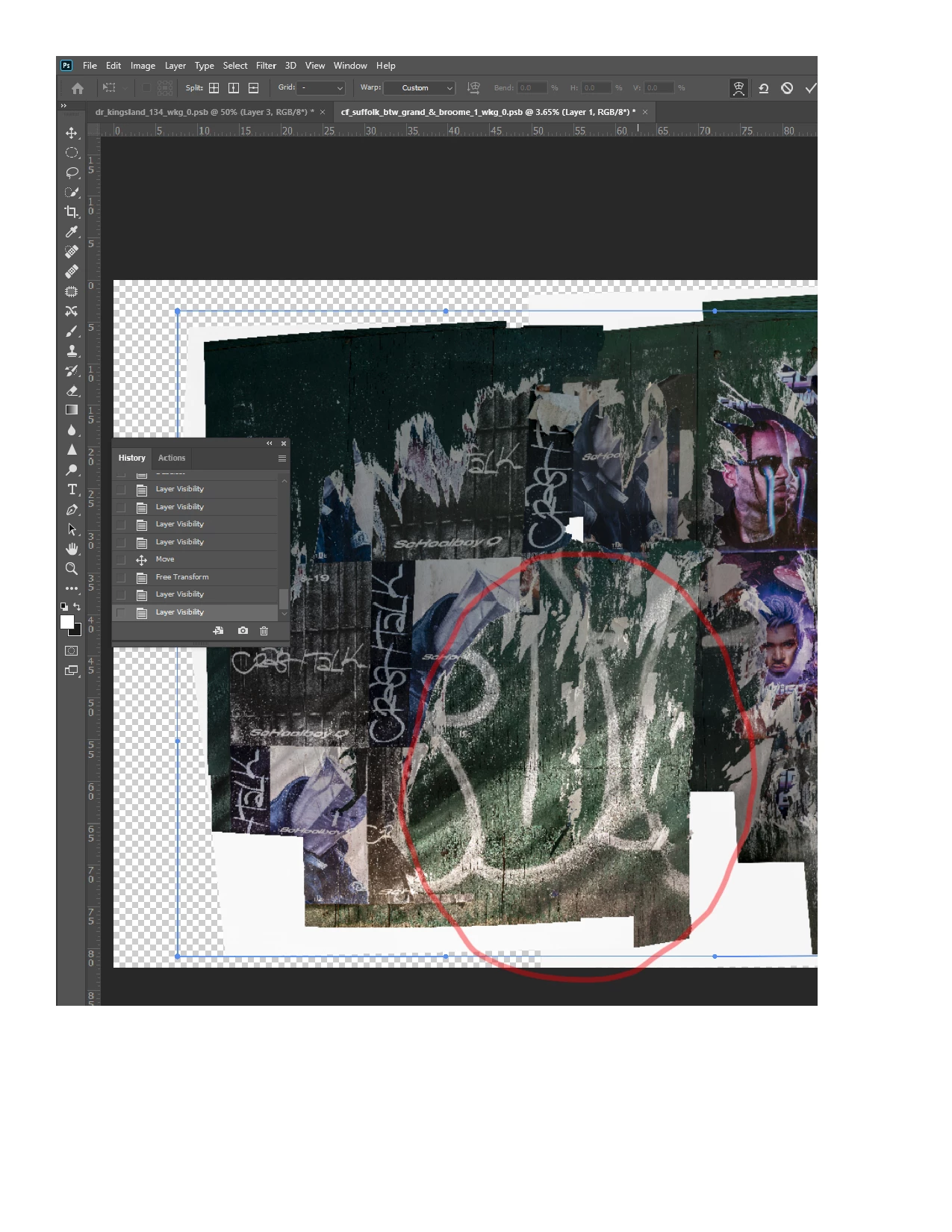
This topic has been closed for replies.
Correct answer mglush

I can see what you are talking about.But I am also seeing a rougher look on the image overall, and I am wondering if that is the interpolation of the Warp tool as it makes changes to the image. Why it's happening, I'm not sure. Can you try it on anther image and see if it creates the same issue? Experiment on another image and let us know if it's doing the smae thing.


You might be able to do a smart blur to certain areas to take care of the lighter pixels. Duplicate the layer, apply a small blur to that layer, and then hide it all with a layer mask. Then on that top layer, in the layer mask, paint with white to fill in the areas that have the speckles. That way, you are not bluring the whole image--just adding the color back into the areas that were affected. 


Let us know if that helps,

Michelle

1 reply

mglush
Community Expert
Community Expert
February 29, 2020

Hi!


Thanks for the screen shots! I am not seeing the white spots that you're talking about. I am seeing some degredation in the image that comes from warping pixels. Could you draw a smaller circle around one of the white pixels you are refering too? Also, what type of warp are you using? A custom? Are you using the blend function in the options bar when you warp? If so, it may be blending with the white or transparent layer behind your artwork. What version of Photoshop are you using?

Michelle

bartonlew
bartonlewAuthor
Legend
March 1, 2020

Thanks for your reply.  Here is a tighter shot of the affected area.  The only difference between the 2 is that in the 2nd, Transofrm>Warp has been applied.  Hopefully you can see what I am talking about with the increased highlights in the form of dots or flecks in the image.  It's subtle but is mainly in the green background area in the lwoer portion of the image. age.  Thank you.

mglush
Community Expert
mglushCommunity ExpertCorrect answer
Community Expert
March 1, 2020

I can see what you are talking about.But I am also seeing a rougher look on the image overall, and I am wondering if that is the interpolation of the Warp tool as it makes changes to the image. Why it's happening, I'm not sure. Can you try it on anther image and see if it creates the same issue? Experiment on another image and let us know if it's doing the smae thing.


You might be able to do a smart blur to certain areas to take care of the lighter pixels. Duplicate the layer, apply a small blur to that layer, and then hide it all with a layer mask. Then on that top layer, in the layer mask, paint with white to fill in the areas that have the speckles. That way, you are not bluring the whole image--just adding the color back into the areas that were affected. 


Let us know if that helps,

Michelle