There is another alternative that doesn’t require any scripts or actions. It depends on some of the newest features in Photoshop, and relies on some quirky inconsistencies in how Photoshop does things. The method shown in the demo below is based on these features, which you’ll have to be familiar with to pull it off:
- Frames, drawn with the Frame tool. Frames are placeholder shapes, which means it’s easy to replace what they contain. Photoshop also recently added frame fitting options like Fill Frame Proportionally, which make frames much more practical to use now (more like the powerful frames in Adobe InDesign).
- Contextual Task Bar and Properties panel, which make it easier to edit how the frame contains its contents (your photo). You have to know them both because they offer different options.
- Linked Smart Objects. Instead of embedding the photo twice in the Photoshop document, it’s not actually in the document. Instead, a frame links to the photo file by remembering the path to its folder and file name, the same way linking to source files works in page layout and video editing apps. This makes it easy to replace multiple instances of the same photo, which is what you have. Frames work this way, but not exactly (that’s part of what’s quirky).
How I set up the template:
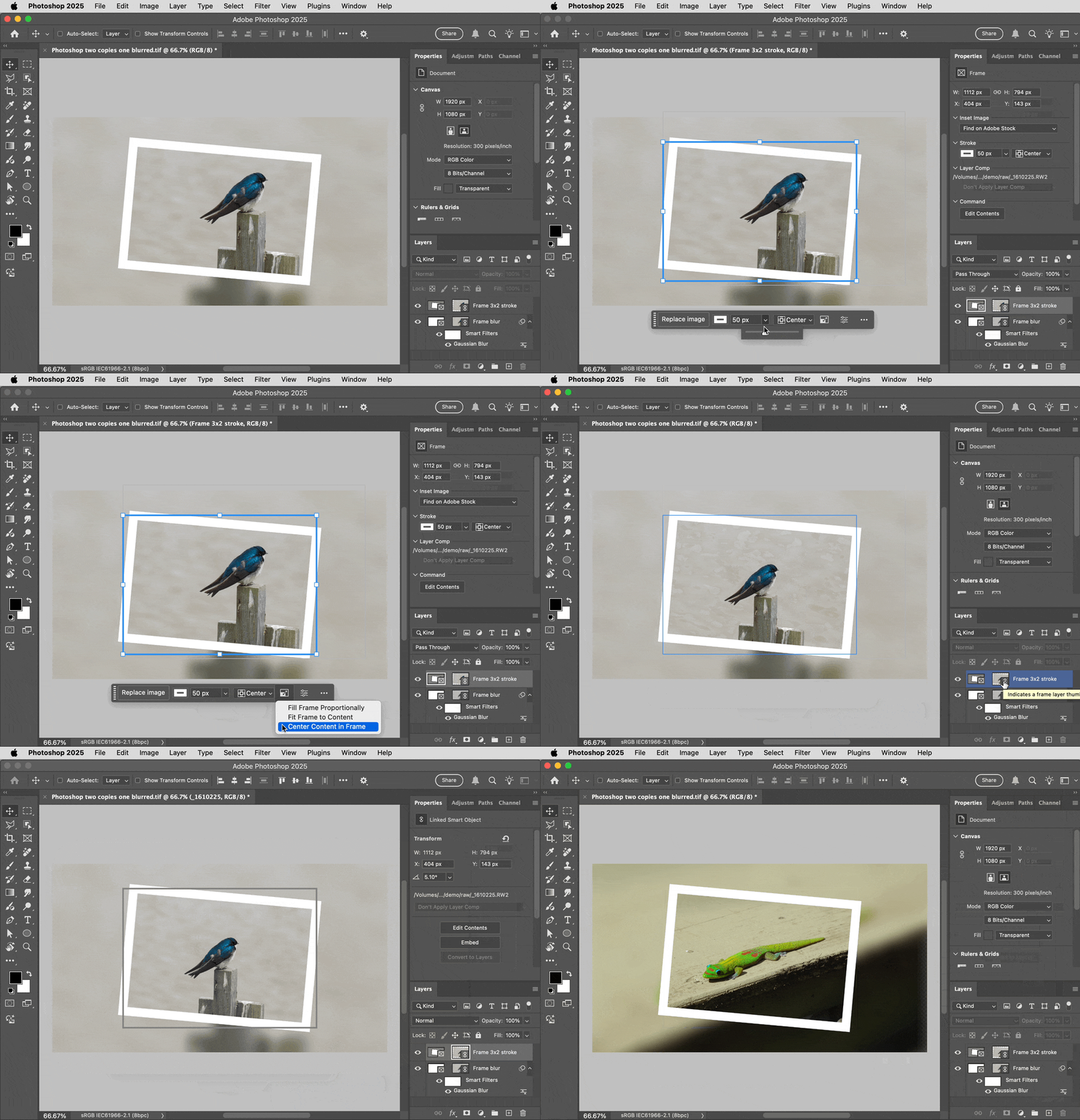
1. With the Frame tool, draw a frame that matches the 16 x 9 canvas size of the Photoshop document.
2. Drag an image from outside Photoshop, and drop it on the frame. It becomes a Linked Smart Object.
3. In the Layers panel, click the left frame thumbnail for that frame, to select the frame (clicking the right thumbnail would select the frame’s contents).
4. Duplicate the frame layer (drag to New Layer icon, or choose Layer > Duplicate Layer).
5. With the frame layer duplicate selected, choose Edit > Free Transform, and adjust its proportions to the other aspect ratio using the Free Transform handles or by entering values in the options bar or Properties panel. (You said 4 x 3, but it looks to me like 3 x 2 so I set mine to 3 x 2.) This is also a good time to make the duplicate frame smaller and rotate it.
6. Make sure the duplicate frame is selected so that it displays frame controls in the Contextual Task Bar. Adjust those as needed; you’ll probably want to use the stroke width and color options (you don’t need to add a separate Stroke effect) and the frame fitting options.
To replace the image in the placeholder frames:
1. Make sure either thumbnail of the duplicate frame is selected.
2. In the Properties panel, click the file path displayed in the Layer Comp section; this opens a menu.
3. Choose Relink to File (or Replace Contents), select your replacement image, and click Place. If it’s a raw/DNG image, Camera Raw opens so click OK there.
4. The replacement image is inserted. Both frames should update with the relinked image.
5. If the replacement image is not properly sized or centered, that means it had a different width and height (in pixels) than the previous image. Use the frame fitting options on the Contextual Task Bar to correct this in just one or two clicks. You’ll probably use Fill Frame Proportionally and Center Content in Frame the most.
Important: In step 2 you might be tempted to replace the image another way, like dropping a new image into the frame or using the Replace Image button in the Contextual Task Bar. But I found that those replace only the image in the selected frame layer. That’s usually OK but in this case you want both frames to update. Clicking the path in the Properties panel to choose Relink to File or Replace Contents is the only way I have found to replace the image in both duplicates in one step. This might be related to Photoshop relinking Linked Smart Objects differently than frame contents.

 AdChoices