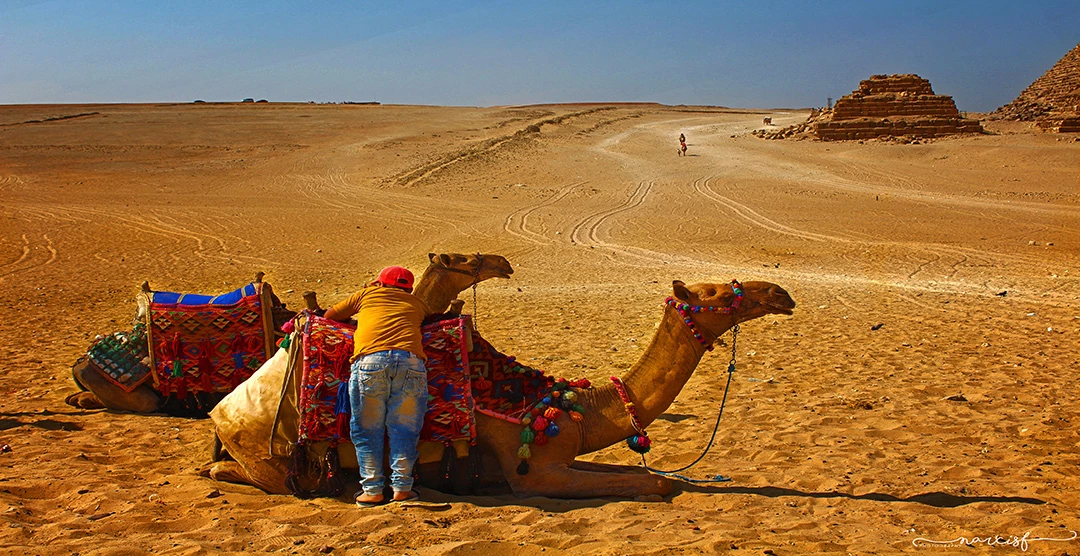
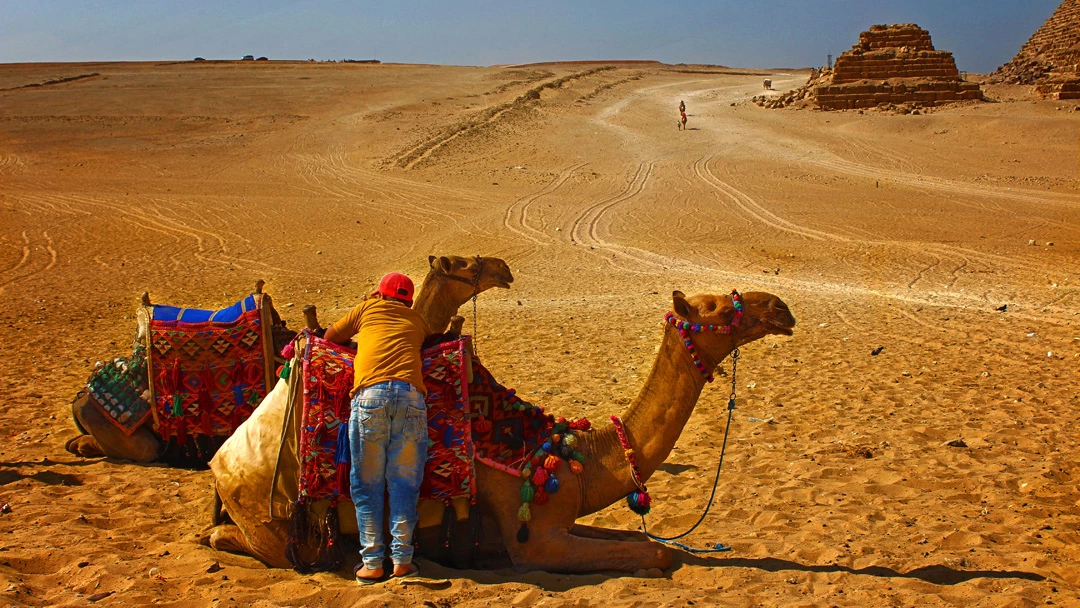
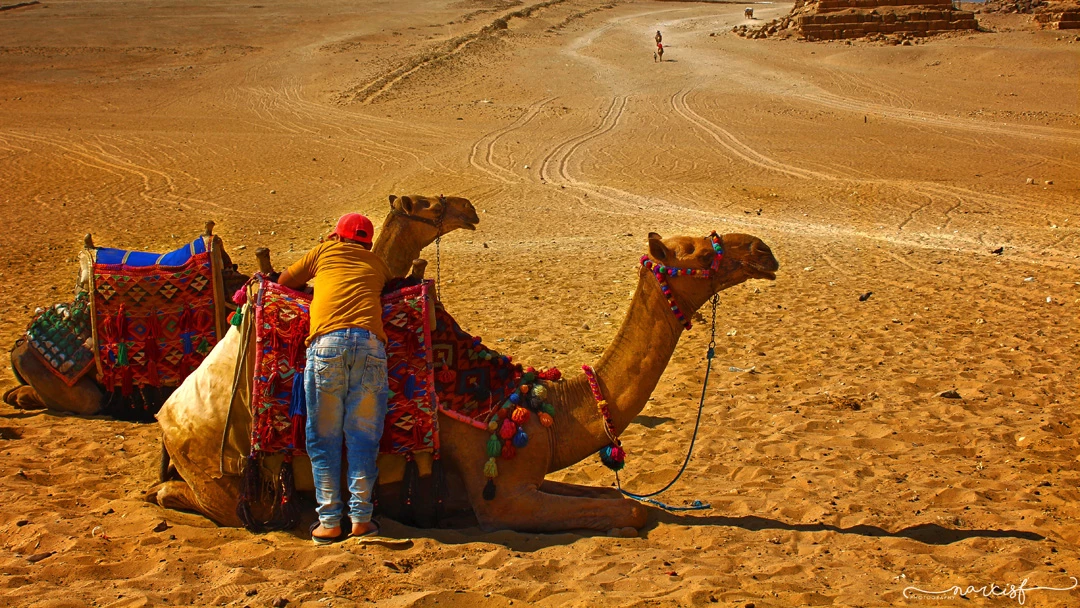
I have a really big problem with PS that i don t know how to figure it out.My problem is that my DSLR takes photos in 5184x2714 px and when i want to change the size for instagram for 1080x556 it's always blurry.I've tried all the ways:smart object,bars,everything and the picture in 1080x556 is awful.
Your Canon 700D camera has a 3:2 aspect ratio and captures an image 5184px x 3456px can also output a 16:9 Crop image 5184px x 2912px. You should use the 3:2 image 5184px nx 3456px and do your own cropping for the aspect ratio images you want. First think about your post image content and its aspect ratio. Do not be concerned at first about the number of pixels you want to post. What should be you first concern is the content you want to post. The composition of the images you are going to post.
I did a quick search for Instagram image sizes and found a nice link instagram image size guide2020 It has a chart the brakes the image size down to show kind, aspect ratio and the number of pixels.
What are the dimensions for Instagram?
Instagram video and photo sizes have varying dimensions depending on the orientation of the photo and tool it’s being posted with. Here’s a quick list of the most common Instagram photo and video dimensions:
Type of Instagram Post
Aspect Ratio
Instagram Post Size
Square Photo
1:1
1080 x 1080px
Landscape Photo
1.91:1
1080 x 608px
Portrait Photo
4:5
1080 x 1350px
Instagram Stories
9:16
1080 x 1920px
IGTV Cover Photo
1:1.55
420 x 654px
Instagram Square Video
1:1
1080 x 1080px
Instagram Landscape Video
1.91:1
1080 x 608px
Instagram Portrait Video
4:5
1080 x 1350px
So the steps you should do are:
1.) Decide what type of image you want to post from column 1
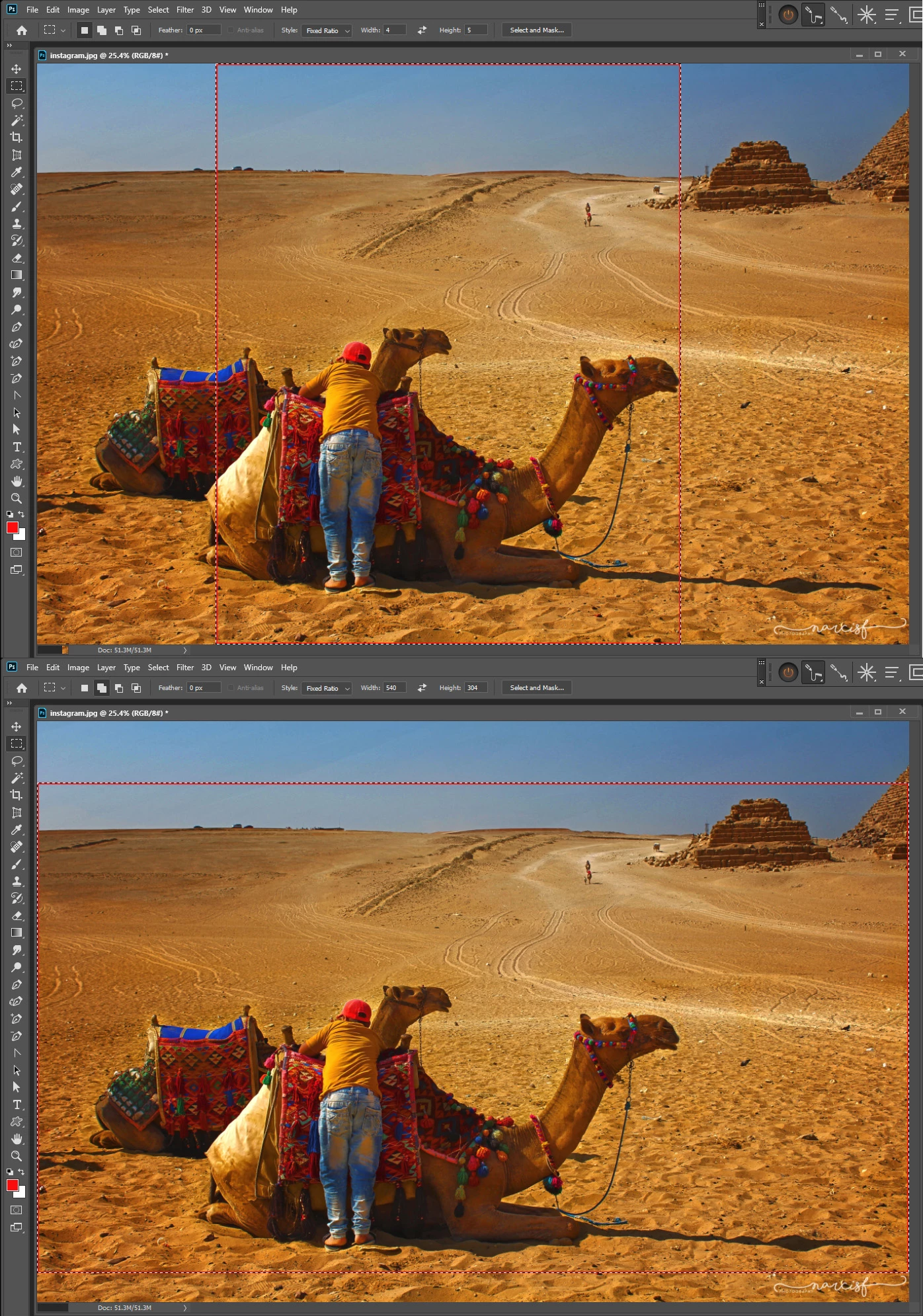
2.) Set the rectangle marquee tool to fixed Aspect Ratio use the numbers shown in column 2.
3.) Draw out a selection around the image Content you want to post. Position it around the content for best composition.
4.) Use menu Image>Crop
5.) Use menu Image>Size...
6.) In the the Image Size dialog check Resample.
7.) Make sure the link icon shows width and height is liked constrained
8.) From chart column 3 enter the width or height Photoshop should set the other side correctly
9.) Check the interpolation setting is good Auto should do.
10.) Click OK to commit the resize and save a jpeg to post on instagram.
Instagram is not one of Adobe Share options.
Please not I did use the Crop tool it has features the can mess up beginners. The rectangle marquee tool set to fixed aspect ration should be good for selection your image composition. It easy to do over and position the selection by dragging inside the selection ants.
The problem you are having is composition. Landscape to portrait will not work you need to post a Landscape not a portrait 1080 x 1350px a landscape 1080 x 608px
Note: the Landscape Aspect Ratio in the chart is wrong it should be 1.78:1 not the one listed 1.91:1
The image image need to be cropped for instagram aspect ratio I set 540:304 in the marquee tool
I looked at the posted image again, and now I see a very blotchy and mottled sky that doesn't look good. Is that what you're concerned with, narcisf?
I have a hunch what caused this. It's probably a fairly noisy image to begin with - and then it has been resampled with "bicubic automatic" (which is the default). As I mentioned above, "bicubic automatic" tends to overdo it with very aggressive sharpening, and it often introduces unpleasant artifacts. Like here. Looked at more closely, the whole image looks oversharpened and full of halos.
Jpeg compression after resizing made it even worse.
Are you sure the numbers you poster are what you see in Photoshop. For 5184x2714 is not a 3:2 or 4:3 or 16:9 aspect ratio what DSLR do you use? Also a constrain resize of that image to 1080 wide would produce a image with a height of 565. So if you use image resize to do an unconstrained resize to a height of 556 you distorted your image. Perhaps Content aware resize might produce a more accessible image
I use a Canon 700D and I'm a begginer,because this is my first photo edited in PS and when exported and post it to instagram i was shocked of how pixelated it is.Could you tell me please what content aware means?
Could you post a link to the image on instagram, the image you posted here is fine.
You WILL lose details if you downscale. I concur about the numbers, they look strange.
You can find content aware scale in the edit menu, or if you use Ctrl+Shift+Alt+C (PC) Cmd+Shift+Option+C (Mac)
This allows a scaling of the image that extends the sky for instance, instead of the characters, if you are trying to convert a square image into a rectangular one, and vice versa.
Forget ppi - that is just a meta data value used by a print driver to calculate print size from pixel size. It is irrelevant for web use which is all about pixel dimensions.
When you go from 5184 x 2714 to 1080 x 556 you are going from 14,069,376 pixels to 600,480 pixels. So the new pixel size can only hold 4.2 % of the image information that could be held in the larger size. You cannot lose 96% of image information without any deterioration. The best you can do is resize with an algorithm designed for reduction, such as Bicubic Sharper, and then live with the reduced image.
One additional note - apply any image sharpening after reduction not before or it will be lost.
It doesn't work.I have tried these before,but useless.I have tried also with bicubic,neighbour and also when i do what you said to me the photo is turning in a awful way.


 AdChoices