Copy link to clipboard
Copied
I have three questions regarding Preferences:
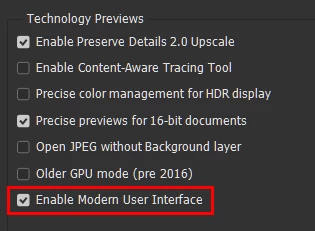
1. What is the purpose of this setting in Photoshop 2026? I notice no difference in the user interface when I enable it.
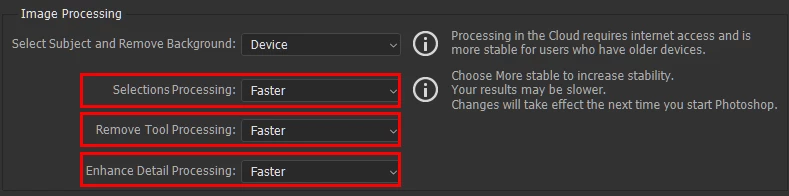
2. Which option should I choose for GPU processing: "Faster" or "More Stable"?
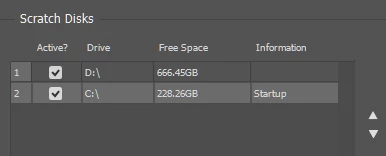
3. For the Scratch Disk, which drive is more efficient: the Startup (OS) drive or a Non-Startup drive? Which one has to be the first one?
Copy link to clipboard
Copied
Hey TenTin! Thanks for bringing this up. I'll answer your questions in brief points and provide you with reference content for more detailed information.
1 - Photoshop is transitioning to a more modern UI gradually. You can check the Image Adjustment > Color balance, or a few of the other Adjustments, with the option enabled and disabled to see the difference. Head here to learn more: https://adobe.ly/47GLIw5
2 - Right beside the options in the Preferences window, you can see the (i) info descriptions. Head here to learn more: https://adobe.ly/4nzSoBY
3 - I suppose, this is a hardware question, so the major jump in performance happens when you shift from mechanical hard disk drives to SSDs. If your D & C drives are SSDs, you'll be fine until you reach an exceptional edge situation, which is rare.
Head here to learn more about our recommendation: https://adobe.ly/47I5ffJ
Let me know if this helps.
Thanks!
Sameer K
(Type '@' and type my name to mention me when you reply)
Copy link to clipboard
Copied
Thank you, @Sameer K ,
1. I notice the changes, but I would appreciate it if the change log mentioned which panels or UI sections are affected by enabling this option. I initially thought this option enabled the Mica effect for Windows 11 users like myself.
2. I'm aware of the description, but it doesn't clarify what happens exactly! From my understanding, "Faster" refers to the GPU process, while "More Stable" refers to the CPU process. Am I correct?
3. I am using a fairly high-speed SSD. Is there any significant performance difference if I select the OS installation drive as the first scratch disk?
Copy link to clipboard
Copied
3 The scratch disk works most efficiently on the system drive - this will normally also be the fastest. If both are NVMe M.2 drives, check the specs for PCIe generation for each M2 slot. There are significant speed differences between PCIe generations.
But do set the other one as secondary scratch. If you're working with big files, have many open, and, crucially, have many history states - then you'll want 500 - 1 TB.
Don't know about the others, but my priority is always stability over speed, so it's not a difficult choice.
Copy link to clipboard
Copied
Thanks.
Yes, there is one SSD divided into two partitions (NVMe PCIe 4.0, not the latest version, which is 5.0).
Don't know about the others, but my priority is always stability over speed, so it's not a difficult choice.
Based on my work, I believe this should be faster or more stable. However, I prefer utilizing the GPU for processing, as it results in a less CPU-intensive workload, regardless of whether the GPU process is slower or faster.
Copy link to clipboard
Copied
OK. In that case it doesn't matter all that much where you put the scratch disk.
I should say - just for the benefit of others reading this, who are setting up a system - that partitioning the system drive isn't really recommended with SSDs. It doesn't do any particular harm, but there is one potential disadvantage: It restricts the "free flow" of temp files. Not just the PS scratch disk, but also the system pagefile and operating system maintenance routines. It's better to have contiguous free space if possible.
People often think of a system drive as more or less read-only, but in reality there is continuous writing to and from your user account.
Partitioning made more sense with spinning HDs, where restricting the physical movement of the read/write head would speed operation up a bit.
Copy link to clipboard
Copied
OK. In that case it doesn't matter all that much where you put the scratch disk.
Thanks 👍.
People often think of a system drive as more or less read-only, but in reality there is continuous writing to and from your user account.
The second partition on my drive serves as a backup for my data, allowing me to access it using live boot CDs, such as Ubuntu, or various bootable partition manager applications in case I miss the OS startup.
I have disabled the Windows 11 reserved partition since I prefer to update the operating system manually; therefore, the reserved partition for updates is unnecessary. Additionally, I disabled the page file on the second partition and allowed Windows to manage the page file on the first partition. To further reduce SSD wear, I have also disabled hibernation.
The video card temp/cache files, as well as other temp files, are doing their work on "Temp", "%Temp%" and their special temp folders on drive C (OS partition)
Copy link to clipboard
Copied
1. I notice the changes, but I would appreciate it if the change log mentioned which panels or UI sections are affected by enabling this option.
By @TenTin
I think one reason specfic UI items aren't listed is it's changing all the time. It seems like with each release they finish converting a few more dialog boxes to their updated UI.
The reason it is listed under Technology Previews is that they don’t consider it finished. In fact there are a few bugs that have been submitted regarding Modern UI, so if you run into one, you can disable it.
2. I'm aware of the description, but it doesn't clarify what happens exactly! From my understanding, "Faster" refers to the GPU process, while "More Stable" refers to the CPU process. Am I correct?
By @TenTin
That might be right but I’m not sure if it’s that clear cut. What we know for sure is: Leave it on Faster as long as there is no problem. If you notice artifacts, crashes, or other bugs, switch it to More Stable. In other words, if you think it’s stable, there is no reason to slow it down by switching to More Stable.
3. I am using a fairly high-speed SSD. Is there any significant performance difference if I select the OS installation drive as the first scratch disk?
By @TenTin
The primary scratch disk should ideally be both the fastest and with the most free space. In most computers the boot volume is on a very fast internal SSD so in terms of speed that’s ideal, but a lot of boot volumes don’t have enough free space. If you assign another volume as a scratch disk, assuming it’s got plenty of free space, the more similar the speed is to the internal SSD the less you’ll notice any performance difference.
For example, if your computer’s boot volume is an internal SSD with around 7000MB/sec throughput (typical today), but it’s running low on space, you could assign the first scratch disk to:
Also, your screen shot shows about 228GB free on the C drive. That’s enough for modest editing, it’s about as much as I have free on my laptop and works OK for me most of the time. But if you open high-megapixel files with lots of layers, those can require a lot more scratch space than is free on your C drive. When that happens, I plug in an empty external SSD as a scratch disk.

Copy link to clipboard
Copied
That might be right but I’m not sure if it’s that clear cut...
By @Conrad_C
Recently, I watched a video—though I can’t seem to find it again—where it was mentioned that "Fast" refers to GPU/CPU performance and "Stable" also pertains to GPU/CPU. I can't recall whether it was Deke McClelland or Rich Harington who said this, and I’m starting to wonder if it’s a sign of me getting older!
By @Conrad_CThe primary scratch disk should ideally be both the fastest and with the most free space...
The explanation was very clear—thank you! I have one SSD on PCIe 4 with two partitions. Based on this information, I realised there’s no problem with setting the D partition as the primary scratch disk. Since both the C and D partitions are on the same SSD in one of my PCIe slots, I initially thought that prioritising one partition over the other might affect performance.
Find more inspiration, events, and resources on the new Adobe Community
Explore Now