


- Home
- Photoshop ecosystem
- Discussions
- Re: Preset photoshop to open images by using embed...
- Re: Preset photoshop to open images by using embed...

Copy link to clipboard
Copied
Hi,
When I open a new image in adobe photoshop, every time a message box opens and asks:
Embedded Profile Mismatch
The document "Screenshot ..." has an embedded color profile that does not match the current RGB working space.
Embedded: Display
Working: sRGB IEC61966-2.1
What would you like to do?
• Use the embedded profile (instead of working space)
• Convert document's colors to the working space
• Discard the embedded profile (don't color manage)
How can I preset that a new image always opens automatically by using the embedded profile (instead of working space)?
Thank you in advance.


 1 Correct answer


Edit > Color Settings
Color Management Policies to »Preserve Embedded Profiles«
Profile Mismatches »Ask When Opening« off


Explore related tutorials & articles
 30
Replies
30
30
Replies
30

Copy link to clipboard
Copied
Edit > Color Settings
Color Management Policies to »Preserve Embedded Profiles«
Profile Mismatches »Ask When Opening« off

Copy link to clipboard
Copied
You are to fast with the replies for me today 
Copy link to clipboard
Copied
Well, you took the trouble to make a screenshot and that should help the OP a lot more than just plain type.
Copy link to clipboard
Copied
Thank you very much for your fast reply. It works fine.
Copy link to clipboard
Copied
Hi
Go to Edit > Color Settings and check the settings there

Copy link to clipboard
Copied
Thank you very much for the screenshot. That's very helpful.

Copy link to clipboard
Copied
Assuming this is for screenshots, the proper way to deal with this is to assign the display profile - which MacOS does for all screenshots, so far so good - but then convert to a standard color space, normally sRGB. If you do this a lot you might want to record an action and assign an F-key.
If these are not screenshots, but normal image files, you certainly do not want your display profile anywhere near them. If you consistently get this message everywhere, you have something wrong in your setup.
Copy link to clipboard
Copied
Thank you for your reply.
I got this message every time I opened screenshots I'd taken on my MacBook or photos I'd taken on my iPhone 7 Plus.
I assigned my display profile like this:
Apple menu > System Preferences > Displays > Color > CX217 (calibrated profile of my display)
If I understand correctly, I’ll need to convert files to the sRGB color profile to prepare my images for consistent display quality.
So I changed my settings in photoshop like this:
Edit > Color Settings
Working Spaces: RGB: sRGB IEC61966-2.1
Color Management Policies: RGB: Convert to Working RGB
Profile Mismatches: "Ask When Opening" on
1. Is that correct?
2. Normal image files: What do you mean by "you have something wrong in your setup"?
Copy link to clipboard
Copied
No. Always keep your color management policies set to "Preserve Embedded Profiles"!
This will work for screenshots too, because MacOS assigns and embeds the display profile in all screenshots. But then with the screenshot open in Photoshop, convert it to sRGB. This won't change appearance, but you should always keep files in standard color spaces. The display profile is unique to your setup and not a standard color space. It's meaningless on other systems.
Screenshots are a special case because they have already been converted into your display profile. A screenshot has Monitor RGB values, not the RGB values of the original file. That's why the display profile should be assigned if it isn't already.
You can turn the warnings off. A much better way to keep track of document profiles is to set the notification area, at the bottom left of the image window, to show "document profile" instead of the useless image size info it has by default.
Copy link to clipboard
Copied
Thank you for your reply.
These are my color settings now:
Working Spaces: RGB: sRGB IEC61966-2.1
Color Management Policies: RGB: Preserve Embedded Profiles
Profile Mismatches: "Ask When Opening" off
At the bottom left of the image window, I chose „Document Profile“ instead of „Document Sizes“.
I also assigned an F-key:
Photoshop > Edit > Keyboard Shortcuts… > Shortcuts for: “Application Menus”
In the scroll list, I selected “Edit” > “Convert to Profile..” and typed “shift + cmd + c”. Then I clicked “Accept” and “OK”.
Every time I open a new screenshot or a new photo taken on my iPhone 7 Plus in Photoshop, I press “shift + cmd + c” and “OK” to convert it to “sRGB IEC61966-2.1”.
By the way, the red color is less bright when I convert a screenshot from “Display (8bpc)” to “sRGB IEC61966-2.1”.
What about images I use for print? When I open a TIFF file in Photoshop for example, at the bottom left of the image window I see “Coated FOGRA39 (ISO 12647-2:2004)”. Do I have to convert it to a certain color profile too?
Copy link to clipboard
Copied
That's better 
Don't convert document profiles unless you have a good reason. One good reason is for screenshots with the display profile embedded, to get it into a standard color space.
Coated FOGRA39 is also a standard color space - but CMYK is only used for offset print. Desktop inkjet printers are RGB devices that expect RGB data.
Most offset presses are calibrated to certain standards that vary around the world. In EU, that's usually FOGRA39 or more commonly ISO Coated (ECI) 300%. The thing is - there's no generic CMYK. All those profiles correspond to certain press conditions. If you have a FOGRA39 file and send it to a press calibrated to a different standard (or using a different paper stock), you're in trouble. For a whole lot of reasons, converting CMYK to CMYK is not recommended.
For this reason, good practice is to keep all your master files as RGB (Adobe RGB or ProPhoto is probably best) - and then only convert copies to CMYK when you know what profile the printer uses.
I'd recommend Adobe RGB for master files. It's an excellent choice for all-round use. Some people will tell you that ProPhoto is the "best" RGB color space because it has an extremely large color gamut (to the point of unrealistic), but the large gamut comes at a steep price. Use ProPhoto only when you specifically need it to avoid channel clipping. Never send away ProPhoto files - it's an editing color space, not an output color space.
For web, always convert to sRGB.
Copy link to clipboard
Copied
Thank you for your reply.
Sometimes, I use a photo I’ve taken on my iPhone 7 Plus for business printing products. Until now, I never got a negative feedback from a printing company. But I would appreciate it very much if you could give me some advice for improvements in the future.
That’s the way I dealt with it until now:
I opened an image file in Photoshop and opened the save dialog box by pressing shift + cmd + s:
Format: Photoshop
Save: “As a Copy” - off
Color: “Embed Color Profile: Apple Wide Color Sharin…” - on
I clicked “Save”.
I made a copy of the “Background” by duplicating the layer and edited this copy (adjustments, smart sharpen etc.).
After each action, I saved the file by pressing cmd + s (message box: Maximize Compatibility - on).
When all the editing was done and the file saved, I deleted the “Background” layer and went to:
Image > Mode > CMYK Color
Message Box: You are about to convert to CMYK using the “Coated FOGRA39 (ISO 12647-2:2004)” … - OK
Image > Image Size…
Resolution: 300 Pixels/Inch
Resample - off
File > Save As…
Format: TIFF
Save: “Layers” - on
Color: “Embed Color Profile: Apple Wide Color Sharin…” - on
I clicked “Save”.
Image Compression: None
“Save Image Pyramid” - off
Pixel Order: Interleaved (RGBRGB)
Byte Order: Macintosh
Layer Compression: RLE (faster saves, bigger files)
I clicked “OK”.
Message Box: “Including layers will increase the file size." - OK
Finally, I imported the image file to InDesign or QuarkXPress to create the layout of the printing product, exported the printing data (PDF/X-4) and mailed the data via Dropbox folder link to the printing company.
What do think about it?

Copy link to clipboard
Copied
By the way, the red color is less bright when I convert a screenshot from “Display (8bpc)” to “sRGB IEC61966-2.1”.
If you use a larger space like Adobe RGB for your general editing, your reds won't get clipped. So you could set your RGB Working Space to Adobe RGB and set the Policy to Convert to Working RGB with Ask When Opening unchecked. In that case you could skip the extra conversion step and all of your files would be in a larger space that is more suitable for print. If you need to save for web you could make the conversion to sRGB on export.
Copy link to clipboard
Copied
In that case you could skip the extra conversion step and all of your files would be in a larger space that is more suitable for print.
But the conversion is not without cost, in particular when working in 8bit the conversion from small to large Color Space can have significant quantisation consequences.
Roughly speaking the length of an axis that previously was described by 8bit is now a smaller part or a longer length that is still only being described by 8bit – so the original 256 steps may suddenly have to be represented by a smaller number of steps.
I would not recommend automatic conversion to anybody who I am not convinced has a firm grasp of the issues involved.
Copy link to clipboard
Copied
Agree. I would never recommend "convert to working RGB". As I said above, never convert unless you have a reason. There's no gain, but always potential loss.
"Preserve Embedded Profiles" is a 100% safe policy. Nothing can ever go wrong with this setting - and most importantly, it leaves you in full control. It's the default for good reason.
Copy link to clipboard
Copied
But the conversion is not without cost, in particular when working in 8bit the conversion from small to large Color Space can have significant quantisation consequences.
But in this particular case there's more cost with the conversion to the smaller sRGB space—the OP can see it in the clipped reds caused by the conversion from the OSX monitor space to sRGB.
I don't see any differences in an automatic conversion and a manual conversion after the open assuming the settings are the same. The problems with sRGB clipping in a print workflow would be greater than any issues with a conversion to a larger space—once you are in the larger space at least you have the option to color correct and get to the big chunk of cyan/blue/red spectrum that is available in the CMYK space you will eventually convert to but is missing in sRGB.
If you want to be safe you can turn on Ask When Opening—you wont get the warning if the embedded and working spaces match. I'm not sure I see the time difference in using the Ask dialog to make the decision vs. opening with the profile preserved and deciding whether to convert after the open.
Copy link to clipboard
Copied
I don't see any differences in an automatic conversion and a manual conversion after the open assuming the settings are the same.
As far as I can tell one claimed that there would be a difference between the results of the automatic and a manual conversion.
But the conversion effectively does some damage to the converted image.
And I for one don’t want to automatically damage images when opening them.
Please create an sRGB image add a few Adjustment Layers and then convert it to Adobe RGB without flattening … would you be willing to accept those differences or can you be absolutely sure you never get layered non-Adobe RGB files from your customers etc?

Copy link to clipboard
Copied
would you be willing to accept those differences or can you be absolutely sure you never get layered non-Adobe RGB files from your customers etc?
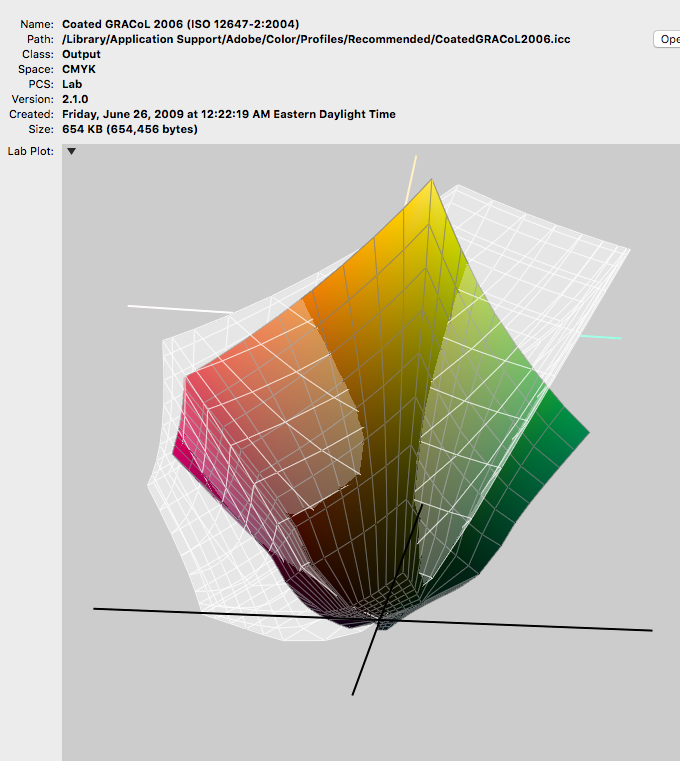
I think it depends on the workflow. What are you asking me to do with your very out-of-gamut example? If I'm supposed to color correct for an offset press and get the best possible output given the unprintable colors, then I wont hesitate in making the conversion to a larger space. An sRGB conversion to a final CMYK space like GRACol would introduce far greater problems with the saturated blues and greens than any theoretical loss of gray levels from the first RGB-to-RGB conversion. If I stay in sRGB I would be forced to make post CMYK conversion color corrections in order to get at the saturated colors in the GRACol space.
If you compare the sRGB to GRACol plots it's not a subtle problem—I wont let sRGB into my print workflow, so I'm less inclined to totally dismiss the RGB Convert policy.

Copy link to clipboard
Copied
Your arguments on print hardly come into play here, as far as I am concerned.
If you should get a layered RGB file with Adjustment Layers that is not Adobe RGB an automatic conversion on opening would effectively mean that you refuse to even look at what whoever created the file wanted it to look like.
An sRGB conversion to a final CMYK space like GRACol would introduce far greater problems with the saturated blues and greens than any theoretical loss of gray levels from the first RGB-to-RGB conversion.
And you feature those cyan and green colors in all the images you edit?
Converting an image from sRGB to AdobeRGB and sRGB again does affect an image; what you call »theoretical« may well be imperceptible (in sufficiently noisy images in particular) but it is real nonetheless.
Copy link to clipboard
Copied
And you feature those cyan and green colors in all the images you edit?
No, the point is if I'm being asked to color correct I can't get to those CMYK colors from sRGB, it effectively narrows the already narrow GRACol space by around 30%. It's not just the greens and blues, look at the saturated shadow colors that get crushed. That's a significant problem with your example because it is so far out-of-gamut—the color isn't going to print without an appearance change in any case, but if I get it into a larger RGB space there at least is the option to color correct into the full GRAYCol gamut.
So, we might have different jobs. Mine might be to improve the image as well as prepare it for press—in that case the original appearance isn't as important because my task is to change it.
If your job is to simply reproduce what the client is seeing, then OK preserve the profile, but that doesn't get around the gamut problem, which is exacerbated by the sRGB space. In that case you would have to go back to the client and let them know the provided color isn't going to print.
Copy link to clipboard
Copied
I get your point, Rob - but to me this looks like a typical case where you convert because there's a good reason to do so.
I see this mostly as an argument for maintaining control over your conversions, and not let them happen automatically. If nothing else, it will increase awareness of what a color space actually is and what the practical implications are.
Copy link to clipboard
Copied
And to be clear, I wasn't arguing against Preserve, in many cases it's clearly the best option. My first post was in the context of the OP's question about red clipping where the task might be to open 100 screen captures tagged with a monitor profile and efficiently get them into a bigger space.
Copy link to clipboard
Copied
And to be clear, I wasn't arguing against Preserve, in many cases it's clearly the best option.
And I am not arguing against your right to automatically convert images.
If the converting-damages to the images are negligible and outweighed by the other benefits then it is a reasonable decision within your workflow.
Copy link to clipboard
Copied
If the converting-damages to the images are negligible
The benefit would only be when the conversion is from a small space to a larger space. I would agree that we shouldn't go the other way, where there would be real damage—unless it is for final print or screen output. So the OP's conversion from the OSX monitor space to sRGB isn't a great idea because monitor space is larger than sRGB (its reds are getting clipped on the conversion).
RGB-to-RGB conversions don't seem to ever gap the histogram the way a color adjustment would. Below is the histogram of your sRGB color picker example before and after 6 conversions from sRGB to ProPhoto and back—the change coming back is in pixel frequency, not lost gray levels. The histogram indicates some degree of color change, but it's not discernible on screen, and certainly wouldn't be in offset printing.


-
- 1
- 2

Find more inspiration, events, and resources on the new Adobe Community
Explore Now
 AdChoices