Participant
June 3, 2019
Answered

Pressure Sensitivity Problems Cintiq 13HD

  • June 3, 2019
  • 1 reply
  • 1520 views

So currently I am using my Wacom Cintiq 13HD Tablet and I tried to turn off Windows Ink since I really hate the ring that appears if you keep the pen pressed on one spot. After that my pressure sensitivity didnt work and I've tried everything I found online. I created the PSUserConfig.txt and put it in and I tried installing WinTab (but mightve installed the wrong one since I don't own a Lenovo computer.)

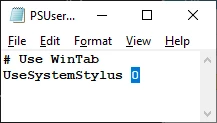
This is currently the Text in my Document:

# Use WinTab

UseSystemStylus 0
This topic has been closed for replies.
Correct answer JJMack

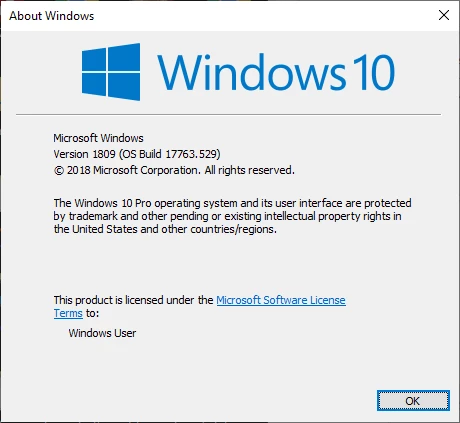
I have a Wacon Intuos Tablet. You have a Wacom Cintiq so we use different  Different Wacom device drivers. Both of us seem to be Running Windows  and Photoshop. The version of windows I run in is Windows 10

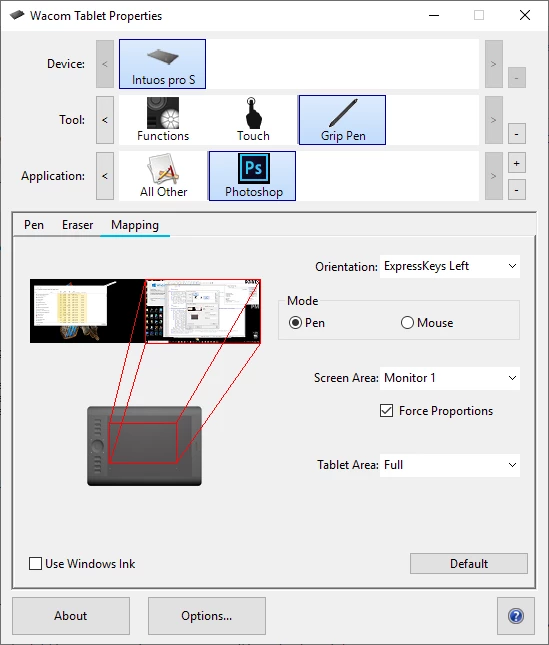
I have Photoshop CS3, CS6, CC 2014, CC 2018 and CC 2019 installed.  My Wacom Tablet is configured not to use Windows INK with Photoshop. There are three PSUserConfig.txt file on my machine in my user ID application data.

"C:\Users\jjmac\AppData\Roaming\Adobe\Adobe Photoshop CC 2014\Adobe Photoshop CC 2014 Settings\PSUserConfig.txt"

"C:\Users\jjmac\AppData\Roaming\Adobe\Adobe Photoshop CC 2018\Adobe Photoshop CC 2018 Settings\PSUserConfig.txt"

"C:\Users\jjmac\AppData\Roaming\Adobe\Adobe Photoshop CC 2019\Adobe Photoshop CC 2019 Settings\PSUserConfig.txt"

If you have configured your machine correctly and your pen is not working the problem is most likely related to your Cintig Wacom Device Driver.

1 reply

JJMack
Community Expert
Community Expert
June 3, 2019

If you configure your Wacom Device not to use windows INK with Photoshop.  You need to add the  PSUserConfig.txt file to your Photoshop preferences folder for each Photoshop CC version you have installed and by default these folder are hidden.  For example:

"C:\Users\(your user id)\AppData\Roaming\Adobe\Adobe Photoshop CC 2019\Adobe Photoshop CC 2019 Settings\"

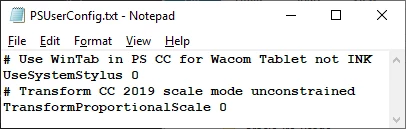
my file looks like this:

On top of that for my Wacon Intuos I turn off double tap distance and for proportional pem mapping

Also in Windows Control Panel Pen and Touch I disable Press and Hold  settings.

For all other application I use Windoes Ink

JJMack
ceydaöAuthor
Participant
June 3, 2019

When I tried out these things I realised my Tablet stops recognizing my pen. I can reset it by moving my mouse for a while but it will recognize it only for a few strokes and stops working again. If photoshop isnt opened everything works perfectly fine. I'm getting desperate I feel like I broke it while I tried to fix it

JJMack
Community Expert
JJMackCommunity ExpertCorrect answer
Community Expert
June 3, 2019

I have a Wacon Intuos Tablet. You have a Wacom Cintiq so we use different  Different Wacom device drivers. Both of us seem to be Running Windows  and Photoshop. The version of windows I run in is Windows 10

I have Photoshop CS3, CS6, CC 2014, CC 2018 and CC 2019 installed.  My Wacom Tablet is configured not to use Windows INK with Photoshop. There are three PSUserConfig.txt file on my machine in my user ID application data.

"C:\Users\jjmac\AppData\Roaming\Adobe\Adobe Photoshop CC 2014\Adobe Photoshop CC 2014 Settings\PSUserConfig.txt"

"C:\Users\jjmac\AppData\Roaming\Adobe\Adobe Photoshop CC 2018\Adobe Photoshop CC 2018 Settings\PSUserConfig.txt"

"C:\Users\jjmac\AppData\Roaming\Adobe\Adobe Photoshop CC 2019\Adobe Photoshop CC 2019 Settings\PSUserConfig.txt"

If you have configured your machine correctly and your pen is not working the problem is most likely related to your Cintig Wacom Device Driver.

JJMack