Known Participant
July 14, 2023
Question

Print Settings

  • July 14, 2023
  • 2 replies
  • 3116 views

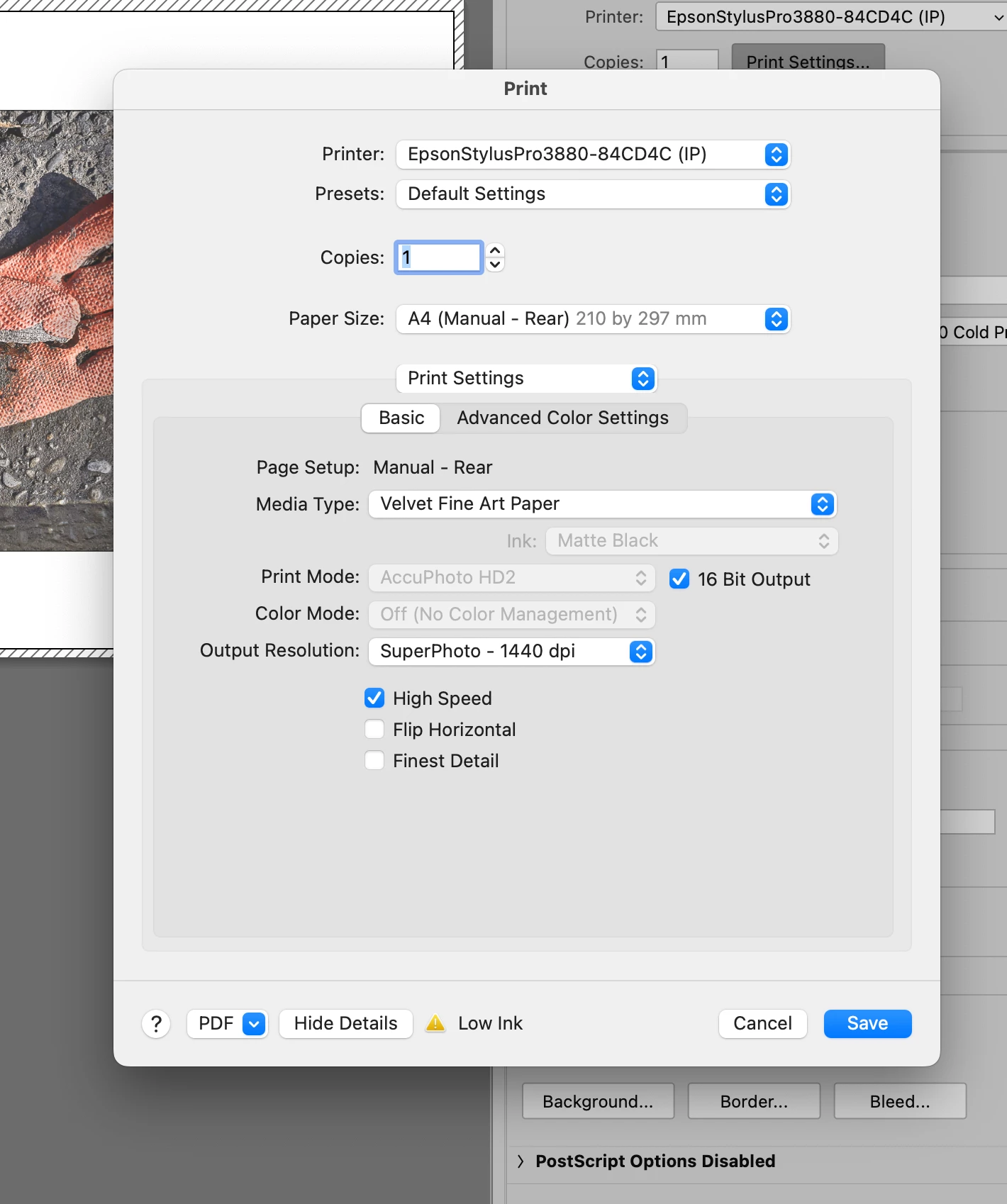
I have up graded my epson driver. I think this may have changed my Print Settings box. How do I get back to my original box? See screen shots.

This topic has been closed for replies.

2 replies

Conrad_C
Inspiring
July 15, 2023

It looks like the other two screen shots are from a manual that was printed many years ago, because the style of the Print dialog box in the manual is from an older version of macOS. It has not looked that way in macOS in recent years. Based on the printer name in your screen shots, if those pages are from the Epson Stylus Pro 3880 manual, that printer (which I also use) was first released 14 years ago in 2009, when Macs ran Mac OS X 10.6.


Did you also update macOS recently, and did the macOS Print dialog box look different after that? Because the style of the Print dialog box in your first screen shot looks like how it was in the versions up through macOS 12. In the current version, macOS 13 Ventura, Apple updated the Print dialog box design again. So in any Mac running macOS 13, the Epson printer options now look like this:


jon boveyAuthor
Known Participant
July 16, 2023

Thank you Conrad. Yes, you are right about the screen shots being from an old manual. Yes I did update recently and the printer dialog box has changed to the one shown in your screen shot. So this is standard and I have no need to worry, right?

NB, colourmanagement
Braniac
July 18, 2023

@jon bovey I agree Jon, you'll get used to it - this makes good sense as that looks like the current Epspon interface to me 


I hope this helps
neil barstow, colourmanagement net - adobe forum volunteer - co-author: 'getting colour right'
google me "neil barstow colourmanagement" for lots of free articles on colour management

NB, colourmanagement
Braniac
July 15, 2023

Please explain, is that screenshot what you want? That's an Epson driver - what are you seeing now? 

Please insert a screenshot of the current driver options.

macOS native driver is quite different, maybe that’s what you have now. 


I hope this helps
neil barstow, colourmanagement net - adobe forum volunteer - co-author: 'getting colour right'
google me "neil barstow colourmanagement" for lots of free articles on colour management

jon boveyAuthor
Known Participant
July 15, 2023

Thanks Neil. I'm working on a 2015/16 imac with macOSMonterey version 12.6.7 (see attached). I cannot supply a screen shot of the previous setup because it has changed to the current setup.  The old setup gave an option to choose photo or matte. It would also bring up a list of media type e.g Epson Hot Press Natural. It also gave the AccuPhoto HD2 option. Are you saying that the current box is now standard? Is the screen shot attached the "current driver options" you have asked for?

Conrad_C
Inspiring
July 16, 2023

In recent years, Apple, Epson, and Adobe have worked to try and improve the coordination of the macOS print code (Apple) with the printer manufacturer’s driver code (Epson) and the print code of the application doing the printing (Adobe). As a result, there are some ways that the three pieces of code are tied together, but those relationships are not obvious to most people, and are not well documented.


In your case, you want the AccuPhoto HD2 option (and maybe other Epson-specfic options) to be available. It is not available unless Epson has control of printer color management. If it’s not available, then in the Print dialog box, try going to the Color Matching panel and making sure Epson Color Controls is selected, to give Epson control over printer color management. When you switch back to the Printer Settings panel, Epson-specific print color controls such as AccuPhoto HD2 and Advanced B&W Photo should be available.


Another wrinkle to this is that everything described above is available only when Color Handling is set to Printer Manages Colors in the Print dialog box in Photoshop. That gives color control over to Epson and Apple. If Color Handling is set to Photoshop Manages Colors, then color control is given to Adobe, so the above doesn’t work: In the Color Settings panel, both ColorSync and Epson Color Controls become unavailable, because Photoshop has control over print color.


So…

If you want Photoshop to take control of  print color, switch Color Handling to Photoshop Manages Colors, and make sure the correct profile is selected in the Printer Profile menu in the Print dialog box in Photoshop. Apple and Epson print color option will not be available this way.


If you want Apple or Epson to take control of print color, switch Color Handling to Printer Manages Colors. Then, after clicking Print Settings, switch to the Color Matching pane and choose either ColorSync or Epson Color Controls. If you want Epson printer driver features such as AccuPhoto HD2 or Advanced B&W Photo then you must select Epson Color Controls.


And finally…


…you asked about Photo or Matte. If you mean the black printer ink it uses, the Epson driver sets that according to the paper you select. If you select something like Epson Premium Photo Paper Luster, the Ink menu says Photo Black and is unselectable (dimmed). If you want to choose Hot Press Natural, the Ink menu says Matte Black and is unselectable. The reason is that Epson does not allow the other ink type to be used for that paper type.


Now, if you select some other papers, such as Plain Paper, then the Ink menu does let you choose between Photo Black or Matte Black. So whether you get a choice between Photo Black and Matte Black depends on what the Epson printer driver allows.


If you are not able to choose Hot Press Natural, it’s on the same Fine Art Paper menu as the Velvet Fine Art paper you showed in your screen shot. And that Fine Art Paper menu, as you might know, is only available if you selected a paper size that is not from the top-loading Sheet Feeder, because Epson wants those thicker papers fed through a straight paper path such as “US Letter (Manual - Rear)”, the manual rear feed slot. 


So, that’s a lot of weird details that are hard to keep straight…but that is how it works in the current Epson printer driver in recent versions of macOS and Photoshop.