ide-e
Participating Frequently
June 29, 2018
Answered

Problem with bottom layers

  • June 29, 2018
  • 1 reply
  • 3444 views

Hello everyone, I was hoping to get some help from the help center but it's impossible to get anyone there.

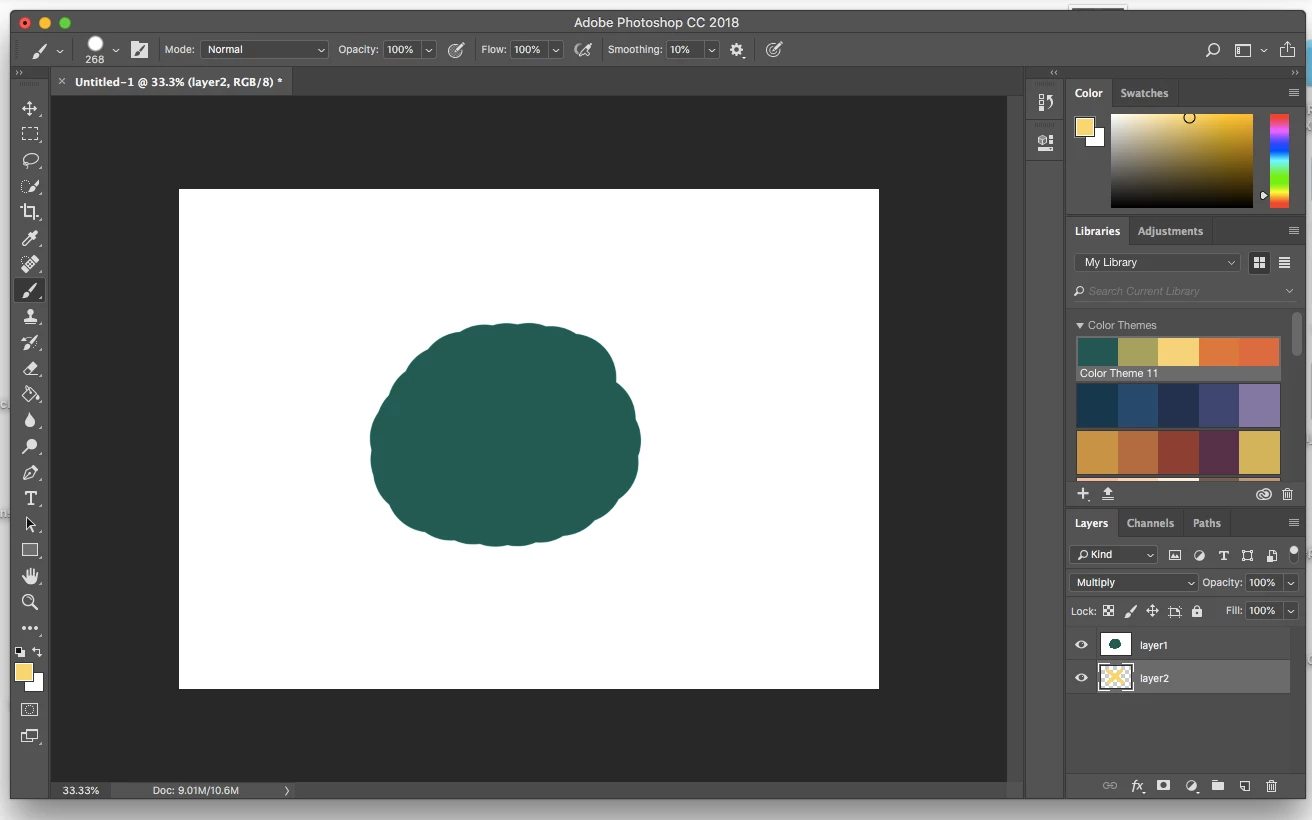
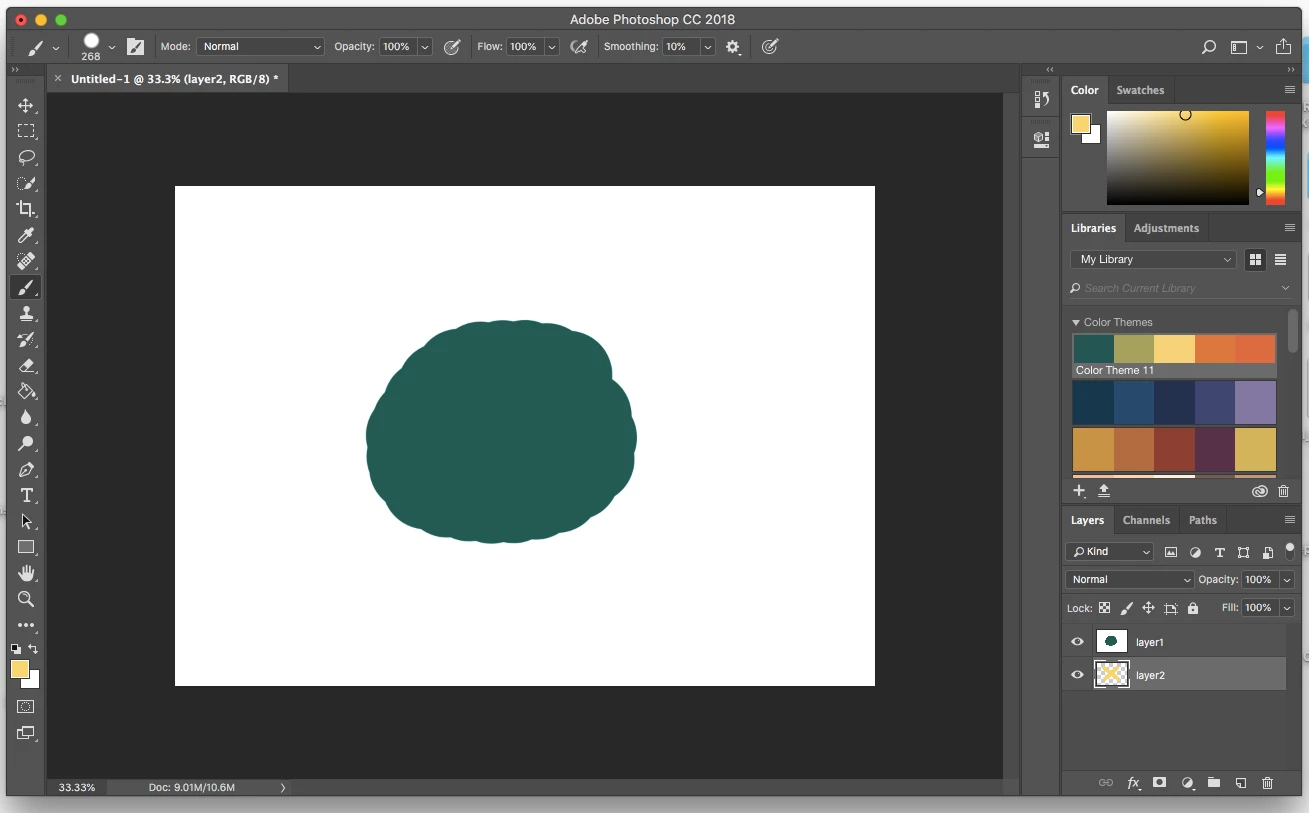
I have problem with layers. My bottom layer shows up at the upper layer or does not show at all. I am sorry if I am bad at explaining, for example, I paint a shape, create another layer under that layer and try to paint but it is invisible, if I set to multiply then I can see the bottom layer but it paints everywhere. So if I want to pain skin or hair and some other details where I have to use bottom and upper layer, I cannot.

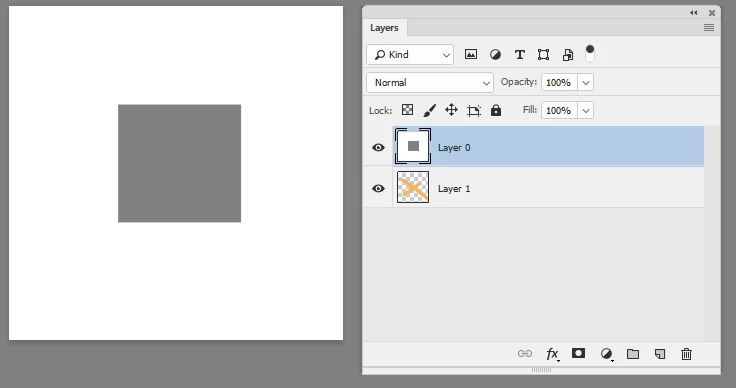
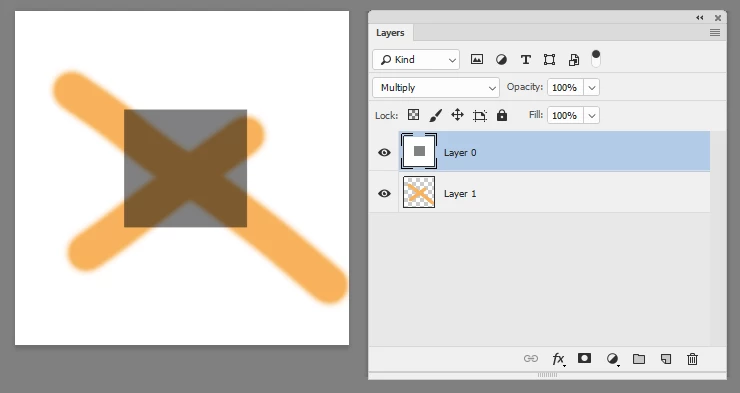
I uploaded 3 screen shots, in case I was not clear. Number 1 shows both layers in normal mode, number 2 shows upper layer multiply, number 3 bottom layer multiply.

All combinations do not work. Am I doing something wrong, something really silly I missed? Because this is very simple thing and I never had problems with it, did photoshop change something?

If someone can help me please do so

Thank you,

P.S.: In case you need to know, I am using Mac (High Sierra 10.13.5)

Idee
This topic has been closed for replies.
Correct answer davescm

Hi

From your screenshots all appears to be working correctly.

See these examples :

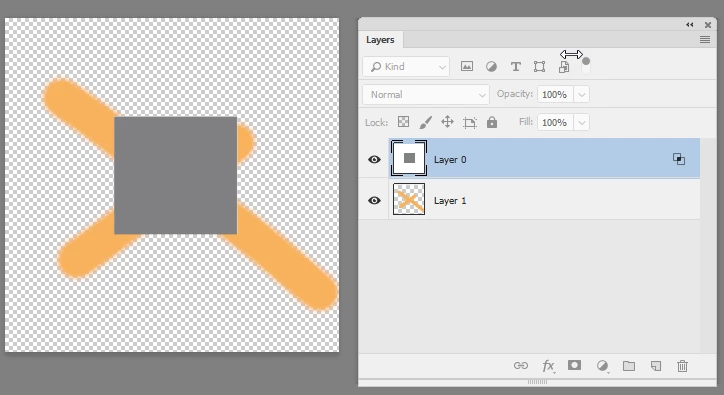
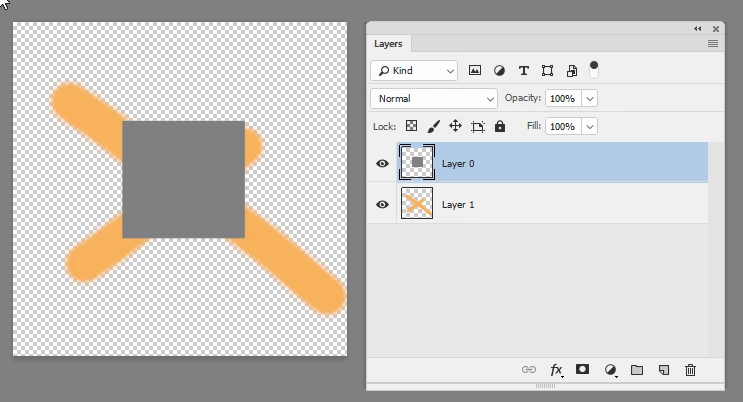
1. With top layer at 100% opacity and blending mode normal bottom layer is hidden behind the top layer

2. With blending mode set to multiply then the values are multiplied (with white being 1 and black 0) so the top layer colours are multiplied by the darker colour underneath to show a darkened cross

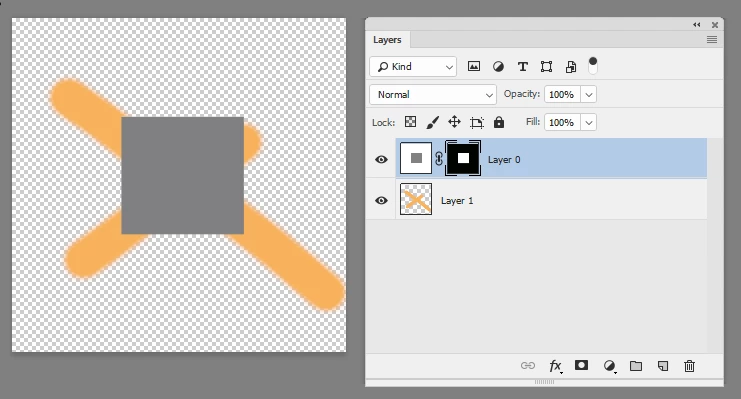
That leaves three ways to get the grey square in front of the cross

Method 1 Select the grey area and add a layer mask

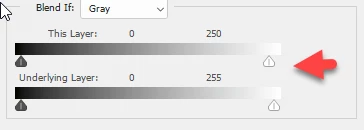
Method 2 Right click the top layer and in blending options set blend if as shown

Method three select and delete the white area in the top layer

Dave

1 reply

c.pfaffenbichler
Community Expert
Community Expert
June 29, 2018
Am I doing something wrong, something really silly I missed?

Apparently you filled »layer1« with white (or created it by duplicating a white Background Layer etc.) before painting on it, so naturally it covers the layers below.

ide-e
ide-eAuthor
Participating Frequently
June 29, 2018

Hi, thank you for your reply. I did not fill the layer, this white background is just original document created. This has never happened to me before, usually if I create layer under the one I painted on, all my paintings on the bottom layer will be under the painting on the upper one (regardless of the beackground). Also, you can see that if I choose multiply option the one from the upper layer appears to be transparent, the color opacity is 100%. I do not understand why.

I always did this thing in the same way and it was never like this.

ide-e
ide-eAuthor
Participating Frequently
July 2, 2018

So if you wanted it to be transparent for newly created documents you could change the setting in that dialog.


I see, thank you very much for the advice.