
Participant
June 29, 2022
Question

Problem with inverting mask

  • June 29, 2022
  • 3 replies
  • 1244 views

Hi everyone


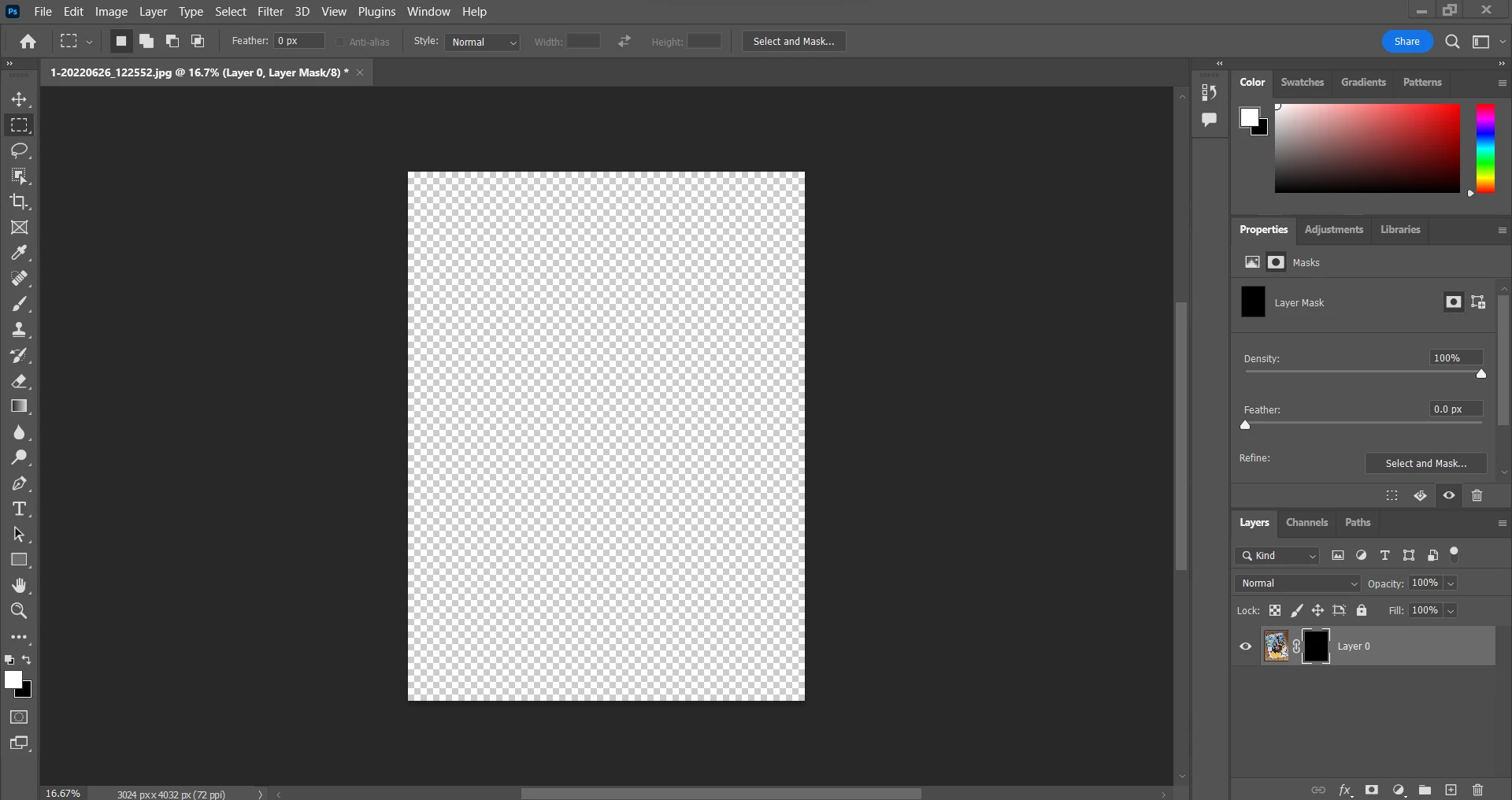
I have a problem whith inverting a mask. When I do that my orginal image gets transparant and I don't know what I do wrong. I just follow the steps from tutorials. In the beginning it worked but suddenly it didn't. Can someone help me please. On the image you can see my problem.
This topic has been closed for replies.

3 replies

Zesty_wanderlust15A7
Known Participant
June 30, 2022

Here's a one-layer smartass method... 😉

It uses a vector mask (saving space) and an outside stroke (Darken mode; overprint) to replace the background (in this case it saved 21 KB).
However, if you have a lot of space around the pic, a 250px stroke may not cover it all.


mglush
Community Expert
Community Expert
June 29, 2022

What do you want the final outcome to be for your image? Are you planning on some part of it to show through the mask? Is it working differently now because you are working on a layer, rather than a background layer?


I would suggest, deleting the mask, and try it again -- and list the steps as you do them so we can see where the problem is.

Michelle


Arual99Author
Participant
June 29, 2022

I want to create a shadow to my image. So therefor it needs to be shown through the mask (as the tutorial said). i tried to follow the steps again and it worked but I also tried without following and then it doesn't work. Maybe it has sht to do with that?

This is the link to the tutorial (minute 15) and beneath you can find some other photo's

https://youtu.be/LwB0-gR2lvE


mglush
Community Expert
Community Expert
June 29, 2022

Hi!

Here is an example of what you would want to do:


I have two layers, one layer underneat is white, and my photo layer. With the Photo layer selected, make a selection around the area you wanted to keep, and hit the Layer Mask icon at the bottom of the Layer's panel. Notice that where there is white in the Layer thumbnail, the picture shows through and where there is black the picture is hidden.


Then you can add a drop shadow or any other effect to the photo layer.


Does that help explain the process a little better?

Michelle

mglush
Community Expert
Community Expert
June 29, 2022

Hi!

It looks like your whole mask is black which means if you inverted the mask that it was (before) completely white. Invert changes white to black and black to white. Try painting on your mask with White and see the image come through. Then when you invert, you will see the difference.

Let us know if that helps!

Michelle

Arual99Author
Participant
June 29, 2022

Thanks for your reply. I just tried to do that but nothing happens. Also that is what I want, I want my white mask to be black. When I was watching tutorials they just said to use ctrl + I or alt + adding mask. Inthe video it worked and at first it worked for me too but now it doens't