Participant
August 16, 2017
Answered

Problems with Select & Mask - How would you remove the background from this image?

  • August 16, 2017
  • 2 replies
  • 1893 views

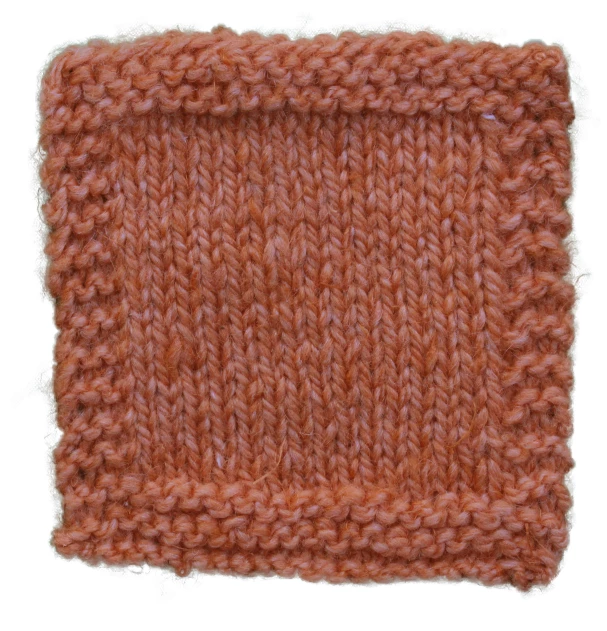
I've just recently upgraded from PSE to CC and am trying to figure out the best way to remove backgrounds. I photograph a lot of fuzzy objects like yarn and would love a quick and reliable way to put them on a white background without losing the details of individual fibers at the edges of the selection. I've watched lots of tutorials and attempted a couple different approaches to making an accurate selection. For the photo below, I tried using the Select & Mask tool but even after refining the edge you'll see there is a greenish hue to the edges of the cutout where the background color seems to bleed through. I've also lost some of the tiny details around the edges. Any idea what I might be doing wrong, or how to improve? Your help is much appreciated 🙂

    This topic has been closed for replies.
    Correct answer davescm

    Hi

    Try this  :

    1. Use select and mask as you did

    2. Use refine edge in select and mask to pick up the edge fibres

    3. Output to a new layer with mask - but do not select Decontaminate colours

    4. Create a new empty layer above you masked layer

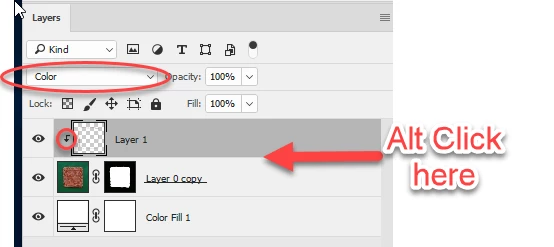
    5. Alt click on the border between the two, in the layers panel, so that a little down arrow appears. This means that when you paint on the layer it will only show where there are pixels on the layer below

    6. Set the blending mode of this new layer to color

    7. With a brush Alt Click on the material to pick up the red color and brush onto the new empty layer. Go all the way round. You will see the green contamination disappear

    I hope that helps you

    Dave

    2 replies

    Participant
    October 12, 2022

    Thank you for sharing the work of finance id.

    davescm
    Community Expert
    davescmCommunity ExpertCorrect answer
    Community Expert
    August 16, 2017

    Hi

    Try this  :

    1. Use select and mask as you did

    2. Use refine edge in select and mask to pick up the edge fibres

    3. Output to a new layer with mask - but do not select Decontaminate colours

    4. Create a new empty layer above you masked layer

    5. Alt click on the border between the two, in the layers panel, so that a little down arrow appears. This means that when you paint on the layer it will only show where there are pixels on the layer below

    6. Set the blending mode of this new layer to color

    7. With a brush Alt Click on the material to pick up the red color and brush onto the new empty layer. Go all the way round. You will see the green contamination disappear

    I hope that helps you

    Dave

    ceyhun_akgun
    Legend
    August 16, 2017

    Alternative Road
    1- Find and duplicate the contrast color channel. I chose the RED channel in this study.
    2- Using the Levels panel, I increased the contrast of the Black and White pixels. I tried not to lose details.
    3- I painted the middle part of the fabric with a white brush.

    Graphic Designer Educator / PrePress Consultant