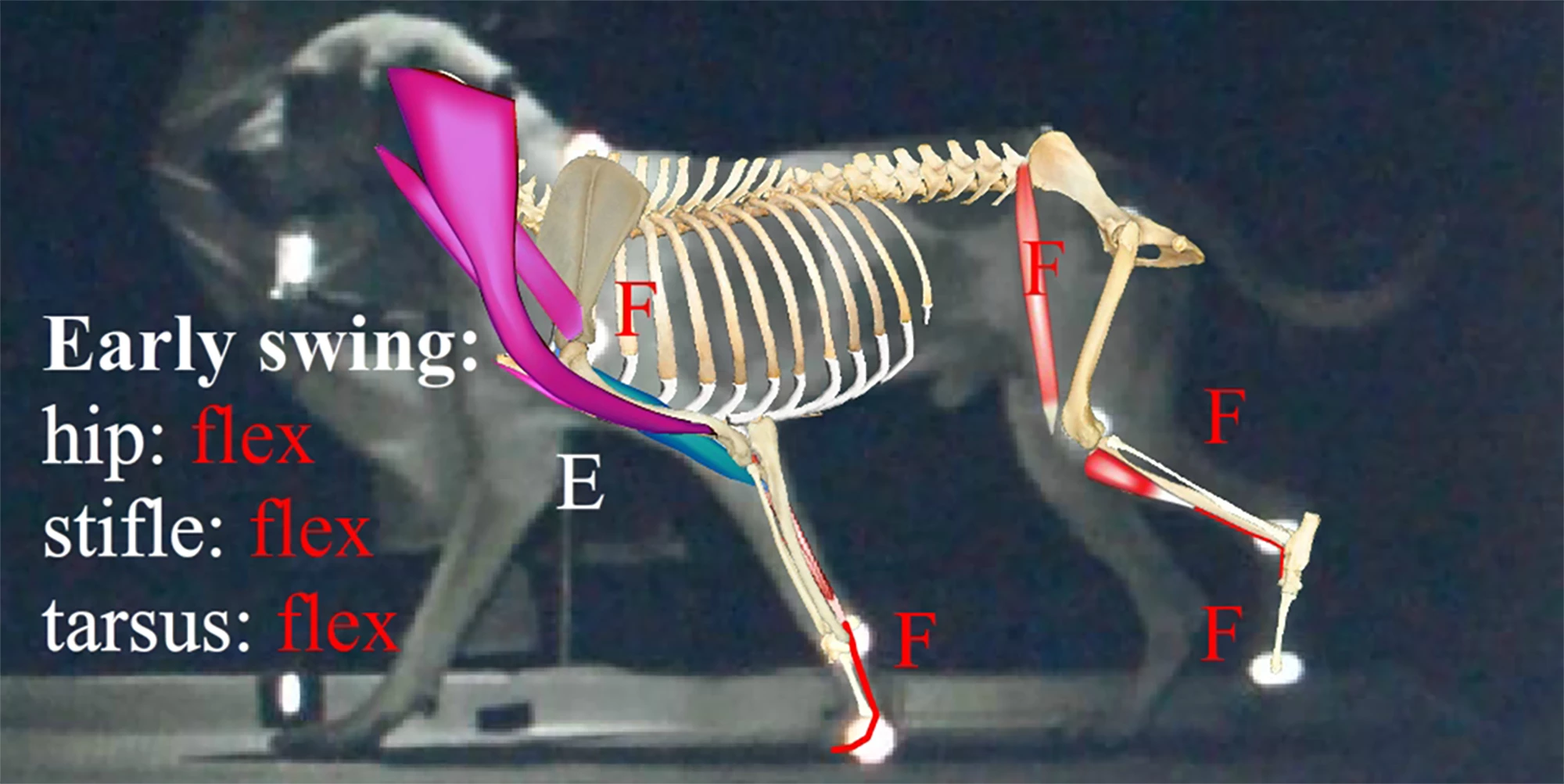
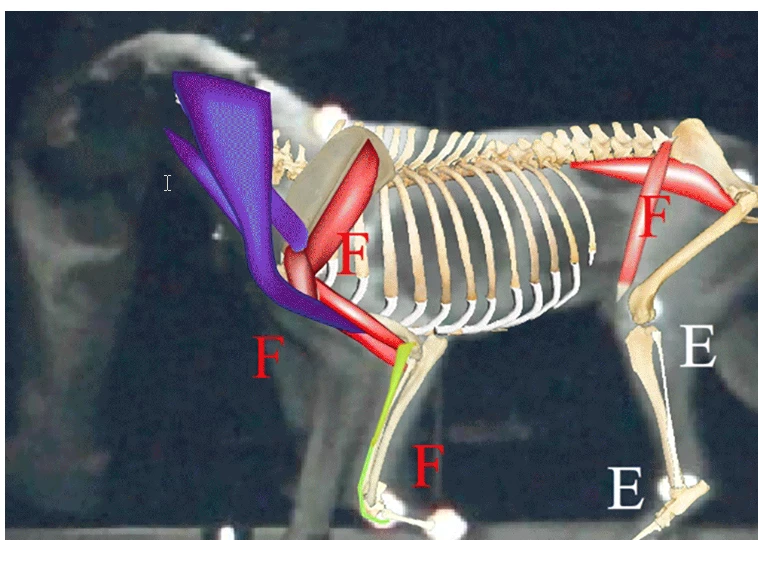
GIF is one of the worst formats to do this with. A major limitation is that GIF can only have 255 colors. This severely limits how well you can reproduce color quality. When trying to reproduce color gradients like you have in the bones, the 255-color palette runs out very quickly. So then GIF exporters have to try dithering the available colors, which doesn’t look smooth.
Also, a 2000-pixel GIF can be a large file because GIF does not compress well with images that have many colors or are photographic. GIF was really meant for solid color graphics.
At 2000 pixels, you are likely to get much higher color fidelity and lower file sizes with a true video format such as H.264. If there is any way to use a real video format on the website instead of an animated GIF, it will make the job a lot easier and the results will look infinitely better.
If you must do this as an animated GIF and want to control the image quality, then you will want to research the craft of manually optimizing a GIF color palette across multiple frames. That is not specific to Photoshop, but in Photoshop you can apply those skills (to a limited extent) in the color palette editor in File > Export > Save for Web (Legacy). An alternative is to export a video and convert that to animated GIF using other software, such as Gifski (free), which can convert video into animated GIFs that look and compress better than in any Adobe application that I know of.

 AdChoices