
Participant
February 20, 2019
Question

Proportion of Colors in a Given HSL Range

  • February 20, 2019
  • 1 reply
  • 511 views

Hi all,

I am trying to use digital analysis of photos to track divot recovery in an area of turfgrass. For example:
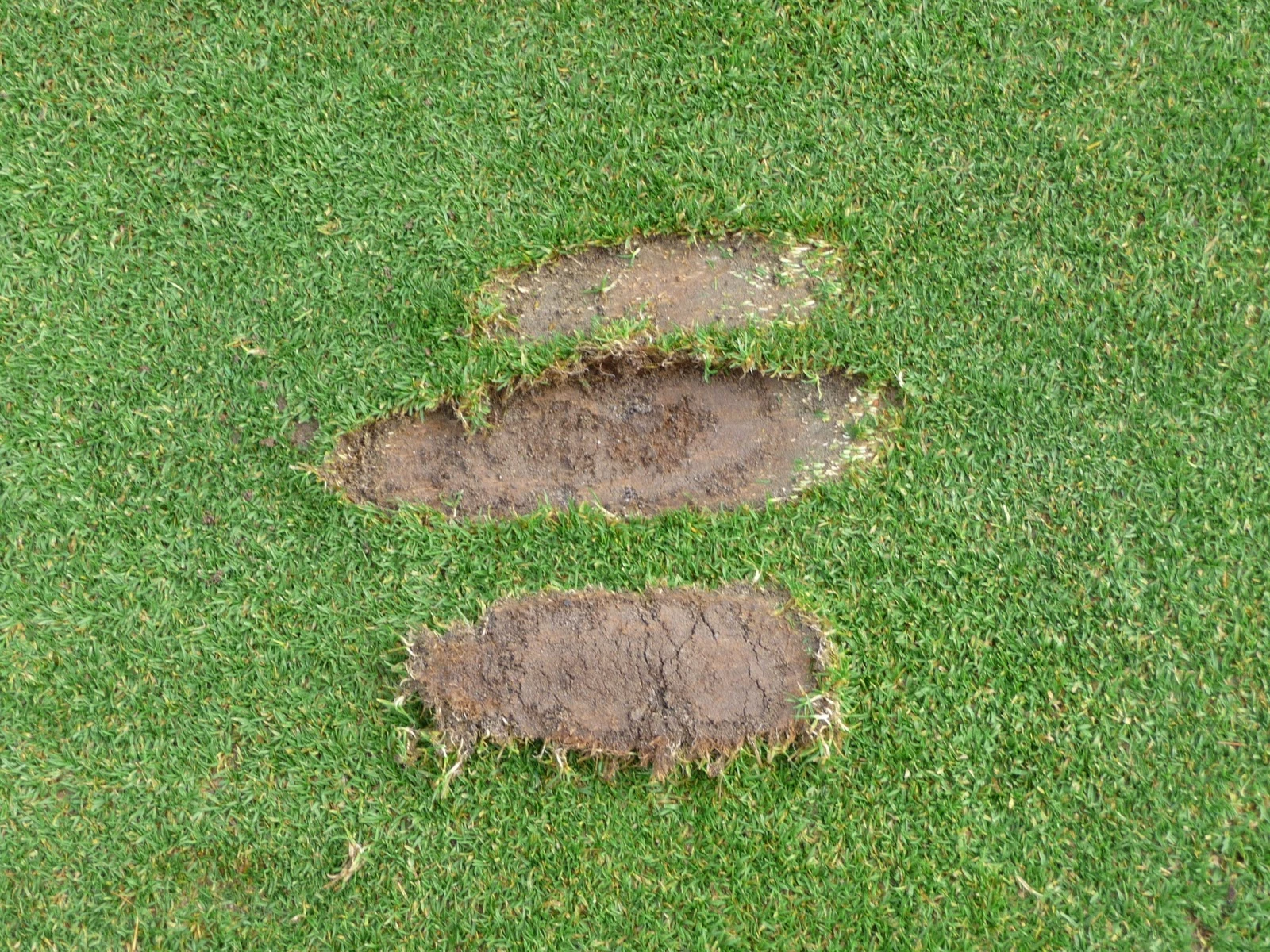
I want to calculate the area of this picture that is "green." In this case, my parameters are in HSL format, with "green" being anything in this range:  H = any value between 75-150, and S = any value between 10-100.

My hope is to take pictures like this on a weekly basis to track how quickly the plant grows to fill in the divots. Are there any platforms out there that can accomplish this? I would like to avoid using macros if possible. I've read scientific literature on a program using macros, Ps, and SigmaScan Pro, but I am trying to accomplish this on a very tight budget. Thank you for your time and consideration.

    This topic has been closed for replies.

    1 reply

    sharp_hands16B8
    Community Expert
    Community Expert
    February 20, 2019

    That's a really interesting project.

    So a few thoughts. One, this really depends on how you are going to present the information. Side by side imagery, etc. But I don't think presenting it as a percentage of the total area will be accurate enough because I imagine you won't be keeping a tripod out in the exact positioning, zoom, etc.


    Idea #1

    So from a digital forensics approach, you would want to place some markers on the ground that are hard edged geometrically. Think small disks that stake into the ground. You'll use these so you can align your pictures each time for scale and position. They sell survey markers on amazon for this reason. It looks like a nail with a really large head that is colored. Don't pick green.

    If you get the pictures taken over say a few weeks, and align them all (check into Photoshop auto align layers)
    Align and distribute layers in Adobe Photoshop

    With those layers stacked you can use Blend Modes like Difference, Exclusion, etc, to see the variance in how the surface has changed. It'll be a little chaotic because all of the grass will have moved, but you'll see a difference in the size of the central divot which is the focal point. Using a grid, you could calculate how much smaller the area is becoming.

    Idea #2

    Using your photograph, again framing from a similar angle, perspective, scale, etc. Use Select> Color Range to sample the colors of your grass and build a selection of anything that HUE. Load that selection by pressing OK and on a new layer fill it with a solid green. Now inverse the selection (Select > Inverse) and fill that selection with an opposing value like bright red.

    Although the geometry is abstract, you could treat this as a heat map for comparison/analysis and show each time how the red area is reducing week over week. If you draw a boundary line around each one, you could also calculate how much you reduce or increase that shape to the nearest alignment of the next image and say "the original geometry has been reduced by 15% since week 1".

    Hope that helps.

    Norman Sanders
    Legend
    February 20, 2019

    Rather than HSL consider this alternate option:

    1. Change Mode to Lab Color and drag down the a  channel to create an Alpha channel (Fig 1)

    2. Image > Adjustments > Posterize, Level 2  (Fig 2)

    3. Paint out outer specks. Avoid the divots (Fig 3)

    4. Choose Histogram. Upper right corner:  Panel: Expanded

    5. Select > All.  Selection of total image (Shown here as 120,000 pixels)

    6. Magic Wand the white area. Tolerance zero (Shown here as 58,791 pixels)

    7. Do the math for %

    (Click own image below for a larger view)

    davescm
    Community Expert
    Community Expert
    February 20, 2019

    Hi

    Nice method Norman, but remember to click on the triangle at the top of the histogram at step 5 . This will change the pixel count from the cache value of 120,000 to the accurate image value of 1,920,000

    Same again after selecting the white areas at step 6

    Dave