
eoldigs
Participating Frequently
November 12, 2019
Answered

PS 21.0.1 Save for Web: The operation could not be completed. An unknown operating system error...

  • November 12, 2019
  • 4 replies
  • 23908 views

Hi there,


after the latest update from today (12.11.19) I can't "Save for web" anymore.

I use PS 21.0.1 on Mac OS Catalina 10.15.1 

Everytime I try I get this message:
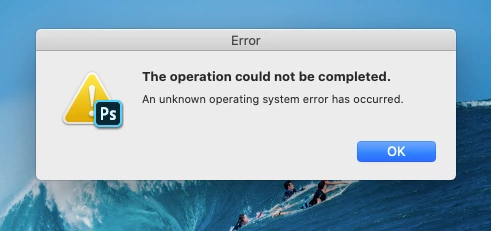


Any ideas?


Thanks.

This topic has been closed for replies.
Correct answer PECourtejoie

HEllo, I would try updating to Ps 21.1.3, the releases notes mention a fix for this very issue: https://helpx.adobe.com/photoshop/kb/fixed-issues.html#photoshop-desktop-fixed-issues

4 replies

PECourtejoie
Community Expert
PECourtejoieCommunity ExpertCorrect answer
Community Expert
May 19, 2020

HEllo, I would try updating to Ps 21.1.3, the releases notes mention a fix for this very issue: https://helpx.adobe.com/photoshop/kb/fixed-issues.html#photoshop-desktop-fixed-issues

Participating Frequently
May 23, 2020

This did not fix it for me. Still get the same message (see attached). It seems to be a naming-convention issue. If the filename starts with a character -- like the number sign # (eg. #1 John Doe) -- then this error message still occurs.

Participating Frequently
January 30, 2020

After speaking with several Adobe technicians, I can use the # in front of my naming string by using "Export As" instead of "Save for Web." Save for Web is legacy, Export As is the "new" way to do the same, according to the tech. Export As can be found here: File > Export > Export As (Command+Option+Shift+W). When the dialogue box comes up you will see the Quality is 100%. That appears to be the same as Quality in the Save for Web dialogue box. Eg. if I knock the Export As Quality down from 100% to 60% it gives me an image that is the same size as the Save For Web, Quality "High" (60%).


Hope this helps others.

Participant
February 11, 2020

Hello Mara
You are right, but when I'm trying to save the file as a gif I can't. For now your "#" solution is working.
Thank you for your contribution

Participant
November 21, 2019

Thanks

Participant
January 24, 2020

WHAT??


The folder I was pulling the file from was named #4. threw out the "#" from the folder name now it works.


Crazy!

Participating Frequently
January 24, 2020

Yes, crazy. I have had numerous sessions with Adobe (them going into my computer etc.) and they haven't been able to fix it yet. Of course it doesn't do the same thing for them on their computers. So I just keep dropping the # sign until they figure it out!

nikunj.m
Community Manager
Community Manager
November 12, 2019

Hi there,


We are sorry about the issue you are facing with Photoshop 2020 while trying to Save for Web.


Would you mind going to the System Preferences for Mac then navigate to Security and Privacy > select the Privacy Tab > Select Accessibility from the list on the left and add Photoshop to the list. Also, grant Photoshop permissions to the Files and Folders then restart the computer to check if that helps.


You can also try to reset the preferences of Photoshop to check if that helps. You can check the steps in the link mentioned below.

https://helpx.adobe.com/in/photoshop/using/preferences.html


Note: Please take a backup of your Actions, Presets, Plug-ins, etc. before resetting the Preferences.


Regards,

Nikunj

eoldigs
eoldigsAuthor
Participating Frequently
November 12, 2019

Thanks,


the tip to reset the preferences helped me. It works now.


Thanks for your help.