
JerryandLoisPhotography
Known Participant
July 10, 2022
Question

PS 23.4.1 doesn't quite completely, leaving "background task" still running, preventing re-launch

  • July 10, 2022
  • 2 replies
  • 2949 views

Hoping for some immediate help.

PS doesn't quit completely.  After using it and then quitting, it leaves behind a background task that's still running, named "Adobe Photoshop 22"  Please see attached screenshot .  This prevents me from relaunching PS (apparently).  If I use task manager to kill this instance of PS, then I can relauch Photoshop again.  

If I leave this running, clicking on  the PS icon in my taskbar (or any other launch methods) all fail.  No alerts or warnings, just PS won't launch.

Best guess is that as long as the background task is present, PS thinks it's a working instance and aborts the launch process.
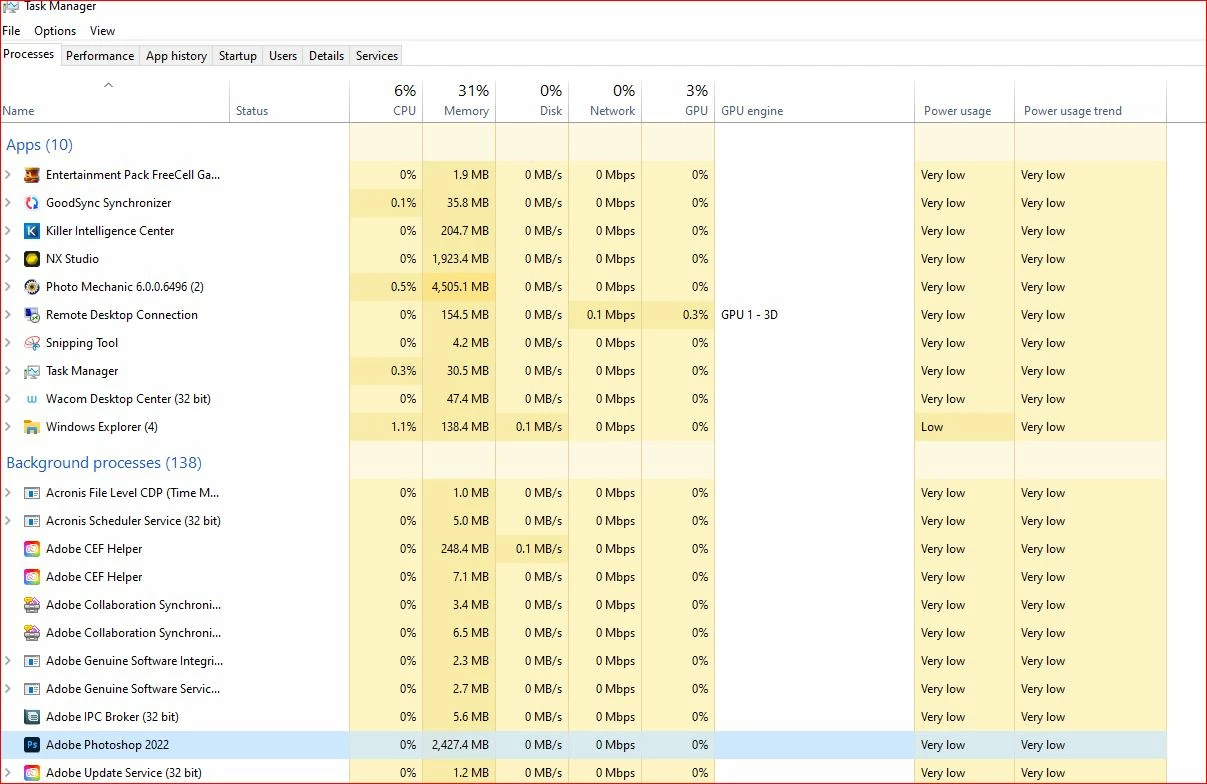

This is new to me after installing 23.4.1 (current).
Win10/64, 64gig ram, Running everything on reasonably fast SSDs.

This topic has been closed for replies.

2 replies

NB, colourmanagement
Community Expert
Community Expert
October 30, 2022

Perhaps try resetting Photoshop preferences?

(read this entire post before acting please)

Resetting restores Photoshop's internal preferences, which are saved when Photoshop closes.

If they become corrupt then various issues can occur.


Here’s some info on how to do that:

https://helpx.adobe.com/photoshop/using/preferences.html

Manually removing preferences files is the most complete method for restoring Photoshop to its default state: 

https://helpx.adobe.com/photoshop/using/preferences.html#Manually


The user Library folder is hidden by default on macOS.

To access files in the hidden user Library folder, see here for how to access hidden user library files.

https://helpx.adobe.com/x-productkb/global/access-hidden-user-library-files.html


Unexpected behavior may indicate damaged preferences. Restoring preferences to their default settings is a good idea when trying to troubleshoot unexpected behaviors in Photoshop. check out the video

https://helpx.adobe.com/photoshop/using/preferences.html#reset_preferences


Learn how to access and modify Photoshop preferences and customize per your frequent workflows

https://helpx.adobe.com/photoshop/using/preferences.html


And here’s an earlier forum discussion as an aid to understanding

https://community.adobe.com/t5/photoshop-ecosystem-discussions/quick-tips-how-to-reset-photoshop-preferences/td-p/12502668


You may want to backup your settings and custom presets, brushes & actions before restoring Photoshop's preferences.

Here is general info about that:  https://helpx.adobe.com/photoshop/using/preferences.html#BackupPhotoshoppreferences


I hope this helps
neil barstow, colourmanagement net :: adobe forum volunteer:: co-author: 'getting colour right'
google me "neil barstow colourmanagement" for lots of free articles on colour management

J E L
Community Expert
Community Expert
July 15, 2022

Hi @JerryandLoisPhotography, I see you don't have any replies yet, sorry about that. Are you still having this problem? Here are a couple of ideas. First, fully sign out of your Adobe account and Quit Creative Cloud Desktop app. End all the Adobe task processes that are running with Task Manager. Then, run Windows' Disk Cleanup tool and remove all temporary files. Finally, shut down your computer entirely and then do a full reboot. Launch Creative Cloud desktop and open Photoshop. Work from there. Open a file, save a file, then quit Photoshop. Does it launch again correctly? If not, you could try a preferences reset, uninstalling and reinstalling Photoshop, or use the Creative Cloud Cleaning tool. Instructions are here: ;https://helpx.adobe.com/creative-cloud/kb/cc-cleaner-tool-installation-problems.html. If you've done all of that without luck, copy and paste your System Info here in a reply. Let us know how it goes!

JerryandLoisPhotography
Known Participant
August 9, 2022

Hi Jain,

Sorry that it took a while to respond, but I have updated info.
1. For reasons outside the context of this thread, I ended up paving the box, reinstalling Win10Pro, along with all the CC apps of course.  I ensured I was installing the absolute most recent versions of PS and LR (installing via CC of course).
2. The moment PS and LR were installed (so everything was virginal fresh), I fired up each app and quit, one at a time; i.e. there was never an instance of both running simultaneously.
3. Residual processes for PS and LR were still running.  These prevented PS and LR from launching. 
4. The only solution was to use task mgr to manually quit each process.   Sometimes after quitting, there would be 2 processes with the same name, not just one.  To reiterate, they each had to be killed before I could relaunch.

This duplicate behavior is a very recently started behavior, perhaps with the last update, certainly wasn't present 4 or 5 months ago, but I'm not sure when it actually started.

Hoping you can get answers on this.  It's a pain!

Thanks,
Jerry


CShubert
Community Manager
Community Manager
October 6, 2022

That's correct.  Slightly more detail:

  • There are times that even when I use TM to delete the process that PS will not launch.  REBOOT needed <argh!>
  • There are times that after PS has closed, that there's no obvious process (for me to delete), but PS still will not launch.  REBOOT needed <argh!>

Quite maddening, especially when facing critical pub deadlines...

Thanks again...


Hi @JerryandLoisPhotography sorry you are still having this issue.  As @J E L mentioned;

Your video driver is 3 months:
Driver date: 2022-07-21 000000.000000-000
Driver age: 3 months
Driver version: 31.0.15.1693

If there is an update, please install and see if this solves.  There have been NVidia issues in other areas that might be releated to your issue.


Thank you,