
Participating Frequently
January 8, 2024
Question

PS 25.3.1 - Layer name visibility truncated

  • January 8, 2024
  • 3 replies
  • 1058 views

Just recently purcased Photoshop and wanted to check if this simptom is universal to everyone.

The problem is that the layer name is truncated, for example if I name a layer "Layer x" the Y letter looks like a V, the text field is more narrow than the letter.
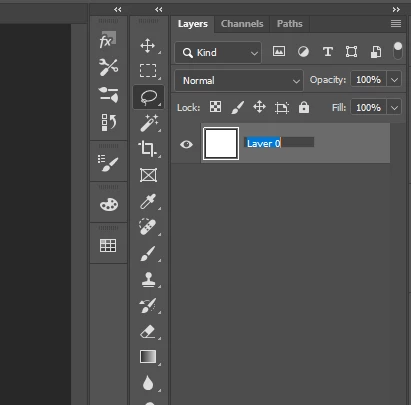
Also if I type underscore in the layer name I can't see it, I don't know if I typed an underscore or a space etc.

Is this the behaviour for everyone?

I used Photoshop a few years ago, maybe 5-6 years ago and I don't remember this issue.

Thx


This topic has been closed for replies.

3 replies

Myra Ferguson
Community Expert
Community Expert
January 9, 2024

I tested it in Photoshop version 25.3.1  on Windows 10, and I see the same thing--it gets cut off when you type, but appears as it should after you press Enter.

Participating Frequently
January 9, 2024

Yeah, so aparently this is how it works now, I have a colegue that has an old 2018 version, and he sent me a screenshot, the layer name is not truncated...

In creative cloud I can go back to version 22.2, but it is still truncated, more so you can see that the layer color bleeds on the top of the layer below, they probably changed something at some point and never got it right again.

My main issue with this is that most of the time I need to rename layers made by other colegues, mostly replace spaces with undescores and I can't tell at a glance if I made a replacement or not, Imagine having 3 or 4 words and letters with spaces in between that need to be undescores.


If you guys have older versions to check it would be interesting to see which version worked properly last.

Stephen Marsh
Community Expert
Community Expert
January 10, 2024
quote
quote

Do you know for a way to run a script without saving it, like a command line?


By @Adrian_suricate


This makes no sense to me.


By @Stephen Marsh

I was trying to see if I can make your script replace the spaces with underscores automatcally and try different things, not a big deal though, I can edit the text file and run the scipt every time I change something in the script. I thought maybe there was a way to do that directly in photoshop. Thanks again for the workaround.


quote

I was trying to see if I can make your script replace the spaces with underscores automatcally


It would be easy enough to add such automatic transforms to the script.


quote

I can edit the text file and run the scipt every time I change something in the script. I thought maybe there was a way to do that directly in photoshop. Thanks again for the workaround.


By @Adrian_suricate


There is, however, you mentioned that the script was slower than using the GUI, even if it was more legible! So copying and pasting script code on the fly for modification and execution would be significantly slower than the original method that you said was too slow! This is why I said it doesn't make sense.


So yes, using a legacy CEP panel one can "code on the fly", I do this all the time for "rapid development" so that I don't need to continuously test code in Visual Studio Code + ExtendScript Debugger extension. The panel isn't perfect and it's still a good idea to test externally before releasing code.


https://exchange.adobe.com/apps/cc/108124/scripts-panel

davescm
Community Expert
Community Expert
January 8, 2024

Yes it is truncated in height here while typing, although after 'enter' the complete font is revealed. PS25.3.1 in Windows 11.

I also checked v24.7 and v22.5.9 and they were the same.

Dave

Participating Frequently
January 9, 2024

I found 2018 version was working properly, I wonder which was the last version that worked.

I checked 5 versions in creative cloud and all work the same.

Stephen Marsh
Community Expert
Community Expert
January 8, 2024

It's OK for me on Mac Monterey (12.7.2) and Photoshop v2021 (22.5.9) and v2024 (25.3.1).

Participating Frequently
January 9, 2024

Interesting, can you please share a printscreen with a layer with Y in the name in edit mode(double clicking on the layer name)

Do you see undescores while you type them?

Stephen Marsh
Community Expert
Community Expert
January 9, 2024
quote

Interesting, can you please share a printscreen with a layer with Y in the name in edit mode(double clicking on the layer name)

Do you see undescores while you type them?


By @Adrian_suricate


Yes, it all works as expected on my Mac: