
K_Brotheridge
Participant
December 1, 2018
Answered

PS CC 20.0.1: 95% of menu options greyed out

  • December 1, 2018
  • 1 reply
  • 4689 views

Recently updated my PS and when I choose "Edit as Layers in Photoshop" from Lightroom on few photo's I want to stack - they open in PS as normal, but I have no options. If I right click any layers - no options, can't even Ctrl+J duplicate layers, and when I select all layers to align them - The edit menu is largely disabled.
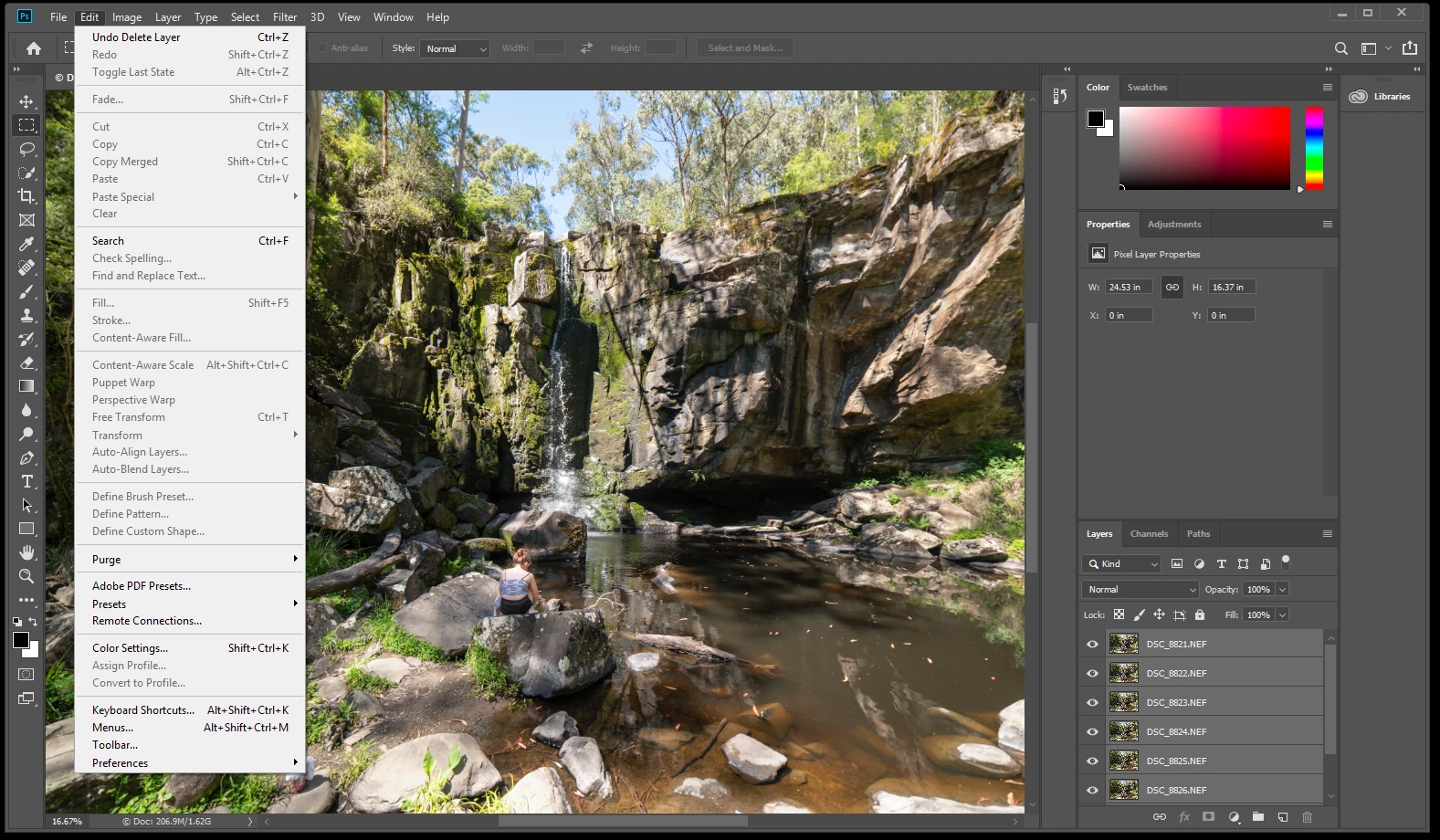
To troubleshoot, I've closed PS, reopened it from the Start menu with CTRL+ALT+SHIFT to delete the local settings file. No change.

Created brand new document. No change.

Unsure what to do from here... So annoying!!!

This topic has been closed for replies.
Correct answer Chuck Uebele

This seems to be a bug when opening files from Lightroom. Close both programs and open PS first.

1 reply

Chuck Uebele
Community Expert
Chuck UebeleCommunity ExpertCorrect answer
Community Expert
December 1, 2018

This seems to be a bug when opening files from Lightroom. Close both programs and open PS first.

K_Brotheridge
Participant
December 1, 2018

* Closed both programs.

* Opened PS from start menu. Loaded.

* Opened LR from start menu. Loaded.

* Re-selected the bunch of images I wanted as layer

* Right-click "Open as layers in PS"

Lightroom basically locks up.

* Left mouse clicks are delayed, often don't register.

* No right-click menu.

* No importing to PS.

[UPDATE]

While typing this (~10 minutes after starting the above reply) the Right-click menu's started appearing where my mouse pointer was over the web browser and images started to import into PS as layers.

I run an i7-8700k @ 5.0GHz and SSDs in RAID - paid the extra money for the performance only to have the software negate it. This is bullshit - is there a choice to uninstall and go back to prior versions? The previous release seemed to work reasonably well...

Chuck Uebele
Community Expert
Community Expert
December 2, 2018

You can go back to the 2018 version of PS by using the Adobe Application Manager.

After you click on Manage, select "Other Versions."