Inspiring
January 11, 2021
Answered

PS color space

  • January 11, 2021
  • 7 replies
  • 1338 views

I see lots of members are having issues with the colour space settings in photoshop, anyone manage to find a solotion, Adobe have tried several times remotely to fix the problem but we are no further on. 

This topic has been closed for replies.
Correct answer davescm

Dave when i tick "ask when opening" this box appears so what should i choose?  i choose
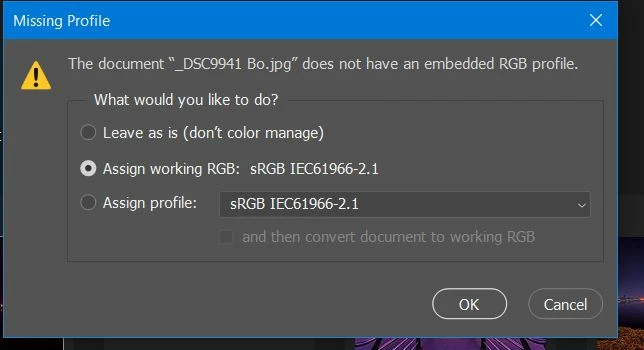

Hi,

it means the image you opened has no profile embedded so you are left to guess which profile to use. If you got the image from the web the first guess would be assign profile sRGB but if that looked over or under saturated you could try assigning another. 

That is why we should always save images with an embedded profile.

Dave

7 replies

NB, colourmanagement
Community Expert
Community Expert
January 11, 2021

As Dave mentioned the display proifile could be an issue, heres some more info about that:

Windows display profile

Display profile issues on Windows

At least once a week on this forum we read about this, or very similar issues of appearance differing between applications.

Unfortunately, with Microsoft hardware: Windows updates, Graphics Card updates and Display manufacturers have a frustratingly growing reputation for installing useless (corrupted) monitor display profiles.

I CAN happen with Macs but with far less likleyhood, it seems.


The issue can affect different applications in different ways, some not at all, some very badly.


The poor monitor display profile issue is hidden by some applications, specifically those that do not use colour management, such as Microsoft Windows "Photos".


Photoshop is correct, it’s the industry standard for viewing images, in my experience it's revealing an issue with the Monitor Display profile rather that causing it. Whatever you do, don't ignore it. As the issue isn’t caused by Photoshop, don’t change your Photoshop ‘color settings’ to try fix it. 


To find out if the monitor display profile is the issue, I recommend you to try setting the monitor profile for your own monitor display under “Device” in your Windows ‘color management’ control panel to sRGB temporarily. 

You can ADD sRGB if its not already listed. 

And be sure to check “Use my settings for this device”.


(OR, if you have a wide gamut monitor display (check the spec online) it’s better to try Adobe RGB here instead).

Quit and relaunch Photoshop after the control panel change, to ensure the new settings are applied.


If this change fixes the issue, it is recommended that you should now calibrate and profile the monitor properly using a calibration sensor like i1display pro, which will create and install it's own custom monitor profile. The software should install it’s profile correctly so there should be no need to manual set the control panel once you are doing this right. 


Depending on the characteristics of your monitor display and your requirements, using sRGB or Adobe RGB here may be good enough - but custom calibration is a superior approach.


Still got problems?

If you want to try a method that’s proved successful to rule out many an issue we see with Photoshop, you can reset preferences:


To reset the preferences in Photoshop: 

https://helpx.adobe.com/photoshop/using/preferences.html


Note: Make sure that you back up all your custom presets, brushes & actions before restoring Photoshop's preferences. Migrate presets, actions, and settings


I hope this helps
neil barstow, colourmanagement net :: adobe forum volunteer
google me "neil barstow colourmanagement" for lots of free articles on colour management
[please only use the blue reply button at the top of the page, this maintains the original thread title and chronological order of posts]


newryAuthor
Inspiring
January 11, 2021

Guys i have followed some of your suggestions above and the colours now match. i have just recalibrated my monitor and all is as it should be. mant thanks for all your help, just a pity Adobe could not fix this after three failed attempts.

D Fosse
Community Expert
Community Expert
January 11, 2021

Support isn't always what it should be.


Here's a complete color management checklist. It only has three items:

  • the file needs to have an embedded document profile
  • you need to have a valid and accurate monitor profile set up at system level (a calibrator gives you that)
  • you need to view the file in a color managed application, which reads both these profiles and remaps correctly from one into the other


That's it. Note the second point. A generic monitor profile will work, but to take full advantage of it, Photoshop is really designed to work with an accurate profile made with a calibrator.

davescm
Community Expert
Community Expert
January 11, 2021

You mention Lightroom and Photoshop not matching. This is likely to be a defective monitor profile (item 3 in my list above).

Are you using Windows or a Mac?

Dave

newryAuthor
Inspiring
January 11, 2021

Windows 10 pro

davescm
Community Expert
Community Expert
January 11, 2021

You can check which profile is in use by typing Color Management into the windows search bar. As a temporary test step you could replace the existing with sRGB IEC61966-2.1 . That will not be correct for your monitor, but should at least be consistent between LR and PS and show whether a broken profile is the cause. If so you could remake with your Spyder. If you are given a choice (I am not familiar with the Spyder software) , try making a version 2 monitor profile rather than version 4 profile.


One other thing to check. Make sure that Lightroom and Photoshop are in step in their versions. So if you are using the latest Photoshop, also use the latest Lightroom. Camera profiles and defaults have been changed and if the two versions are out of step you may see some inconsistency. That has nothing to do with the colour profile settings mentioned earlier, just the way camera data is "translated" to form an image.


Dave


davescm
Community Expert
Community Expert
January 11, 2021

What is the problem? Photoshop's colour management works well.


It needs a few, simple, settings first though.

1. Select your colour space for new documents in Edit Colour settings. This could be Adobe RGB or, if you work mainly for the web, the slightly narrower sRGB

2. In Colour settings set Policies to "Preserve Embedded Profiles". This means that Photoshop will honour and use the colour profile of any existing document that you open. For Missing profiles check "Ask when opening" which will enable you to choose and try different profiles if you open a document without and embedded profile

3. Set your monitor profile in your operating system to the profile that describes your monitor with its current settings. Ideally that means using a calibration tool such as the i1Display to produce that profile

4. If printing set Photoshop manages colours and choose the profile for your particular paper and printer combination. Good profiles are supplied by most paper manufacturers. In the printer driver settings turn off colour management (you don't want to manage the colour twice) and set the media settings to those recommended by the paper manufacturer.

5. When saving, always ensure the colour  profile is checked in the save as dialogue

6. When exporting for web use check both "Convert to sRGB" and "Embed Color Profile"


That is it - six steps to heaven 🙂


Dave

newryAuthor
Inspiring
January 11, 2021

Thank you I will look at the settings when I get home and report back here, I calibrate the screen every two weeks using the Spyderx elite tool. 

Legend
January 11, 2021

A lot of people are having problem, but it's mostly because they don't understand colour management. The solution to that is of course education. If you do understand colour management and believe you have found something wrong, please let us know. 

NB, colourmanagement
Community Expert
Community Expert
January 11, 2021

What is the issue you are having? 

Please explain fully.

Please explain and provide screenshots if relevant - place them in the text of your message  using the image button above next to the </> 


I hope this helps
neil barstow, colourmanagement net :: adobe forum volunteer
google me "neil barstow colourmanagement" for lots of free articles on colour management
[please only use the blue reply button at the top of the page, this maintains the original thread title and chronological order of posts]

c.pfaffenbichler
Community Expert
Community Expert
January 11, 2021

Please provide a meaningful description of the problem. 

Are you talking about Edit > Color Settings? 

newryAuthor
Inspiring
January 11, 2021

When I take an unedited photo into PS the colours are far too saturated yet the same photo is OK in LR, it's been a problem thus three weeks, what should the default settings be in the colour settings within PS

c.pfaffenbichler
Community Expert
Community Expert
January 11, 2021

Please set the Status Bar to »Document Profile« and post meaningful screenshots. 

Doe the images have embedded profiles? 


As @davescm  mentioned it is important to Preserve Embedded Profiles. 

JJMack
Community Expert
Community Expert
January 11, 2021

What is the issue users are having?

JJMack
newryAuthor
Inspiring
January 11, 2021

When I take a photo in LR the colours are exactly as they should be but if I take the same photo in PS the colours are way too saturated, doesn't matter if I take the photo straight from sd card, desktop of from LR, I never had the problem before it's been going on this three weeks. 

JJMack
Community Expert
Community Expert
January 11, 2021

If you process a raw file in LR and accept the default LR conversion for a RAW fle. If you open that processed RAW file in Photoshop are the colors the same as LR set. If they are your ACR default conversion settings are not the same default settings you have in LR.  LR Develop module and ACR Plug-in use the same Adobe RAW conversion engine so they can use each other recorded conversion settings.  However, they have different UI so it may not be possible to set the same defaults.  I do not know for sure I do not install LR. 

JJMack