
djmay6782
Inspiring
February 19, 2024
Answered

PS export as srgb jpg colors wrong

  • February 19, 2024
  • 2 replies
  • 1354 views

I have a 12gb psb that will not export as srgb jpg correctly. Color workspace is ProPhoto. Monitor is ARGB.

The first screenshot shows the settings.
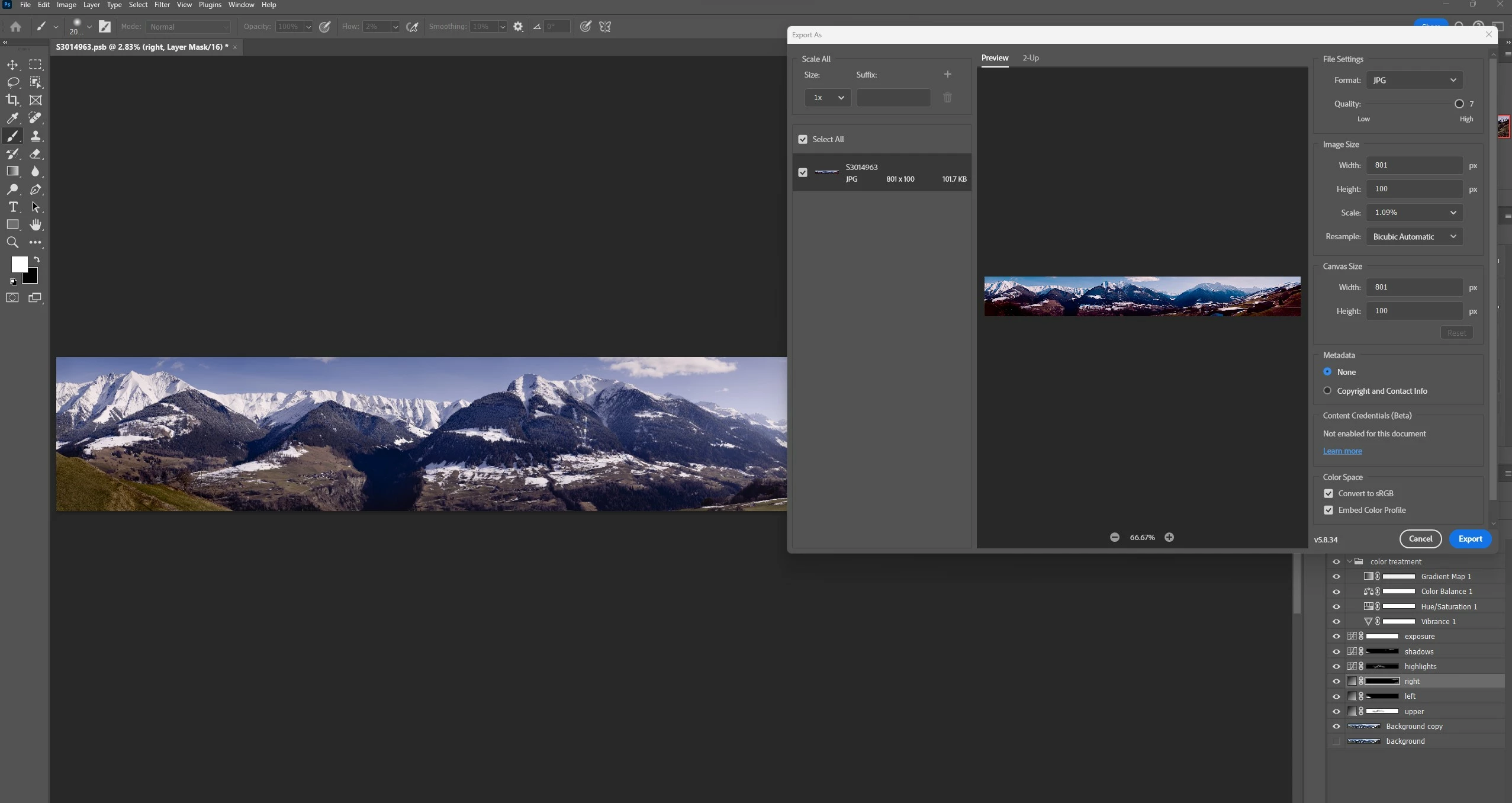
After export the colors and tones are wrong. The second screenshot shows the psb and exported jpg on SRGB monitor. It does not matter which device is used to view the jpg, phone or other computer, the colors are way off.
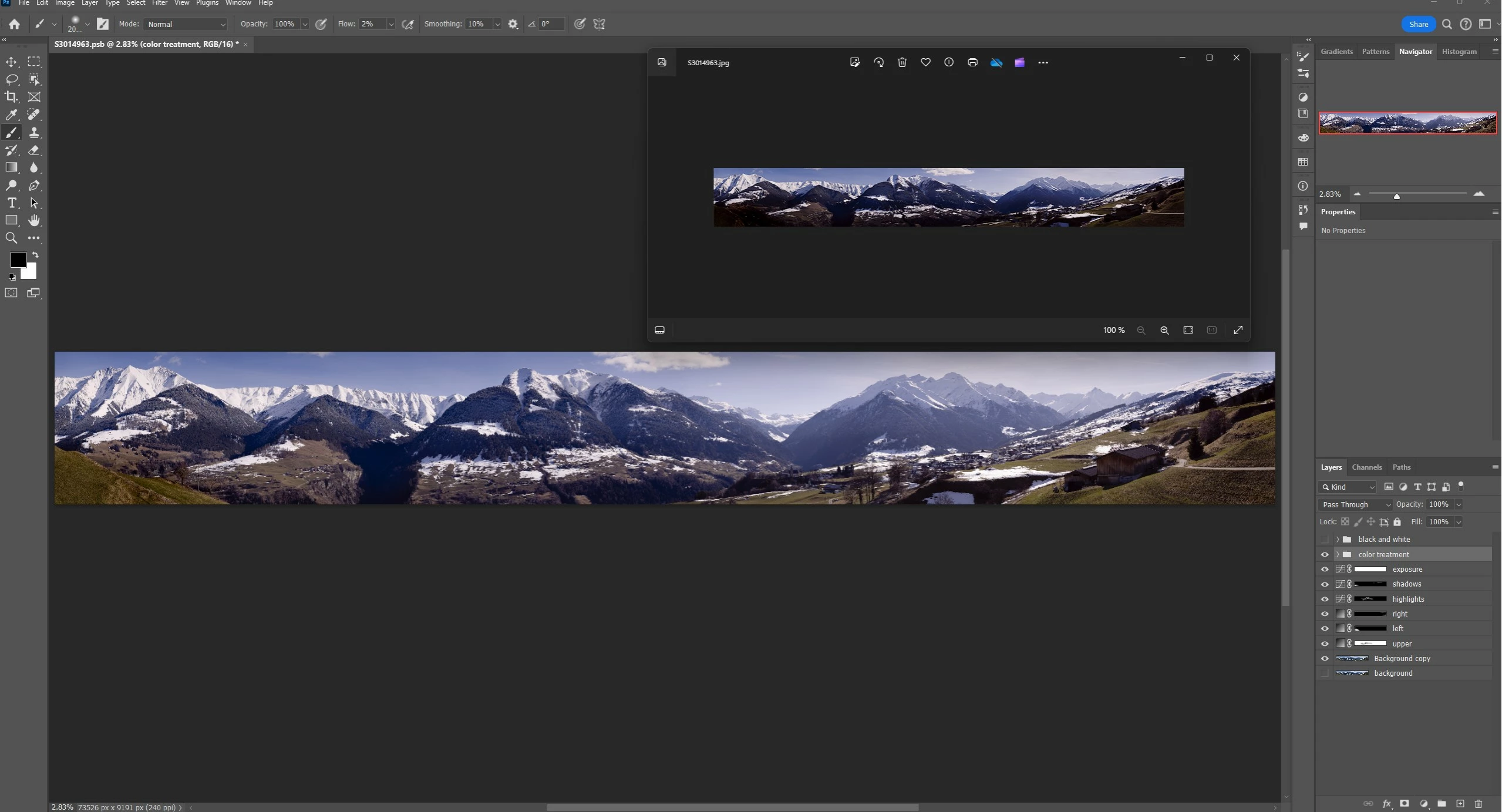
This is a recurring problem. Usually, I would just use LR to export, however, LR cannot open this psb. It can open other psb files, but not this one. But that is a different problem.

This topic has been closed for replies.
Correct answer djmay6782

Maybe your image is PSD or Tiff with layers? Or channels? Those can't be part or of a JPEG. Try making a copy. Setting the image size, flattening - then try Save As. 
you may need to go to preferences and check to show "Legacy Save As" options. 

I hope this helps neil barstow, colourmanagement net - adobe forum volunteer - co-author: 'getting colour right' google me "neil barstow colourmanagement" for lots of free articles on colour management Help others by clicking "Correct Answer" if the question is answered. Found the answer elsewhere? Share it here. "Upvote" is for useful posts. 


@NB, colourmanagement  I figured it out by trying different save methods. The correct method is not Save As but Save a Copy. This is what I did similar to your recommendation.

1. Save A Copy of the psb

2. Resize the copy to 800 pixels on the long side.

3. Save A Copy > select jpg. The jpg option does not show unless the image is resized in step 2.


Resulting jpg was 121 kb, which is what I wanted. No flattening was necessary, however, the resized image is not useful for anything but creating a jpg.

2 replies

D Fosse
Community Expert
Community Expert
February 19, 2024

There are two different issues here. First the easy one.


The Export As preview is still buggy, and sRGB will display oversaturated on a wide gamut monitor. You will see that if you have Convert to sRGB checked. That means the Export module and Windows Photos actually do show the same thing, even though it doesn't look like it. What you export is what you get.


Now the tricky part: why Photoshop and Export/Photos don't agree. We need more information.


What immediately strikes me here, is that the colors aren't good to begin with. The blue is far too purple and the colors altogether too muted. So what that suggests to me, is a ProPhoto image without proper color management. That's how that would look.


So we need to know the embedded profile. Your color settings don't matter. The embedded profile overrides it and takes precedence. Show a screenshot of this:


Next, your monitor profile. You talk about switching the monitor between "sRGB" and "Adobe RGB" presets - but if you do that, you need to make a new monitor profile to describe the new behavior. The monitor profile is a map of the monitor's current behavior. If that behavior changes, the profile is invalidated and you need to make a new one.


That still doesn't fully explain the excessive black clipping seen here. One thing that can do this, is LUT-based monitor profiles. Some applications, under some circumstances, will choke on LUT profiles and display incorrectly, often clipping the blacks. Version 4 profiles can do the same thing. So make sure the x-rite software is set to make matrix-based version 2 profiles. And run it again, at the monitor's current state.

djmay6782
djmay6782Author
Inspiring
February 19, 2024

@D Fossethank you for the time and effort to make a suggestion. Your comment about PS being buggy is the main problem, hower it seems the other information is not relevant to the problem. See the post above about saving a copy, flattening the image and then exporting, which works.


To answer some of your questions.

1. The monitor is AGRB and calibrated with xrite. I have used this monitor with three different computer systems, as well as LR, PS and Davince Resolve. The problem is only with PS Export As jpg.

2. The monitor can be switched to srgb mode. This has nothing to do with calibrating; it is a monitor utility.

3. The document profile is ProPhoto.


It would be best if Adobe would fix the problem, so that additional copies and flattening are not required.

D Fosse
Community Expert
Community Expert
February 19, 2024
quote

The monitor can be switched to srgb mode. This has nothing to do with calibrating; it is a monitor utility.


By @djmay6782


You seem to misunderstand how this works.


The monitor profile is a standard icc profile that describes how the monitor behaves in its current state. It doesn't matter how the monitor is brought to this state. It can be with a calibrator, or it can be with the monitor's OSD controls, or, for that matter, it could be by placing colored gels in front of the screen. None of that matters. What matters is that the monitor has this behavior, and the profile describes that behavior.


This monitor profile is used by Photoshop in a standard profile conversion, from the document profile and into the monitor profile, and these converted numbers are sent to the monitor. If the profile is accurate, the file is correctly represented on screen. If the profile is not accurate, because that behavior has been changed, the file will not be correctly represented on screen.


This profile conversion is executed on the fly, as you work, continuously.


The monitor profile is a map. Like any map, it has to correspond to the actual terrain, or it's useless.


Your calibrator does two things, one after the other. First it alters the monitor's basic behavior, mostly by setting a white point and equalizing R=G=B relative to that white point. In some cases it can also change the primaries (the monitor's color gamut). This is the calibration.


Then the calibrator measures the result, and writes a profile off that measurement. This profile has a much higher precision level, and uses more parameters. This is profiling; the color management part. This is the profile that your ProPhoto document profile is converted into.


EDIT: If you get a different result by flattening a copy, something's wrong in your GPU driver. That's layer compositing, which is by default executed in the GPU. There's a checkbox in Preferences > Performance > Advanced for this; unchecking reverts to older code where this is done by the CPU.

NB, colourmanagement
Community Expert
Community Expert
February 19, 2024

HI @djmay6782 - you wrote "Monitor is ARGB."

does that mean you're using the Adobe RGB ICC profile as the display colourspace? That's not ideal

I don't imagine any display actually completely matches Adobe RGB.

Ideally, your display will be calibrated and p[rofol;ed using something like the i1Display colorimeter, I prefer to use those with basIColor display software. 


Try this: convert a copy to sRGB then use "save as" set to Jpeg rather than 'export', be sure the document profile is embedded. Nite that as your original colourspace is ProPhoto there may well be some reduction in saturation moving to the smaller sRGB colourspace. 


It's important to view the exported image using a colour-managed application - and ideally viewing on a calibrated and profiled display screen


I hope this helps
neil barstow, colourmanagement net - adobe forum volunteer - co-author: 'getting colour right'
google me "neil barstow colourmanagement" for lots of free articles on colour management
Help others by clicking "Correct Answer" if the question is answered.
Found the answer elsewhere? Share it here. "Upvote" is for useful posts.

djmay6782
djmay6782Author
Inspiring
February 19, 2024

@NB, colourmanagementI do not see a save as jpeg option.

djmay6782
djmay6782Author
Inspiring
February 19, 2024

Maybe your image is PSD or Tiff with layers? Or channels? Those can't be part or of a JPEG. Try making a copy. Setting the image size, flattening - then try Save As. 
you may need to go to preferences and check to show "Legacy Save As" options. 

I hope this helps neil barstow, colourmanagement net - adobe forum volunteer - co-author: 'getting colour right' google me "neil barstow colourmanagement" for lots of free articles on colour management Help others by clicking "Correct Answer" if the question is answered. Found the answer elsewhere? Share it here. "Upvote" is for useful posts. 


@NB, colourmanagement, I saved a copy and flattened the image. Then I went to Export As, selected srgb, image size 801 pixels on the long side and exported, just as I tried before.


The resulting jpg was fine. It is a convoluted way to get a decent jpg. Thank you.