
Participant
April 9, 2025
Answered

Purge all is greyed out in Photoshop 2025

  • April 9, 2025
  • 3 replies
  • 1355 views

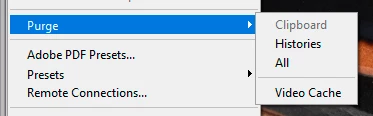
I see about 30 GB in my cache and want to free up some space on my C drive. I've already switched my Cashe storage to an external drive in Photoshop. But when I try to purge the cache, the option is grey. I only have the option to purge video. I can't find an answer to why this is greyed out here or anywhere else on line. 

I am using Photoshop 2025 on a Windows 10 PC

Thank you
Correct answer D Fosse

Yes, but Purge cache is still a Bridge operation, to delete thumbnails and previews..


In Photoshop you can only purge history states from memory/scratch disk, and the clipboard.


And video cache, but that's not the same as the scratch disk. The scratch disk is purged by purging History.


(Actually, nobody seems to know what video cache in Photoshop really is, according to my google searches...I'd assume it applies to the GPU. Or maybe it's just the standard preview cache, as per cache levels in Preferences. If so, there isn't much memory to retrieve there).

3 replies

Participant
April 10, 2025


Thank you for clearing that up for me. Much appreciated.


davescm
Community Expert
Community Expert
April 9, 2025

Purge cache is used to reduce the cache size while working. If you open Photoshop with no open documents then there is nothing to purge and the items within 'Purge' will be greyed.

Dave

D Fosse
Community Expert
D FosseCommunity ExpertCorrect answer
Community Expert
April 9, 2025

Yes, but Purge cache is still a Bridge operation, to delete thumbnails and previews..


In Photoshop you can only purge history states from memory/scratch disk, and the clipboard.


And video cache, but that's not the same as the scratch disk. The scratch disk is purged by purging History.


(Actually, nobody seems to know what video cache in Photoshop really is, according to my google searches...I'd assume it applies to the GPU. Or maybe it's just the standard preview cache, as per cache levels in Preferences. If so, there isn't much memory to retrieve there).

D Fosse
Community Expert
Community Expert
April 9, 2025

I think maybe you're confusing different things.


It sounds like you mean the Bridge cache. That's all the thumbnails and previews in Bridge, which can grow to a considerable size over time and as your archive grows. The best thing to do with that is to move it to a different drive in Bridge preferences. Then you can also move the whole physical folder, and delete the old one in the user account (on the C drive).


What Photoshop needs disk space for, is the scratch disk. That's a different thing. Photoshop needs to manage huge amounts of data, much more than any RAM you may have installed. So all this temporary working data is written to disk, aka the scratch disk. Think of the scratch disk as Photoshop's main memory, with RAM as a fast access cache.


The scratch file is deleted (and all memory cleared) when you close Photoshop. As long as Photoshop is running, memory and scratch disk space are reused and recycled. It is not cleared until the application closes. This is by design (and for good reasons).


A very big part of the scratch disk is taken up by history states. Every history state potentially adds the full uncompressed file size. If you're short on disk space, the best thing you can do is reduce history states as much as possible, even all the way down to just a couple. That will dramatically cut disk space consumption.


But there is no way you can avoid the scratch disk. It needs the space it needs. Without it, Photoshop won't work.