Known Participant
July 19, 2025
Answered

Question about Selection Tools in Photoshop

  • July 19, 2025
  • 2 replies
  • 134 views

When I select part of a photograph in Photoshop using, say a oblong selection tool, I get the marching ants. Is there a way that I can get the marching ants but also black out the area not selected. I find it difficult to visualise the finished object until I crop, then often need to go back and reposition the selection box. I would like to be able to move the selected area around, with the background blacked out to get my composition correct, then crop the part I want. I hope you understand what I mean.


{Moved from Lightroom Cloud to Photoshop Forum by Moderator} 

Correct answer Rob_Cullen

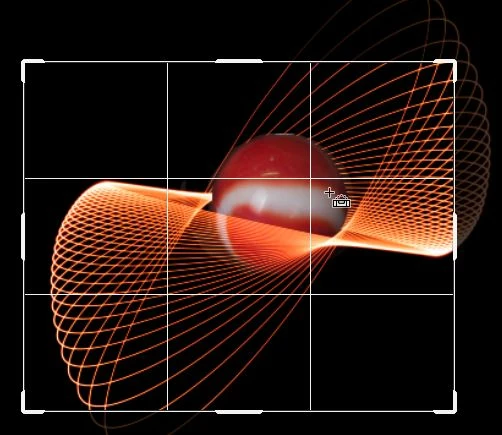
If using Photoshop, why use the oblong selection tool?  Why not go directly to the Crop Tool where you get a dimmed view of the image outside the crop box when you release the mouse cursor. The image can be easily dragged about to position your wanted area within the crop box.


2 replies

Known Participant
July 21, 2025

Thanks Rob. Yes that is a better way of doing it. I suppose I got into using the selection tool and never thought of using the crop tool - even though that is what it is for. We live and learn 🙂

Rob_Cullen
Community Expert
Rob_CullenCommunity ExpertCorrect answer
Community Expert
July 21, 2025

If using Photoshop, why use the oblong selection tool?  Why not go directly to the Crop Tool where you get a dimmed view of the image outside the crop box when you release the mouse cursor. The image can be easily dragged about to position your wanted area within the crop box.


Regards. My System: Windows-11, Lightroom-Classic 15.1.1, Photoshop 27.3.1, ACR 18.1.1, Lightroom 9.0, Lr-iOS 10.4.0, Bridge 16.0.2 .