
geoffl18657010
Known Participant
January 26, 2024
Question

Question: Are the File Sizes too large for my iMac Mini?

  • January 26, 2024
  • 5 replies
  • 1808 views

Hi,


Question: Are the File Sizes too large for my iMac Mini?


I bought this computer in February 2023.


Storage is:
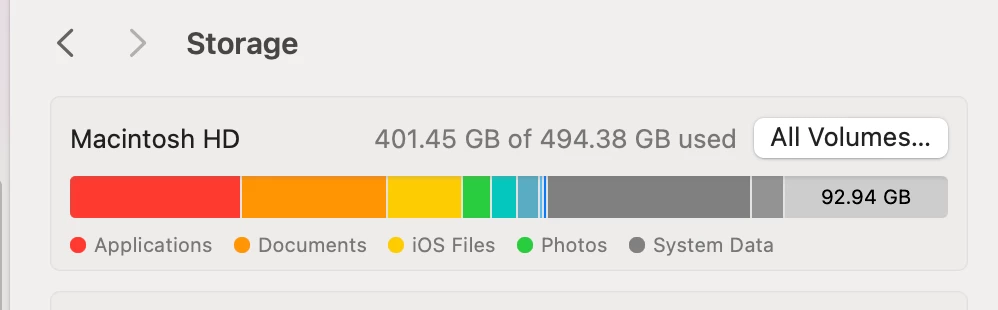


Photoshop and Lightroom (Creative Cloud and up to date)is painfully slow (60sec per command) and it keeps crashing…….. several times daily. I am working with file sizes of 1.7GB Plus, including Layers and Masks.


Question: Are the File Sizes too large for my iMac Mini?


Thanks in advance,


Geoff


This topic has been closed for replies.

5 replies

geoffl18657010
Known Participant
February 25, 2024

UPDATE: I realised that the external Hard Drive was the older type HDD. I guessed that my super-fast Mac had to work with a slower technology. I bought a new Solid State Drive and transferred that project over. The result is that working speeds are a little better and it crashes less often. It really doesn't like it when I take a layer, convert it to an ASmart Object, and then apply filters from the Blur Gallery. It takes 5-20minutes on a 1.5GB file and sometimes crashes. 

Thanks again foir all your help!

Kevin Stohlmeyer
Community Expert
Community Expert
February 26, 2024

@geoffl18657010 never work directly off an external drive - SSD or otherwise. Work local then transfer for storage.

geoffl18657010
Known Participant
February 27, 2024

Good idea Kevin, but I don't have the space on my internal HD to work from there.

Thanks again!

Conrad_C
Community Expert
Community Expert
January 26, 2024
quote

Photoshop and Lightroom (Creative Cloud and up to date)is painfully slow (60sec per command) and it keeps crashing…….. several times daily. I am working with file sizes of 1.7GB Plus, including Layers and Masks.

By @geoffl18657010


The Storage screen shot shows less than 100GB available. Personally, I like to keep between 100-200GB free on my Mac startup volume, and more is better. But my files are much smaller than yours. If I worked with 1.7GB+ files, I would try to have a lot more space free on my Mac startup volume for the Photoshop scratch file. Because for files of that size, the Photoshop scratch file wants to be massive (it’s always many times the size of the file itself, because it stores things like History states). If there isn’t enough room on the default scratch volume, Photoshop can slow down or crash.


And in fact I don’t have that much space free on my Mac, so when I do need to edit Photoshop files that large, I connect an external 1TB SSD, which are cheap now. In Photoshop > Settings > Scratch Disks, I assign that external volume not just as a scratch disk, but as the primary scratch disk (the one at the top of the list). That way, Photoshop first goes to the big empty external SSD for the scratch file, and does not use up internal storage.


Some might say that you can look at deleting the files making up the gray part of the storage bar. That might help, but only temporarily. Much of that space is used for large temp/cache/snapshot files so if you were to delete them, they might be regenerated soon. So it’s better to move large files to external storage, and/or attach large fast external storage as a Photoshop scratch disk.


The computer itself (M2 Mac Studio) is a very good choice for this type of work, at least as far as the CPU and GPU. For files of that size, it is possible that 32GB of Unified Memory might not be enough. But if you open Activity Monitor and the Memory tab shows Memory Pressure as green most of the time, then memory is not the problem, it is more likely to be storage space.

geoffl18657010
Known Participant
February 3, 2024

Thanks for your comprehensive answer Conrad. Lots of homework for me! 😀. Really useful.

I used a programme called Clean my Mac. I found it easy to understand and simple to use. It cleared about 65MB of unwanted 'stuff'. I think I'll need to clean my Mac regularly.

Thanks to everyone who responded

Conrad_C
Community Expert
Community Expert
February 3, 2024
quote

I used a programme called Clean my Mac. I found it easy to understand and simple to use. It cleared about 65MB of unwanted 'stuff'.

By @geoffl18657010


Just keep in mind that if it literally cleared off 65MB (megabytes) of files, that’s…almost nothing, in this context. In my earlier reply I was talking about keeping 100GB (gigabytes) or more free on the primary Photoshop scratch disk. A gigabyte is 1024 megabytes. Now, if it really cleaned off 65GB not MB, then that should help, but how much it will help depends on the size of the Photoshop documents you edit. Very large Photoshop documents need hundreds of GB of scratch space, so clearing off just 65GB may or may not make enough difference.


The other thing is, it depends on what kinds of files CleanMyMac deleted. If they were the kinds of temporary files I talked about in my earlier reply, then those are just going to come back anyway.


But, if it turns out that it actually helps, then that would be great.

Legend
January 26, 2024

I have an M1 mini with a 256GB internal drive and its working fine with 5DSr and 5DIV files. But I have about half the drive empty and a stack of external hard drives plugged in, plus my scratch drive is a 512GB USB-C SSD plugged into my LG UltraFine Thunderbolt display. In your case, I'd look at a Thunderbolt enclosure to add drive space and move the scratch disk off the internal.

www.macsales.com is a good source for mac hardware

didiermazier
Community Expert
Community Expert
January 26, 2024

I noticed that it is better not to use more than half of an hard drive capacity. Your memory is used around 500 Go so at least a 1 To is required. Also I would recomend an additional external safety drive to backup with Time Machine. It is always better not to backup on the same drive.

geoffl18657010
Known Participant
January 28, 2024

Thanks Didier, I already do this.


Kevin Stohlmeyer
Community Expert
Community Expert
January 26, 2024

In short - yes because your HD is way too small.

I would invest in external SSD drives (at least 2 TB based on your file size) for 1. Document Storage and 2. Time Machine backups. 


geoffl18657010
Known Participant
January 28, 2024

Thansk-I store all my photographs and files on external drives as well as running Time Machine on an separate external drive. I also work on my files photographs from an external drive.