

Quick Export as PNG Moves Layers (Transparency)
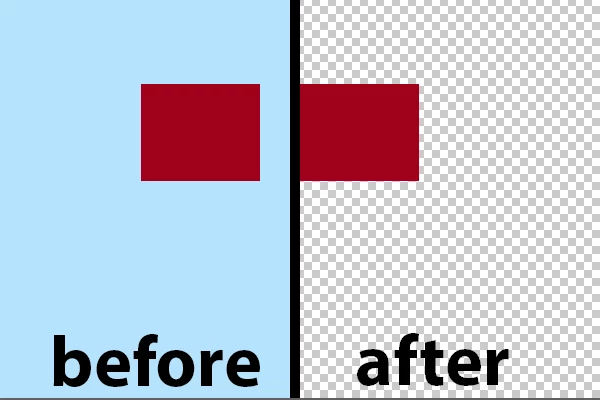
I have different .psb files with graphics positioned to the right. When I have the colored background layer visible and choose File>Export>Quick Export as PNG, it exports as expected. When I tick the visibility of the background layer off to get the version with transparency and choose Quick Export as PNG, the resulting image has the graphics shifted to the left edge. Same happens if I choose File>Export As and select PNG as the file format.
Why does this happen? Is this a bug or a feature? Is there a preference option to stop it? This is what I mean:
I googled this and others have had this problem, but I never found a reason for it. The closest I came was this thread originally posted 4 years ago with people contributing as recently as a month ago: Photoshop: Quick Export option to disable transparency trimming | Photoshop Family Customer Community.
They make it sound like trimming out transparent pixels is the normal behavior for Quick Export/Export as PNG but there has to be more to it than that since it doesn't happen for every image with transparency. It's also not "trimming" as I define it because the canvas size stays the same. It just justifies the content as far left as it can go.
Workarounds
The workaround someone mentioned in that thread of adding a rectangular vector mask didn't work for me. I just duplicate the image (to protect the original from slip up) and flatten the layers down to the transparency. Then it works fine.
Testing
I ran some tests with one of the affected images to try to pinpoint (and replicate) what conditions trigger this shift. The file has 4 groups with multiple layers in each. First, I toggled the visibility off for one group at a time to see if that affected export. All groups resulted in the same shift except one. When I turn that group off, the file exports correctly.
- Tried moving that group up/down in the layer order to see if that had an effect. Nope.
- Tried dropping that group into another group and the behavior was the same. If turned on (with the parent group on), it exports wrong. If turned off (with the parent group on), it exports fine. If turned on (with the parent group off), it exports fine.
Basically, any setup that results in the contents of that specific group being hidden allows the file to export correctly.
Trouble Group
It has 7 layers. 5 are of a graphic with FX applied. 2 are of graphics with nothing applied. Note that the 5 layers are the same graphic duplicated. Not smart objects. Just the rasterized graphic duplicated then rotated and repositioned.
I did the same test, toggling a different layer's visibility before each export. Only 2 layers resulted in proper export when toggled off. Layer X and Y.
- Layer X has color overlay, drop shadow and is at 50% opacity.
- Layer Y has color overlay and is at 75% opacity.
They're not the only layers with these effects or lowered opacity but I tested them anyway. Tried putting them at 100 opacity. Bad export. Removed the effect from Y only. Bad export. Removed the effect from X only. Good export.
Trouble Layers
For Layer X: Tried deleting the effects and adding the same back fresh. Bad export. I tried removing color overlay only. Bad export. Removing drop shadow only. Good export. Tried rasterizing layer effects. Good export. For Layer Y: Tried the same only nothing short of removing effects entirely resulted in a good export. Even rasterizing the layer affects didn't help. I was over it at this point.
Important Note
Since the file is large (14000px), I shrank it down to 1000px and ran the initial group visibility test again. The file exported correctly no matter what so there was never a need to mess with any groups/layers. I also duplicated those two layers to a new file and it had no effect on export.
Second Affected File
I took another affected file and different things worked to get it to export properly. Namely, just deleting a ton of stuff lol
Conclusion
Unless someone can tell me otherwise, it seems Photoshop is trying to reduce the file size based on a combination of factors that differ from file to file, exploiting transparency to do it by attempting to trim out unused pixels. Only in my case, it isn't doing it "right" anyway since all the empty space still remains. It's just on the other side.
Any thoughts? Thanks!
To save time:
I'm using the latest version of Photoshop CC.
Yes I need the graphic to stay exactly where it is on the canvas so this IS an issue.
 AdChoices