joaosp
Inspiring
July 28, 2016
Answered

Quick export saving wrong size

  • July 28, 2016
  • 19 replies
  • 74516 views

I'm trying to export a simple document using File > Export > Quick export as PNG. It's a banner with 240x400 but Photoshop is exporting with dimensions 212x400, it is reducing width and I have no idea why. I ever had seen something like that before.

Does anyone have an idea? Is there some reported bug about?
This topic has been closed for replies.
Correct answer fredm81834773

I think I know what the original question was, or at least I know what I was trying to do when I found this thread.

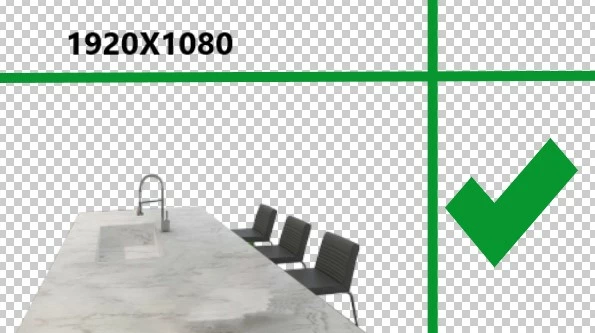
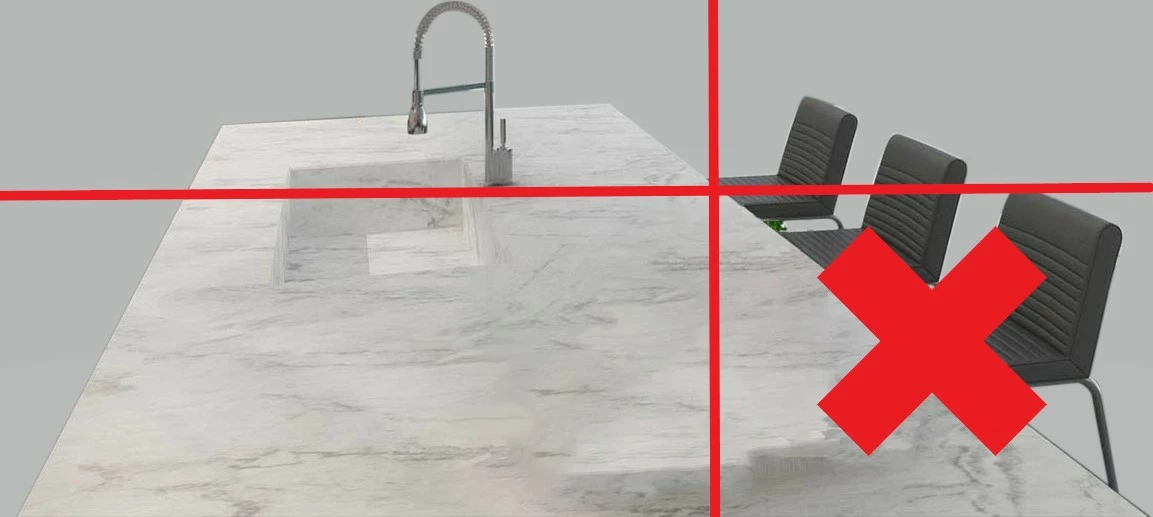
I was trying to export a .png WITH the area of transparency that I had created.

SO NOT THIS:

BUT THIS:

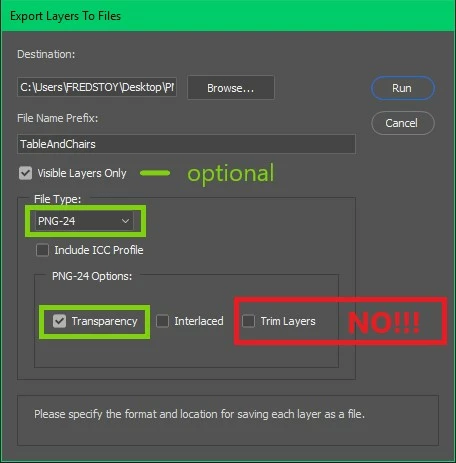
To get the dimensions I wanted I had to do THIS:

File >Export >Layers To Files...

19 replies

Participant
September 26, 2018

wrong answer... this is still a bug.

joaosp
joaospAuthor
Inspiring
November 5, 2018

Yes, unfortunately, you're right. Adobe has been screwing up with our lives instead of helping us. From now, we have to think twice before proceeding with an update, because Adobe's updates are being like a terrorism threat. I'm almost starting to think that Adobe was who attacked the WTC.

D Fosse
Community Expert
Community Expert
September 20, 2018

While I agree that this could look like a bug, everybody should be aware that the PNG format will introduce rounding errors in small pixel sizes. The reason for this is that the PNG specification uses pixels per centimeter for resolution, not pixels per inch. So sizes are converted, with inaccuracies as you get fewer pixels to spread them out over.

That said, Export should strip resolution data and deal only with pixels.

joaosp
joaospAuthor
Inspiring
September 25, 2018

Yes, you're right, for sure. However, my point is that I had an art and Photoshop was "cropping" that art away, so it's something I can really see as a bug, which actually is. Currently, I found something better: instead of using the Quick Export option from the menu, I right click on a layer and then click on "Export as". That fixed some things, for example, the permissions. When you use the "Quick Export" from the menu, that file is gonna be exported with non-admin permissions, which cause errors on IIS when you are exporting assets directly to a folder inside a website project. That's another bug. If you export your assets from your layers instead, permissions are assigned correctly.

rubenarthe
Known Participant
September 20, 2018

I found myself in the same situation. If YOU decide the document and canvas size, why Photoshop decide to round it while export? There's no sense at it. I usually export graphics to video and I expect they measure 1920 x 1080 as designed. Not 1920 x 1041 as "Export" decided to round it. At import them to Final Cut, sizes won't sync well, WT#?

My found solution:

Instead use the Export As... window, I try using the Legacy "Save for WEB" and every export size is EXACTLY the same using this, not rounded by some bug. Adobe asks why many users still using the Legacy "Save for WEB" This is why!

Participant
September 19, 2018

I found that what works for me is to make sure that the ARTBOARD size is the same as the CANVAS size. And in addition, to make sure that the ARTBOARD is in a (0,0) position.

This is the only thing that has worked for me.

Inspiring
January 3, 2019

  Can you share with other how to set the artboards to match the canvas size?  If I remember correctly there is an option somewhere in the Photoshop menu to make that happen but can't recall what.

Participant
March 5, 2018

I am also having the same problem using 'Export As' (PS CC 2018, Win10). When I export a doc (1024 x 64) as a transparent PNG using 'Export As' the Image Size and Canvas Size show 1117 x 64. It's adding pixels for some reason. If I turn on a filled background layer I get the correct size, but it won't be transparent. I need to use 'Save for Web (Legacy)' for it to work correctly.

Please fix the 'Export As' bug. No way this is a feature.

fredm81834773Correct answer
Participant
April 11, 2018

I think I know what the original question was, or at least I know what I was trying to do when I found this thread.

I was trying to export a .png WITH the area of transparency that I had created.

SO NOT THIS:

BUT THIS:

To get the dimensions I wanted I had to do THIS:

File >Export >Layers To Files...

kalamazandy
Known Participant
April 11, 2018

That is helpful, but not the Answer. It's a solution. I know, that's a bit confusing.

But the point of this post was to point out that Adobe screwed up.

It's probably related to a similar thing we found at my work a few days ago. For whatever reason, some objects in illustrator were showing with a size like 1080.000001px x 1920px

So, most people would say, hey, lets round that to 1080x1920, right? Well, not Adobe. They thought that Hundred Thousandth of a pixel was So important, that the object would export as 1081x1920. I won't even hazard a guess at why someone thought that to be important.

This option is likely related to transparency, but it's just a rounding error somewhere, and doesn't seem to be for a good reason. When you export, using any tool, you should be able to be consistent. Most of the people using those tools are creating assets for something, like a website, app prototype, presentation, etc. If you export a bunch of 240x400 images with varying transparency, you should end up with a bunch of 240x400 images, not some 239x401, some 240x400, etc.

Participant
February 7, 2018

I agree ... accepted answer is not correct.

This must be a bug in Photoshop ... Adobe staff???

Participant
January 18, 2018

The answer listed as correct is not right.The problem is still there and Adobe should remove the tag.

tmyusuf74
Inspiring
July 28, 2016

Transparent background not allowing free dimensions. Yeah, it's possible only for JPEG

Theresa J
Community Expert
Community Expert
July 28, 2016

Is it possible that your banner has some transparency around the edge so that the pixel content isn't exactly 240px?

joaosp
joaospAuthor
Inspiring
July 28, 2016

Actually, I don't know. When I create a new document from a white background, I see that issue. If a start a new document from a transparent background and fill the canvas using, e.g., a color fill, it works normally. See below a message I got on the "Export as" screen:

I didn't figure out what means that message I highlighted.

Participant
February 16, 2017

The exported png is cropping to the actual pixels in the image, not the canvas size. When you export the image, choose which is most important to you, either the width or the height. The other dimension will be done automatically based on the proportions of the art.

If the exported png has to be exactly 240 x 400, then you need to fill the canvas so that there aren't any transparent areas around the edge.


I found this thread because I am having the same issue… but with JPEGs!

I have a 1920x1080 canvas but when I do a "quick export" to JPEG, I get a file that's 1920x1079.

  1. Based off the info here, I ensured that there are elements that expand the full height (and beyond), and there are.
  2. I duplicated that group into a new document, exported with same result.
  3. I flattened the document, and exported and got the full 1080 height. Hmmm…
  4. (Undid to get layers back), I added a background layer. I mean… that HAS to do it, right? NOPE! Still exporting 1920x1079

So very confused. What the heck is causing this?!