Exit
  • Global community
    • Language:
      • Deutsch
      • English
      • Español
      • Français
      • Português
  • 日本語コミュニティ
  • 한국 커뮤니티
0

Quick question about masking text!

New Here ,
Jul 08, 2017 Jul 08, 2017

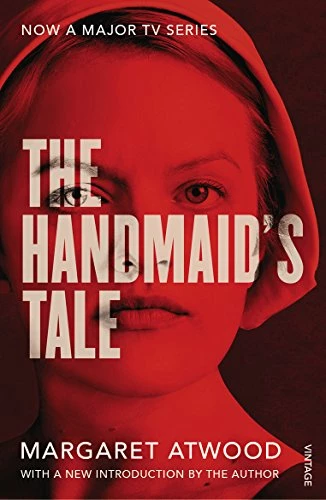
hi guys! I'm wondering what tools/steps/blending is used to make this happen? the imge is overlayed with color and the text is not. Im sure its super easy but i nee help!

51cegowaPJL.jpg

[Moved out of the general, all-of-Adobe forum Lounge and into a Photoshop-specific support forum by a moderator]

206
Translate
Report
Community guidelines
Be kind and respectful, give credit to the original source of content, and search for duplicates before posting. Learn more
community guidelines
Adobe
Community Expert ,
Jul 08, 2017 Jul 08, 2017

The Lounge Forum is not for technical help, please provide the name of the program you are using so your message may be moved to the correct program forum... A program would be Photoshop or Premiere Pro or ???

Translate
Report
Community guidelines
Be kind and respectful, give credit to the original source of content, and search for duplicates before posting. Learn more
community guidelines
Community Expert ,
Jul 08, 2017 Jul 08, 2017

I love that book!

Anyway, I am assuming you're using Photoshop, right?

You want the Horizontal Type Mask Tool.  It creates type-shaped selections on your background layer.

Nancy O'Shea— Product User, Community Expert & Moderator
Translate
Report
Community guidelines
Be kind and respectful, give credit to the original source of content, and search for duplicates before posting. Learn more
community guidelines
Community Expert ,
Jul 08, 2017 Jul 08, 2017

The trick here is to not have the red showing through the lowered opacity text.  Blend modes won't work for you here, so I placed a Hue Saturation layer above the background image set to Colorize (for the red tint).  Then added the text layer and set its opacity to 30% (whatever works for you).  I ten Ctrl clicked the text layer to load it as a selection, and filled the Hue/Sat's mask with black.

At this point I decided that the text worked better against lighter non-coloured backgrounds, so I threw in a B&W adjustment layer, after which I could drop the text opacity to 10%.  You see what I mean?  Sometimes you have to experiment to get what you are after.

Translate
Report
Community guidelines
Be kind and respectful, give credit to the original source of content, and search for duplicates before posting. Learn more
community guidelines
Community Expert ,
Jul 09, 2017 Jul 09, 2017
LATEST

Hi

I like Trevor's method but I was not keen on having the text in a separate mask which would need to be updated each time the text is edited.

So I did this:

1. I added a gradient map to the color image to get the red black effect.

2. I clipped a black and white adjustment layer to the text and set the blending mode to Liner Dodge (Add) . I also set the blending options of the black and white adjustment to "Knockout =Deep" and the Text layer I unchecked Blend Clipped layers as a group

B&W Adjustment layer:

Text Layer:

3. Finally I added a second B&W layer again clipped to the layer below and with a tint set

This way -the text can be edited without changing the masking

Dave

Translate
Report
Community guidelines
Be kind and respectful, give credit to the original source of content, and search for duplicates before posting. Learn more
community guidelines