
Dusky03
Inspiring
October 11, 2017
Answered

Quick Selection Tool leaves no marching ants

  • October 11, 2017
  • 2 replies
  • 8296 views

I am running Windows 10-64 bit & PS CC. I've only used PS CC for a while & tonight the Quick Selection Tool will not leave marching ants (the selection) after I release my mouse. It is doing the same with the Lasso tool. I've never used either tool yet.

I read the User Guide to see if there was something I was not up to date on and found that it does not have the options: Sample All Layers, Auto Enhance & Refine Edge.

It shows: Sample Colors From Composite Image & Automatically Enhance the Selection Edge along with the button Select & Mask.

I tried closing & reopening the program & resetting the preferences with no luck. If a screenshot is needed, please tell me how to do that. I hope I gave enough info & thank you in advance.
This topic has been closed for replies.
Correct answer davescm

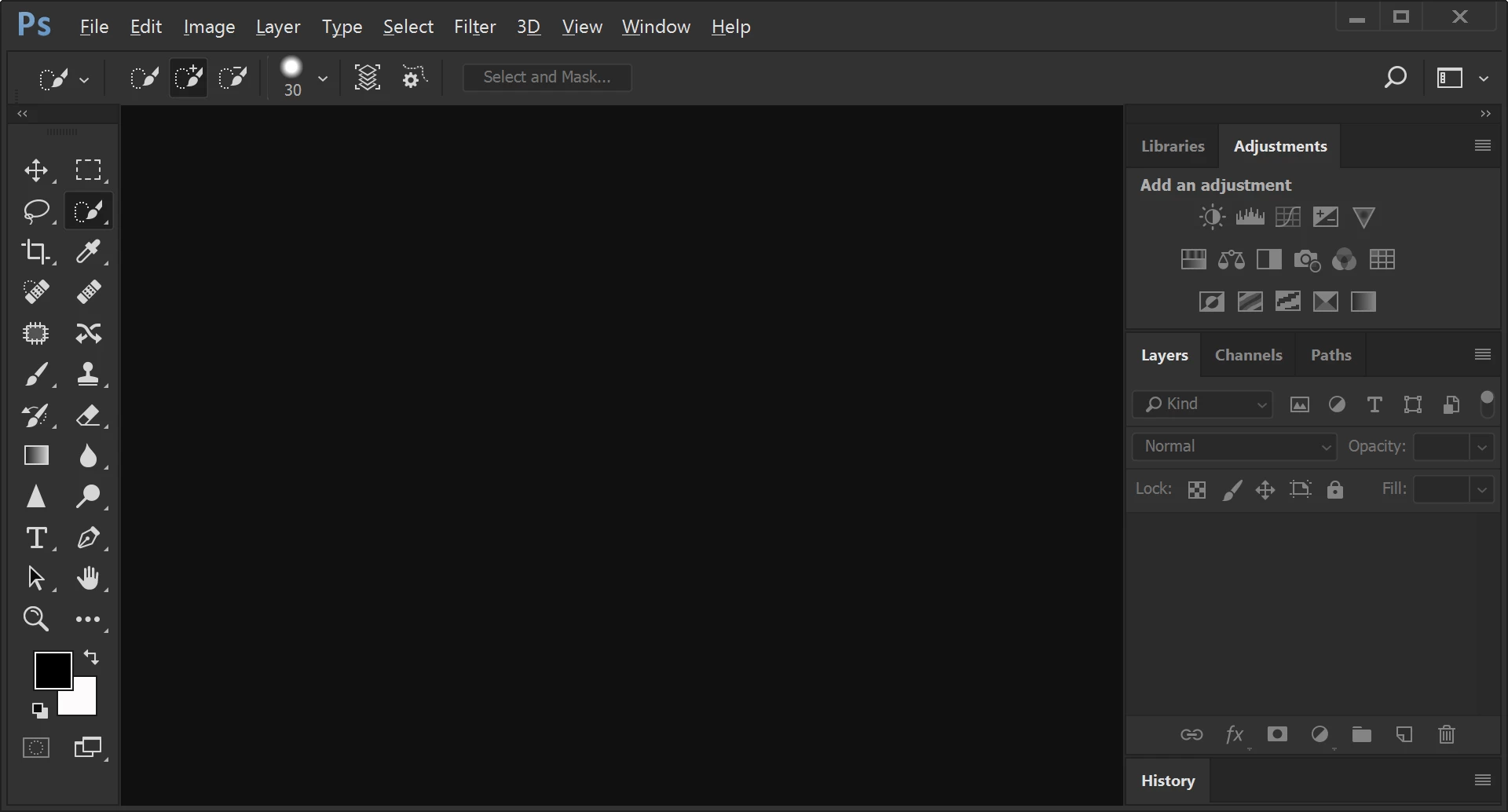
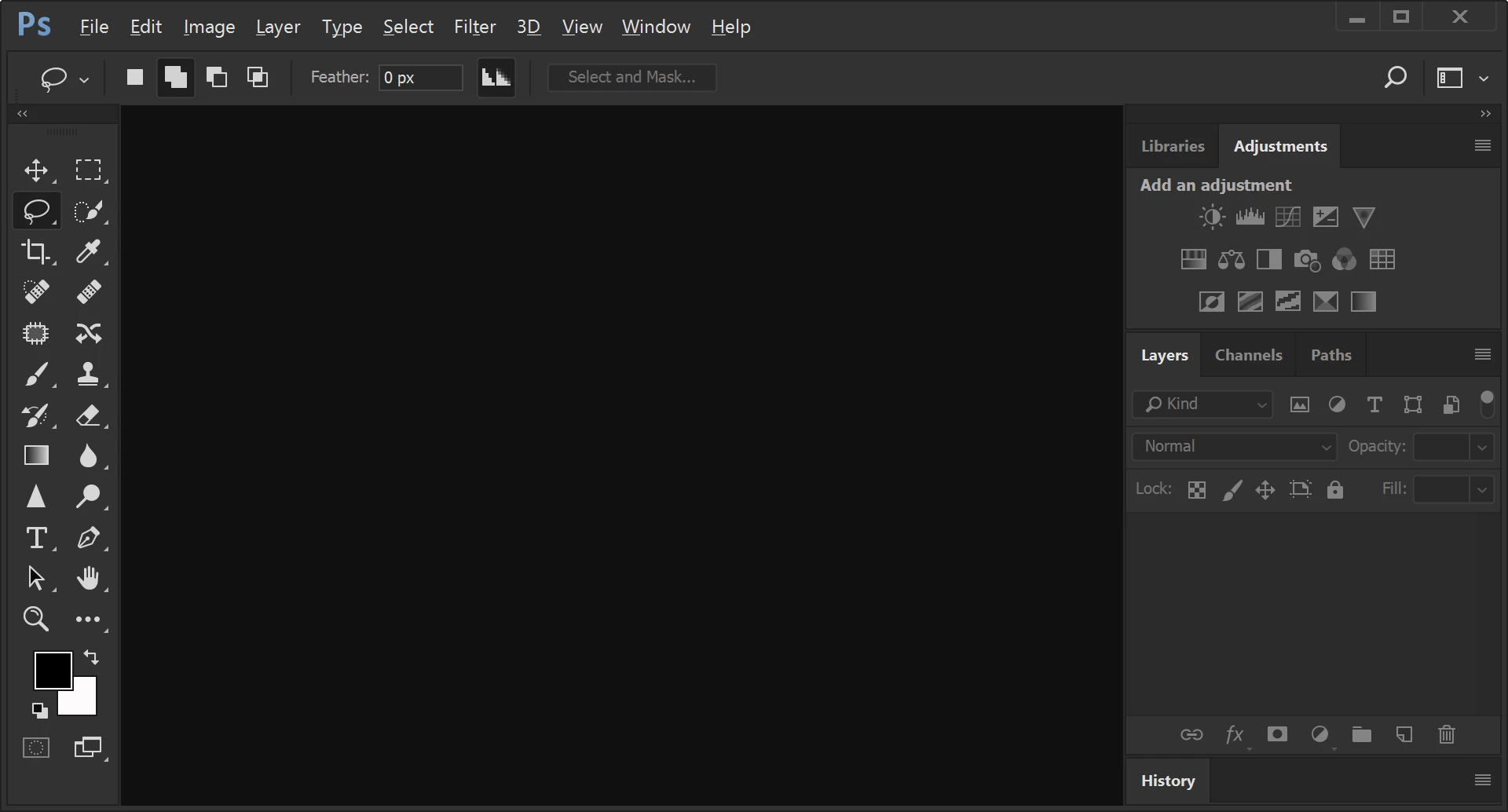
The 2 screenshots as requested. The 1st is the Quick Selection Tool, the 2nd the Lasso Tool. Any help is greatly appreciated & thanks for your patience.



Hi

That first screenshot is correct.

You have the narrow options bar enabled in Preferences > Workspace

It replaces the words "sample all layers "  and "Auto enhance" with the two icons that you see. It was designed to help people with smaller screens e.g. laptops. To change it just go to Preferences >Workspace > uncheck narrow options bar and restart Photoshop.

Normal :

Narrow :

The second screenshot is also correct - same reason :

Normal :

Narrow :

You asked about refine edge - that is now inside the Select and Mask workspace.

As no marching ants - can you take a full screen screenshot with a selection made - showing your layers panel, toolbar and options bar.

Dave

2 replies

Dusky03
Dusky03Author
Inspiring
October 11, 2017

Did not work but thank you...also am not sure about the different options showing vs. the ones that should be there.

barbara_a7746676
Community Expert
Community Expert
October 15, 2017

As a last resort you might try the CC Cleaner tool. Use the Creative Cloud Cleaner Tool to solve installation problems

Dusky03
Dusky03Author
Inspiring
October 15, 2017

I didn't know about this option & am reading how to do it. Would this be better than uninstalling & reinstalling the CC PS program?

barbara_a7746676
Community Expert
Community Expert
October 11, 2017

I've seen that happen when there is a large feathering on the selection. Another thing to check is the View menu to make sure that Selection Edges are showing.