🔎 Quick Tips: Create an action to save time

Turn frequently performed tasks into one-click actions
If you have a task that you perform frequently in Photoshop, such as resizing photos, then you can use this great time saver to record the series of steps and save them as an action. When you need to perform the same task again, just apply them to a file or group of files. Here’s how:
❶ Create a folder on your computer for the action to place your adjusted files
This step is not mandatory, but I think it is a good idea to create a folder where your action can save adjusted files. I created a folder on my desktop where my action can save the files after running the action. My files will have the same filename as they did before being resized but will be put in a special folder, so I know where to find them. This keeps me from writing over the original file and keeps all the adjusted files in one place after the action runs.
- Create a folder where you would like your adjusted photos to be saved
- I saved a folder on my desktop for easy access
❷ Launch Photoshop and open a file
- Launch Photoshop your desktop
-
Open a photo that you want to resize by choosing File > Open and navigating to the photo you want to resize
❸ (Optional) Create a new set for your custom action
- If the Actions panel is not already showing, click on Window from the main menu and click on Actions to bring up the Actions Panel
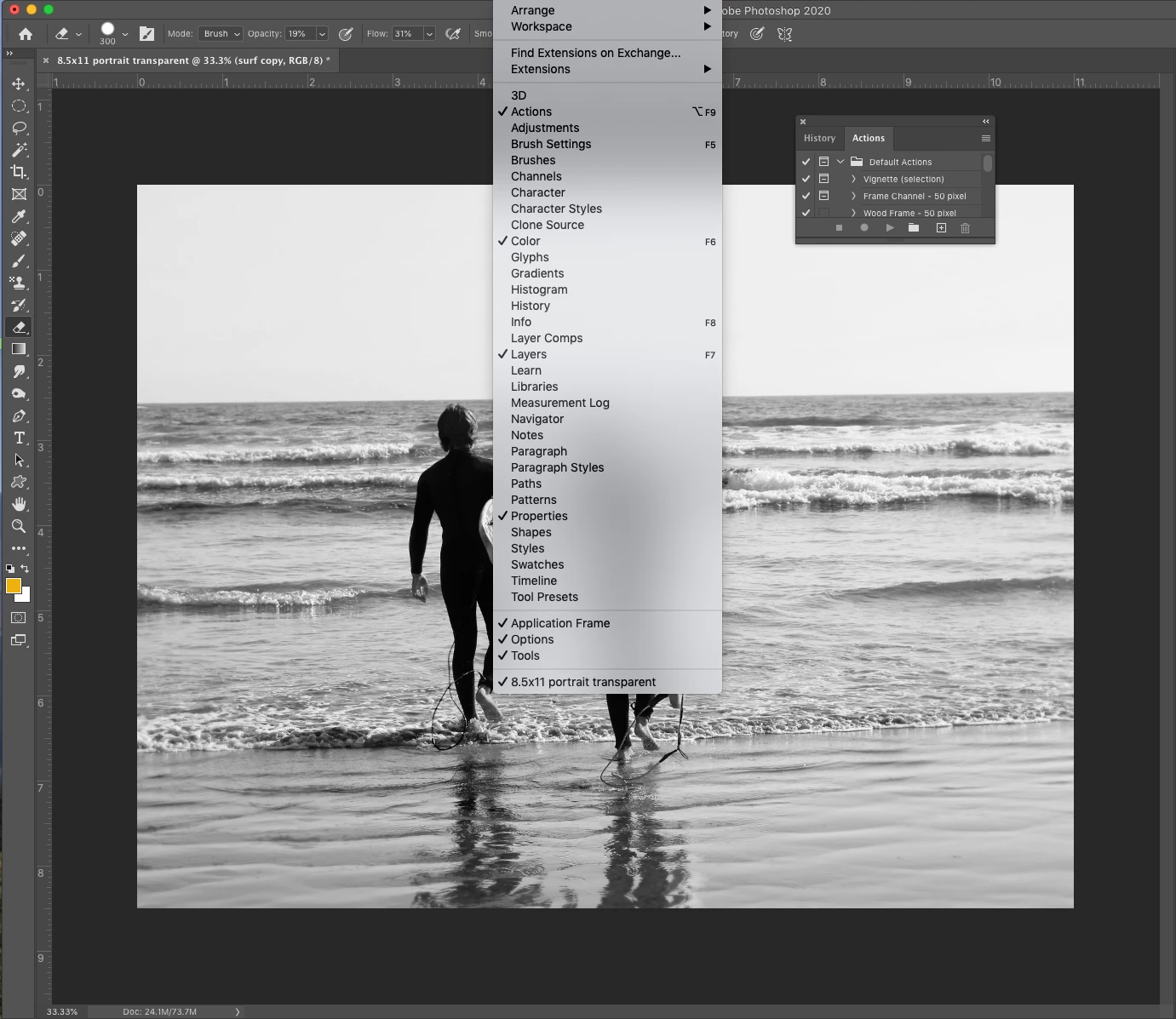
photo by Pattie Foxhoven
-
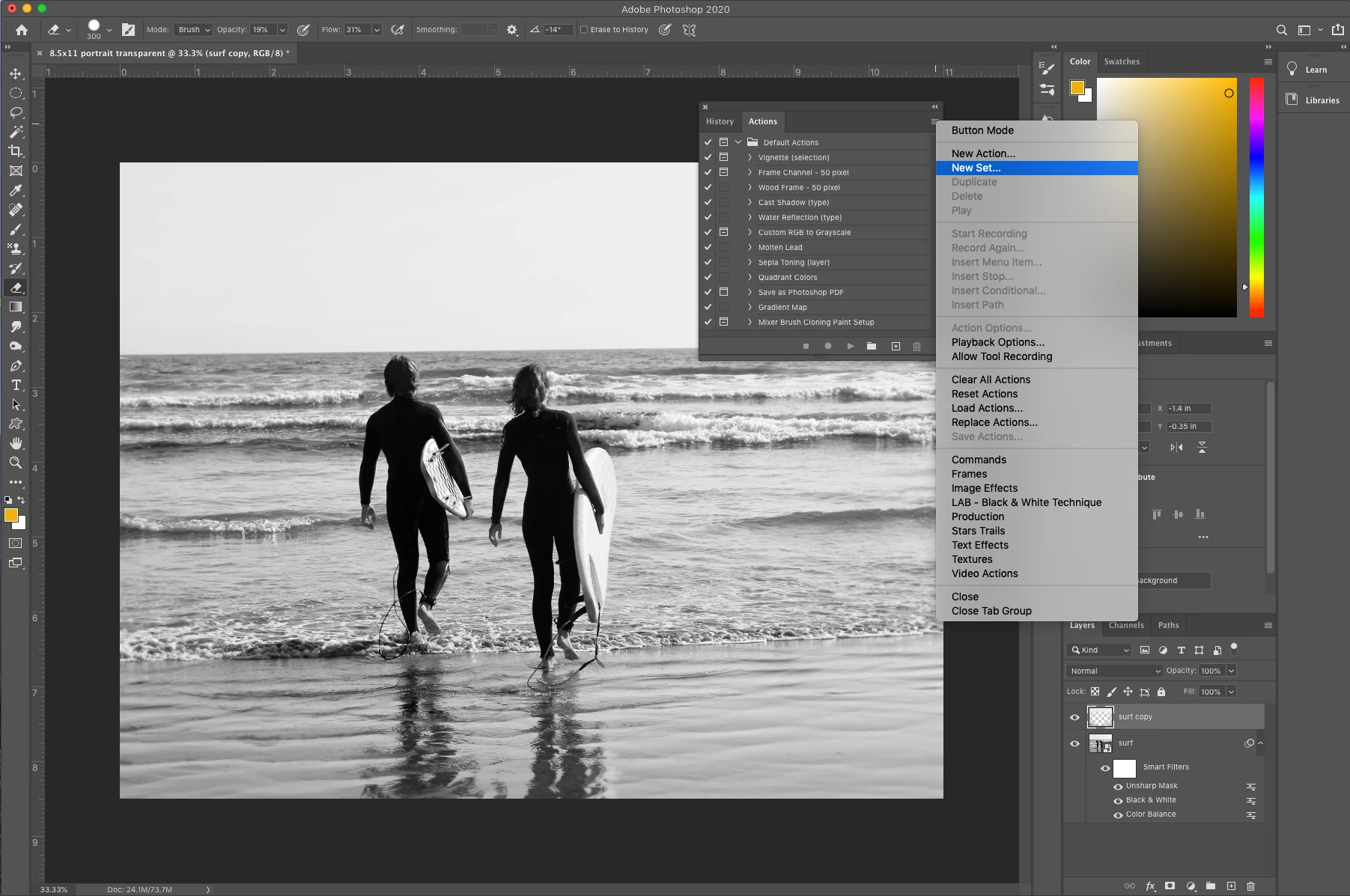
If you want to create a new set (folder) for your custom action to keep it separate from the default actions, click on the folder icon at the bottom of the actions panel or click on the Actions panel menu and select new set
-
Give your set a name and click OK
❹ Create a new action
-
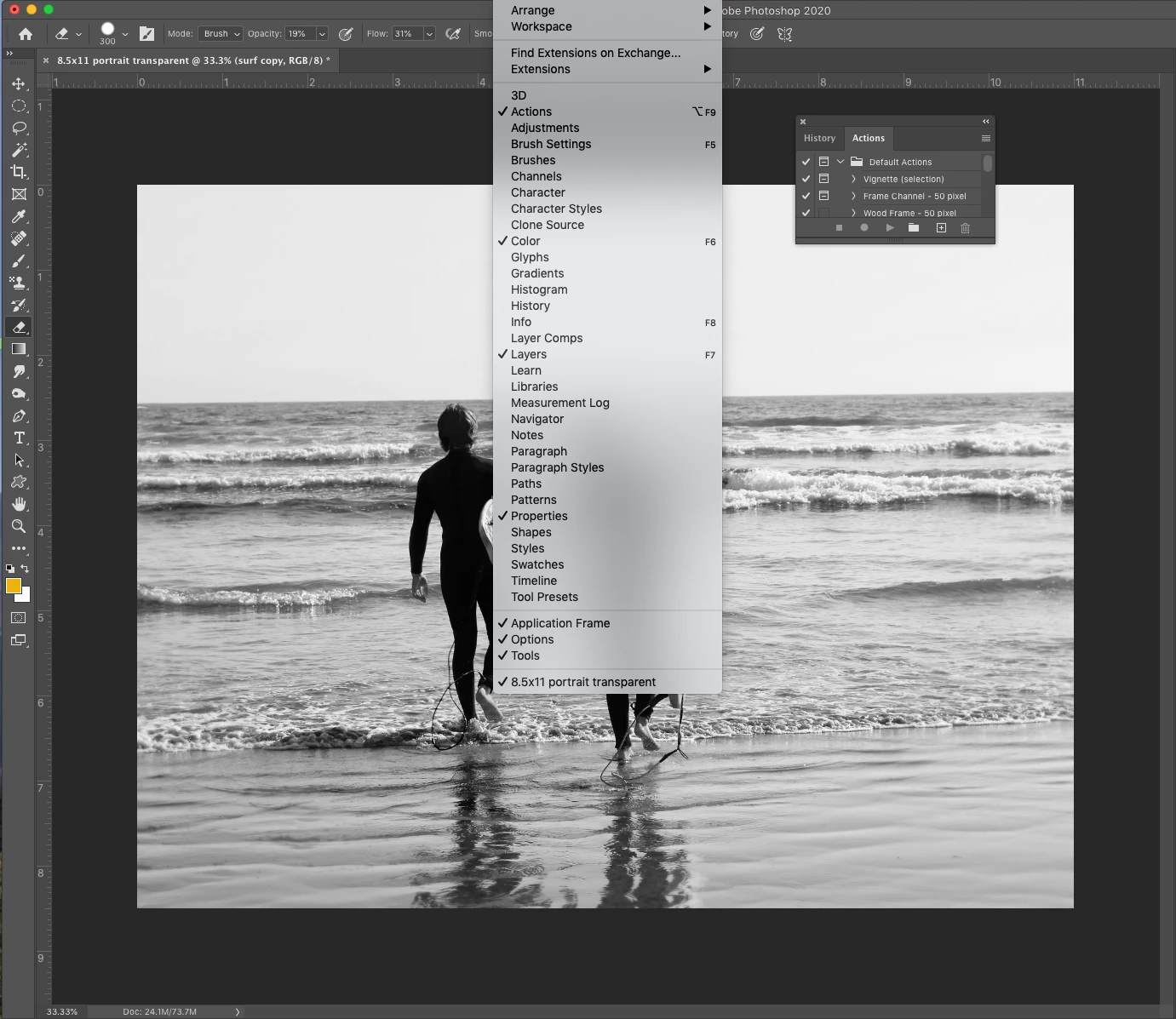
If the Actions panel is not already showing, click on Window from the main menu and click on Actions to bring up the Actions Panel
-
Click the Create New Action button (+) at the bottom of the Actions panel or choose New Action from the Actions panel menu
-
Enter an action name and select an action set to store it in
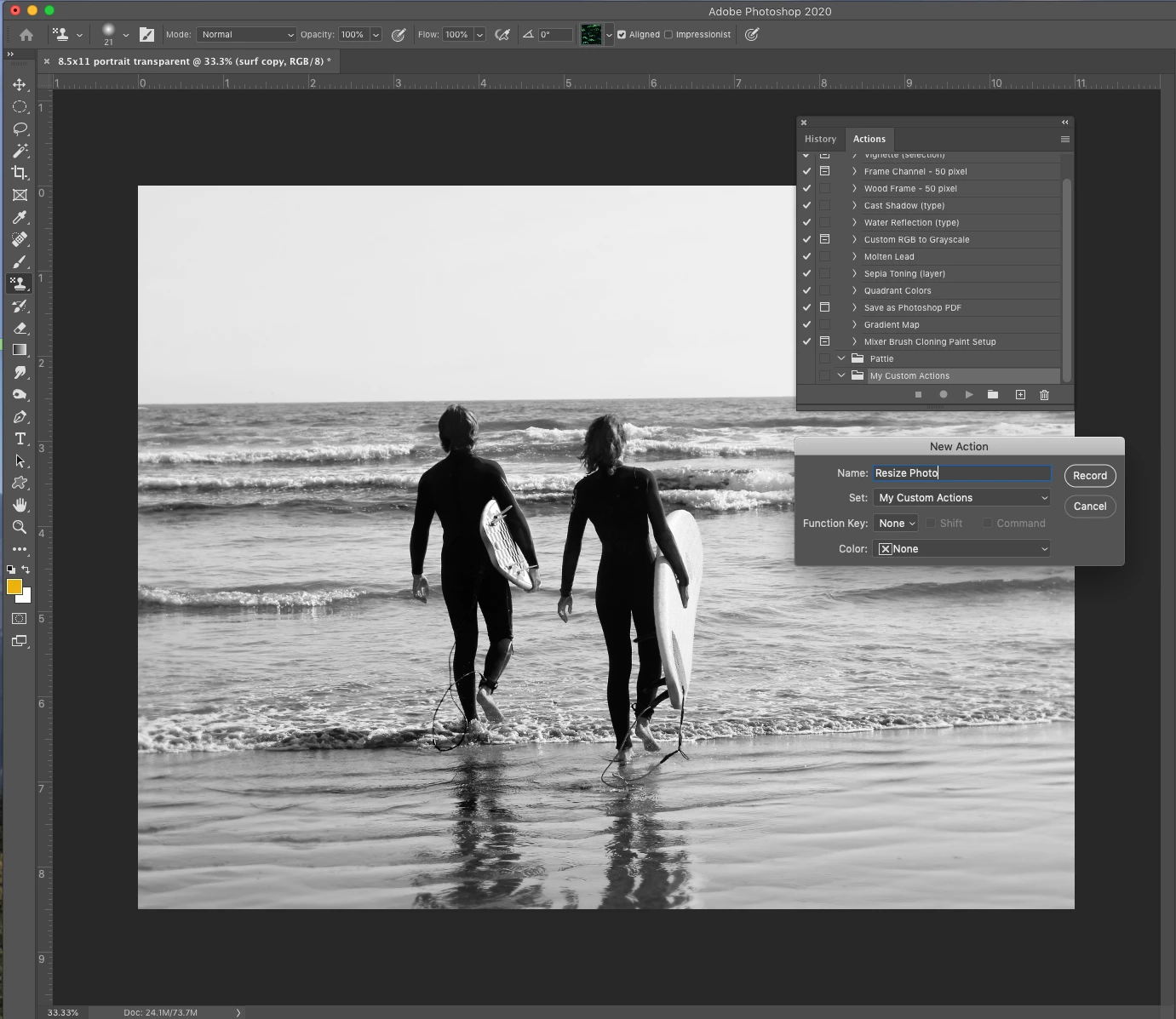
❺ Record the steps for the action
- Click the Record button on the right side of the New Action panel
- The circle shaped button at the bottom of the Actions panel will turn red to indicate it is recording
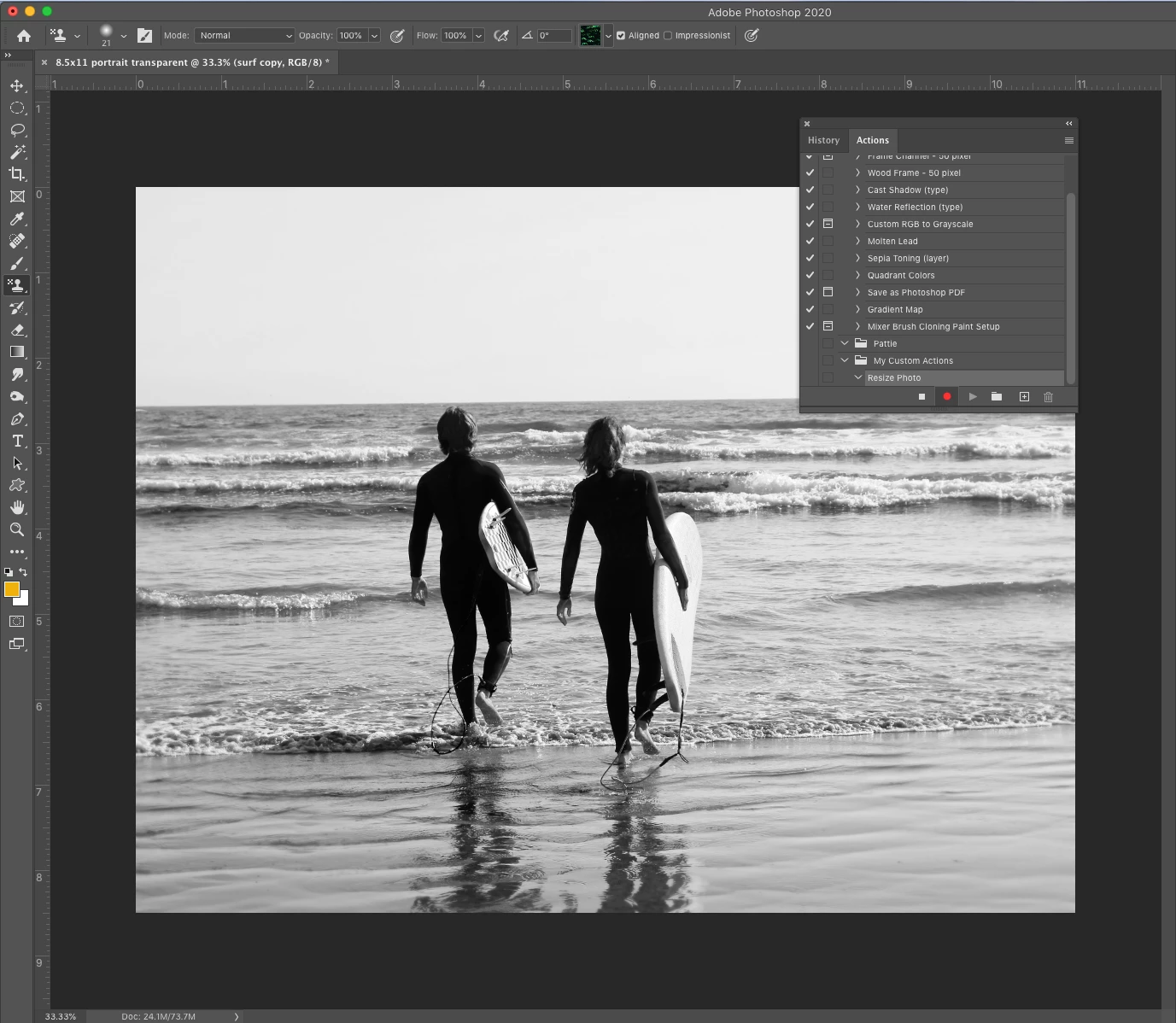
-
Go to Image > Image Size to bring up the Image Size window
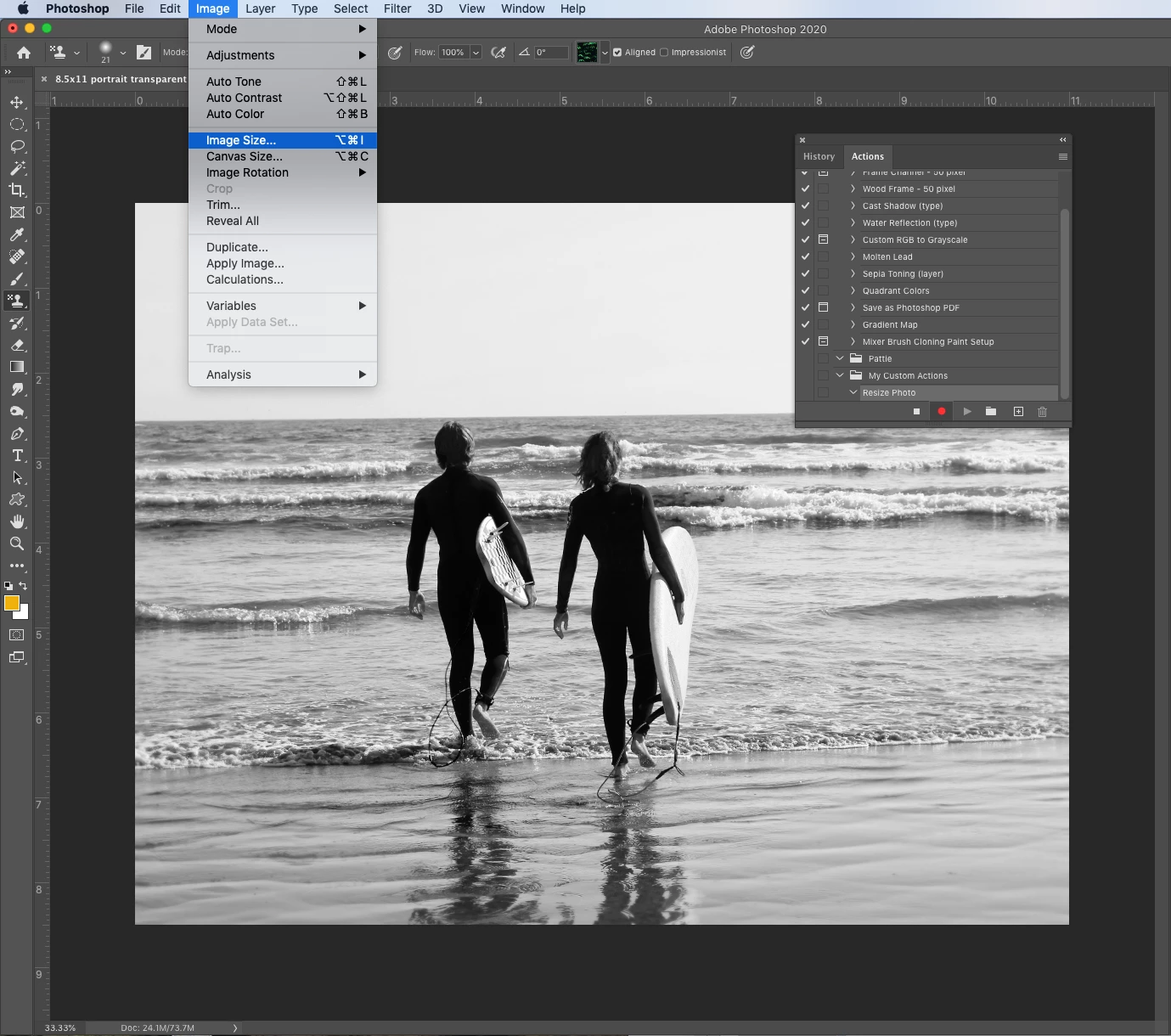
-
Set the dimensions and the resolution
(I set my dimensions to adjust the width of the photo to 800 px and the height will change automatically, depending on the aspect ratio) -
Please ensure the width and height remain linked and that resample is checked
-
Click OK
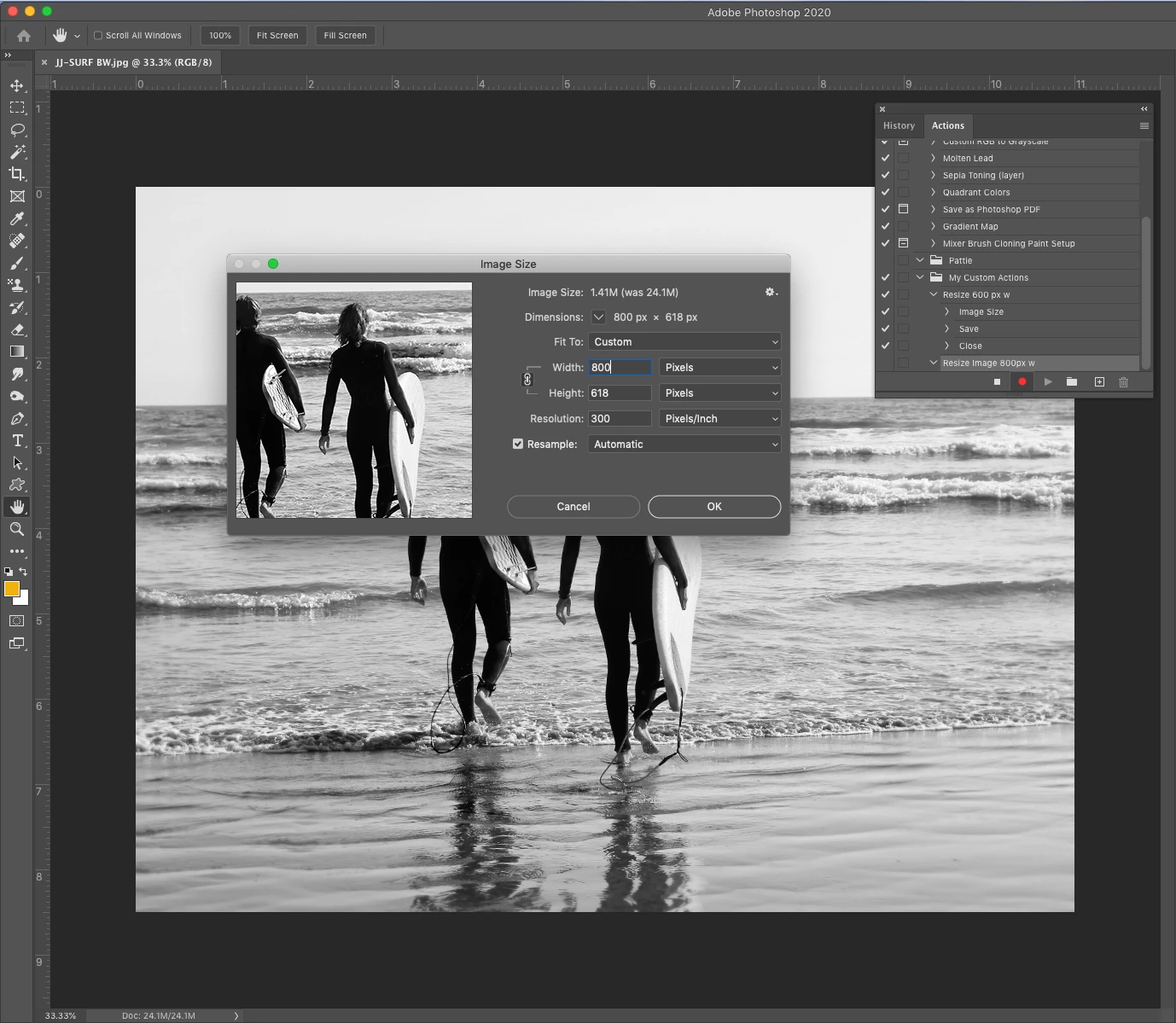
- Your will note that your image resized when you clicked OK
-
Now, from the main menu, go to File > Save As and choose the "My Resized Photos" folder we created earlier as the save location
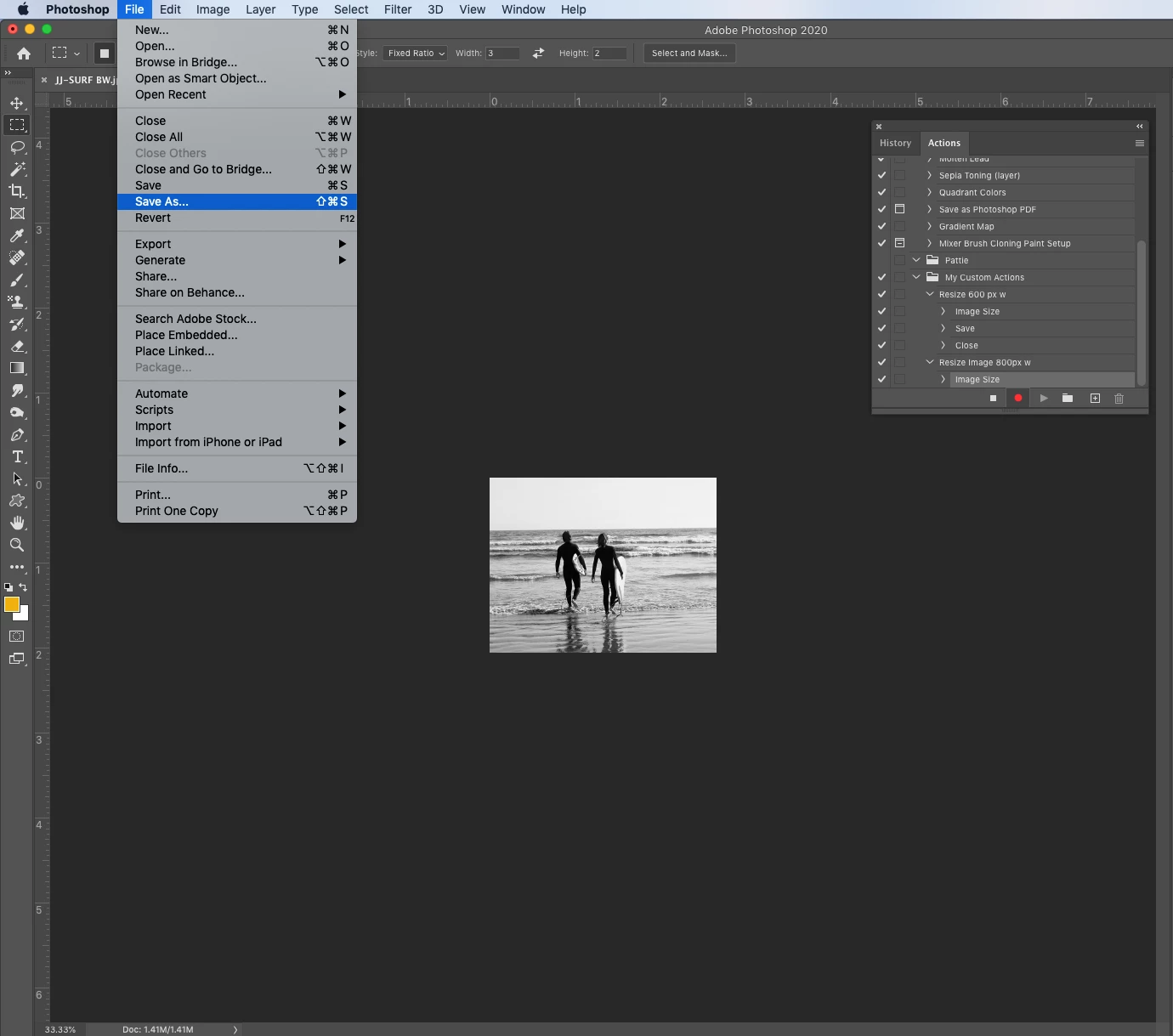
- Select the desired file format (mine is JPG)
-
I suggest you do not create a new file name or it will save all future files it resizes to that one filename
-
Click Save
-
Set your desired image size options and click OK
-
Close your image. The Actions panel will remain visible
-
Stop the recording by clicking the Stop Playing/Recording button to the left of the red circle (it looks like a square)
Alternately, you can choose Stop Recording from the Actions panel menu, or press the Esc key stop the recording
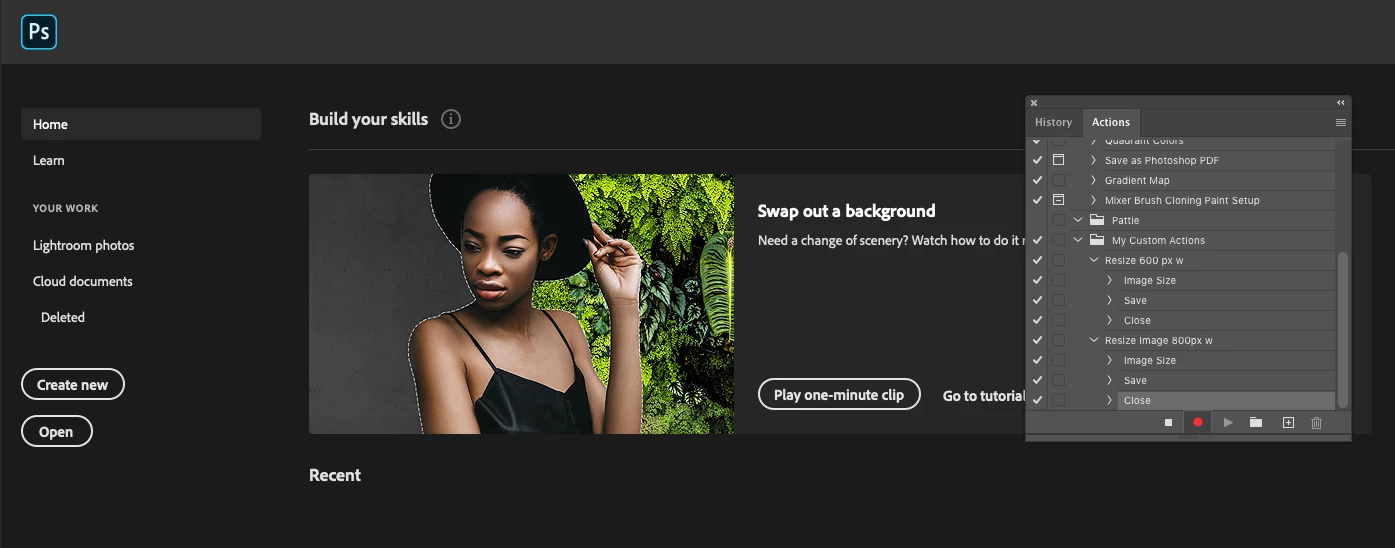
Congratulations! You just successfully created an action.
❻ Run the action
Now that you have this action saved, anytime you have a photo open that needs resizing to this size, you can simply run the action.
- Select a different photo and open the file in Photoshop
- If the Actions panel is not already showing, click on Window from the main menu and click on Actions to bring up the Actions Panel
- Navigate in the Actions panel to the set where you stored your action and click on the new action you created
- Click on the name of the new action to select it
- Click on the triangle at the bottom of the Actions panel to play the action
- When the action finishes running, you should see the adjusted photo file saved in the designated folder
You can create actions as one-click shortcuts for many of the things you do in Photoshop on a regular basis. You can also create more complicated actions that include modal controls that require you to press Enter or Return after entering values in a dialog box, or you can add a stop to allow you to perform a task that cannot be recorded. Here are some helpful links that will give you additional information on the topic:
Related Links:
 AdChoices