Participant
December 8, 2019
Question

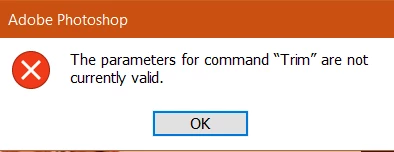
"the parameters for command trim are not currently valid"

  • December 8, 2019
  • 7 replies
  • 25796 views

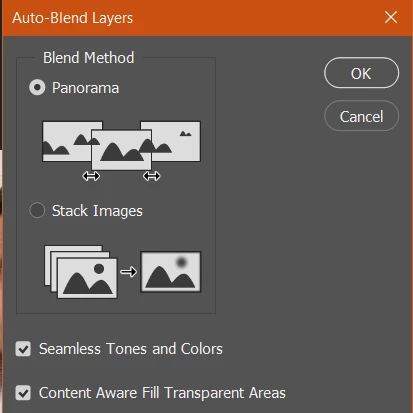
Hey i've got this problem where whenever I do an auto blend it comes up with "the parameters for command trim are not currently valid". I've been autoblending for a while and it always worked but now it is coming up with this error so I'm not sure what to do? For this im using autoblend panorama with both options ticked which I have always been using and I've check other videos of face swaps and stuff. Does anyone know how to stop this error?

Thanks if you can help


7 replies

Participant
August 7, 2025

What did you do to fix this problem?


Stephen Marsh
Community Expert
Community Expert
August 7, 2025
quote

What did you do to fix this problem?


By @stevej24383742


The common theme appears to be to not have a locked Background image/layer.

Participant
November 21, 2024

You have to make sure you're not blending a background layer. Duplicate the background layer. Then YOU MUST TURN OFF the original locked background layer. Then do your auto blending. Hope this helps. 

Participant
December 13, 2023

https://youtu.be/zcqxQ9nrDZA?si=5hITd42XPWaV9t2v


For anyone having the same issue, follow this tutorial, as previously stated you would need to modify and contract, this shows you how.

Participant
January 22, 2023

I just had the same issue, following a tutorial, and if you have the same unlucky way of thinking.. Well.. You have to unlock any layer you're working on. In my case i was working on the original image, wich is locked by default, and tried to blend another image to that one. Same error message. Click on the lock and try again...


Hope that helped

Participant
January 7, 2024

This one solved the issue for me. Thanks

Stephen Marsh
Community Expert
Community Expert
April 18, 2022

If Auto-blend is using the Trim command silently in the background without user input, perhaps looking at the Trim command options and comparing to your document will provide a clue:


Participant
April 17, 2022

You should do a copy from the background and select layer 1 and go to modify>contract and give a number for example 10.
delete the layer 1 area from the copy of the background layer and do the blend with the copy of the background and layer 1.

Participant
August 8, 2024

This really helped me!!!!  thanks 🙂

Participant
April 25, 2020

Hi did you manage to get this to work again? I have the same issue!

PECourtejoie
Community Expert
Community Expert
April 25, 2020

Hello, maybe there's no answer because no a lot of information was provided: the size of images, their type, an example, to see if there is enough overlap, if it was tried with the options below unchecked; the exact version of Photoshop where this happens, the operating system, the troubleshooting steps that have been tried so far...