Participant
February 24, 2018
Answered

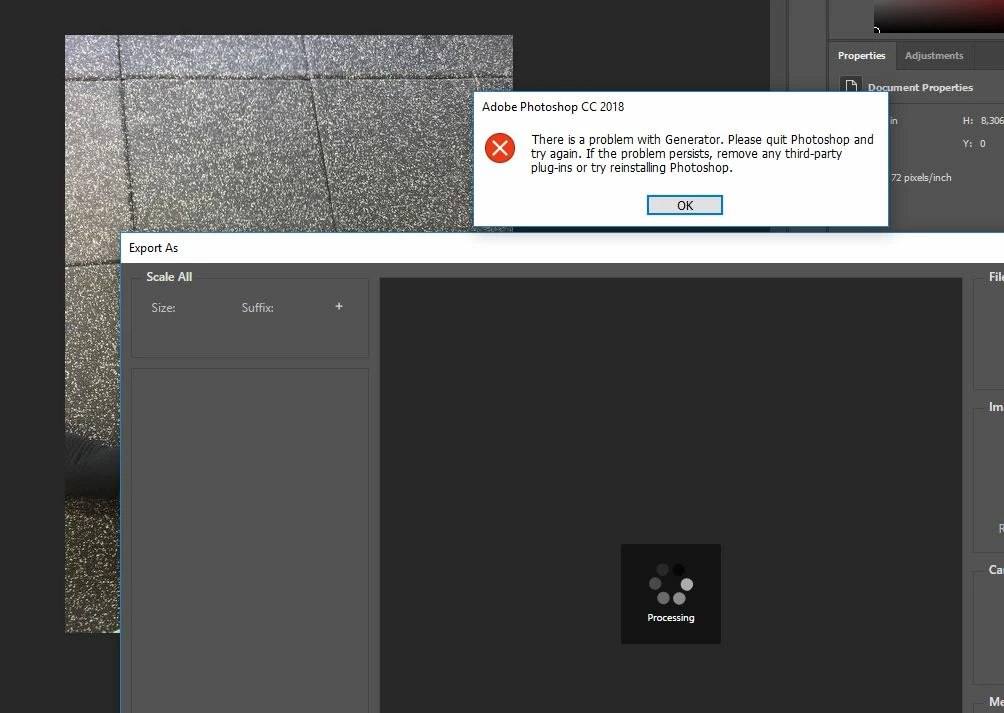
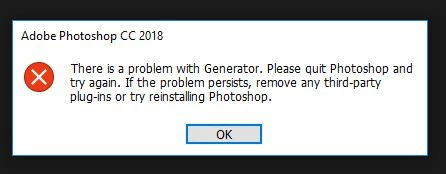
"There is a problem with Generator.." error when starting Adobe Photoshop CC 2018

  • February 24, 2018
  • 8 replies
  • 23909 views

Hi

I have searched Adobe support sites and tried every solution possible (I think).  Stil got the error message during startup, when I try to export (Both Export As.. and Quick export as PNG/JPG). Uninstalled photoshop, rebooted, reinstalled photoshop, deleted all my plug-ins  (Only from One.com) deleted preferences, resett photoshop  (Ctrl+Alt+Shift during start) and so on.

Now I need som help to get this issue solved.  Can someone please help me?

This topic has been closed for replies.
Correct answer OverAirLtd

OMG, I'm sorry I just got this fixed yesterday.

I don't know if you have a PC, but in addition to the instructions below, I used ccleaner and tweaking.com

Tweaking.com actually solved a bunch of other issues (and it's free).


Found buried in a thread (problem with generator : from NoDeadPixels 05-Aug-2017 01:12 (in response to johnm77723406)

I had this issue happen a while back and a temp fix that worked was to create a new local user account on Windows. I eventually wanted to go back to my original account. So, this issue resurfaced and I found a fix - at least for me - I hope helps others. It involves messing with your registry. So, before you do that "export" it to back it up as you can render your computer useless if you mess up your registry. A summary is below and the full link is too - follow what "Sergei" says to do:

  1. Exit Photoshop
  2. Go to the start menu on Windows and type regedit. Then...
  3. Go to HKEY_CURRENT_USER\Software\Microsoft\Windows\CurrentVersion\Explorer\User Shell Folders
  4. When there, on the right-side Window under "Name" you will see a line for "Personal"
  5. On the right of that is "Data" and next to "Personal" mine was pointing to an old drive I had removed.
  6. It said something like "P:\Documents"
  7. Right-click on "Personal" and select "Modify" and instead, type in "%USERPROFILE%\Documents" (without the quotes)
  8. Click OK and exit Regedit. Restart Photoshop.

8 replies

be_pierre
Participant
February 27, 2020

The solution that worked for me:

Open Photoshop

Edit => Preferences => Plug-ins

Uncheck "Enable Generator" then click OK

Restart Photoshop

Et voilà 🙂

Jon-M-Spear
Legend
January 9, 2020

Thank you very much for the fix.

more than happy
Participating Frequently
December 26, 2019

It doesn't solve the problem.


I used the CC Cleaner tool to uninstall Photoshop entirely.

I have tried all of the solutions online but this is the only tool that solved the problem:


https://helpx.adobe.com/photoshop-elements/kb/elements-installation-error-CC-cleaner-tool.html

Participant
December 25, 2019

Thank you for this!


Just FYI for anyone reading this, I've filed feedback with Windows as I ran into this issue because Windows migrated my user account due to some file locks it couldn't get rid of.  When that happens the registry key above can be left in a bad state.

Participating Frequently
February 7, 2019

Perfect solved my problem

OverAirLtdCorrect answer
Participant
April 8, 2018

OMG, I'm sorry I just got this fixed yesterday.

I don't know if you have a PC, but in addition to the instructions below, I used ccleaner and tweaking.com

Tweaking.com actually solved a bunch of other issues (and it's free).


Found buried in a thread (problem with generator : from NoDeadPixels 05-Aug-2017 01:12 (in response to johnm77723406)

I had this issue happen a while back and a temp fix that worked was to create a new local user account on Windows. I eventually wanted to go back to my original account. So, this issue resurfaced and I found a fix - at least for me - I hope helps others. It involves messing with your registry. So, before you do that "export" it to back it up as you can render your computer useless if you mess up your registry. A summary is below and the full link is too - follow what "Sergei" says to do:

  1. Exit Photoshop
  2. Go to the start menu on Windows and type regedit. Then...
  3. Go to HKEY_CURRENT_USER\Software\Microsoft\Windows\CurrentVersion\Explorer\User Shell Folders
  4. When there, on the right-side Window under "Name" you will see a line for "Personal"
  5. On the right of that is "Data" and next to "Personal" mine was pointing to an old drive I had removed.
  6. It said something like "P:\Documents"
  7. Right-click on "Personal" and select "Modify" and instead, type in "%USERPROFILE%\Documents" (without the quotes)
  8. Click OK and exit Regedit. Restart Photoshop.
Participant
May 24, 2018

Omg this worked!  Thank you so much!!! 

Participant
April 2, 2018

The issue is fixed.  I tried so many things, fixes posted here and on other forums. Non of them helped.

My final fix was to totaly reinstall my pc. Had to start all over again. I'm terryfied of losing files so I have good backup rutines. All produced files are stored in external drives AND in the cloud.

Participant
March 10, 2018

Just curious if you found a fix? I can't export anything for a couple months now.

shafi_su
Participant
February 7, 2020

Hi,

                       Me too had the same issue and tried almost everything to get rid of the warning message for which the results were negative after every attempt.But, Finally when I had an accidental glance to my notifications panel, which is at the bottom most right corner of the task bar in Win 10 I got the solution for it.


                      When I clicked the notification which said "Unauthorised changes blocked(Controlled access blocked)"  it lead me to the " Virus & threat Security/Protection History" in Windows Security.From there I "allowed" the "AdobeGCClient" or else you can simply turn of the "controlled folder acess" under Ransome ware protection.


IN SHORT  :


Goto Windows Security ˃ Virus & Threat Protection ˃ Ransomeware Protection (Bottom most) ˃ Manage Ransomeware protetion ˃ Allow an app through controlled folder access ˃ type "YES" for the prompt ˃ Add an allowed app ˃ select recently blocked app (you must have tried to open Adobe PS and try to export a file) ˃ Select "Adobe Photoshope.exe" and the "node.exe" . 


Thats all!!

Done!


Now go back and open Adobe PS..No more erorrs!!!


Note : This worked for me don't know whether it works for you,but please have a try!

Participant
February 27, 2020

Thanks for your answer. For me it was necessary to do a similar procedure for my Malwarebytes app. I made in Malwarebytes an exception for detecting ransomware for the file C:\Program Files\Adobe\Adobe Photoshop 2020\node.exe and the problem was solved.