melissarigoli
Participant
May 18, 2020
Answered

radial gradient [ps 21]

  • May 18, 2020
  • 1 reply
  • 2224 views

Hello, 


Since the Photoshop 21.0.2 release I am now unable to make and transform a simple radial gradient as I used to (to make custom drop shadows). It has become a much more complicated process with the new presets panel and I haven't been able to understand how to make this process simpler.


Can you please tell me what am I missing? 


Before the update, I would simply:
• create a new layer

• select gradient tool in the tool panel

• select radial gradient

• draw my gradient on the new layer

• command T to transform my gradient however I wished


Now the only way I have figured out how to do this same thing involves many more steps:

• create new layer

• draw a shape with marquee

• select gradient tool

• select a preset from gradient presets (or make a new preset)

• the shape becomes filled with linear gradient

• click on layers panel to open up gradient fill options

• select radial gradient

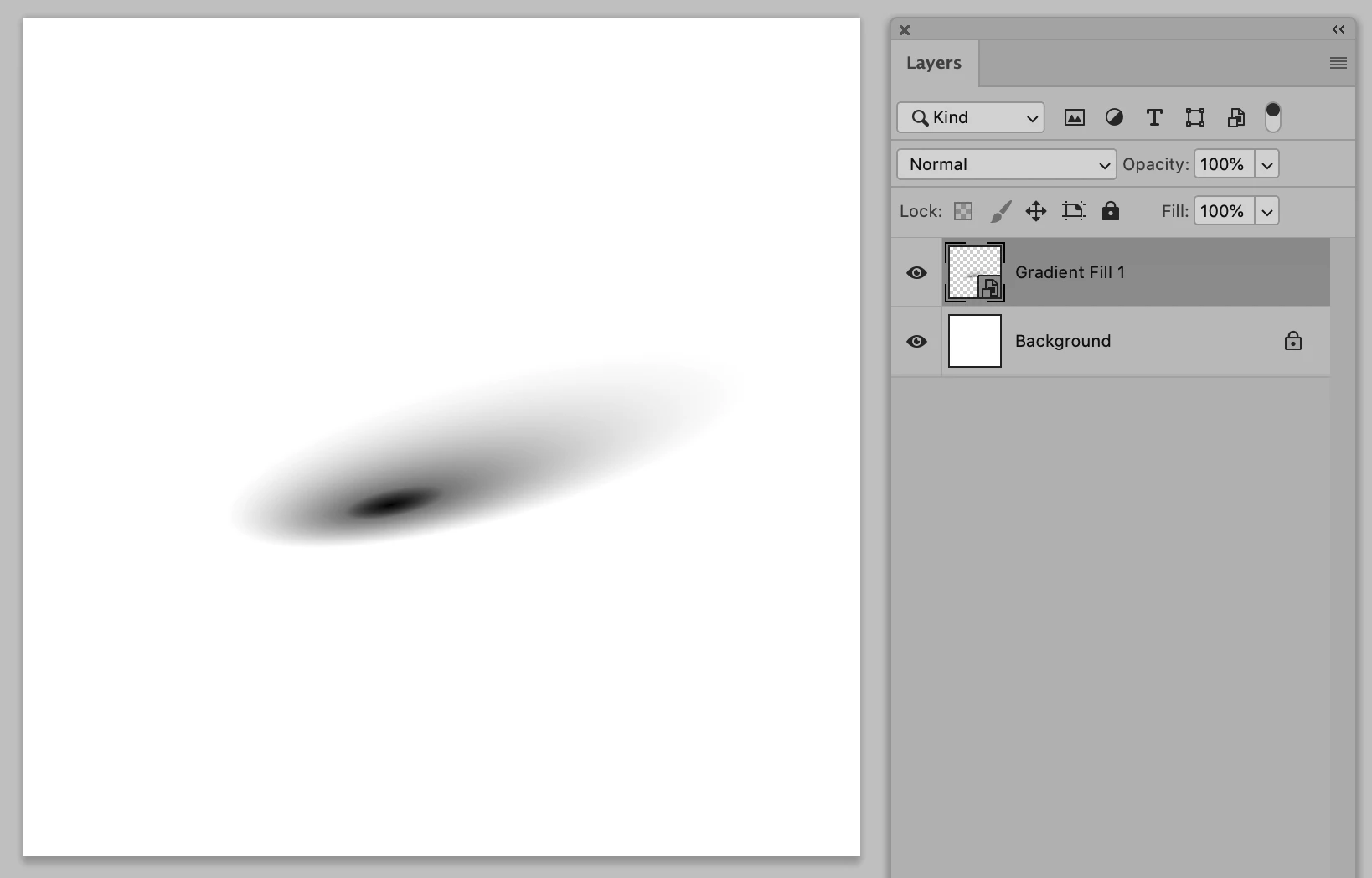
• convert to smart object (or rasterize layer) since I am unable tranform it without flattening the gradient fill 

• command T to transform


Thank you for any insight to helping me make this process easier as it once was. 

This topic has been closed for replies.
Correct answer c.pfaffenbichler

»Why do you say a "Gradient Layer in a Smart Object makes more sense to me"?«

My three-point advice to Photoshop beginners is

• Smart Objects

• Smart Objects

• Smart Objects

Non-destructive image editing allows for maintaining editabilty – in this case one can transform the Smart Object instance and still edit the Gradient Layer within the Smart Object (for example to change the 100% Opacity position or the Opacity Midpoint). Also multiple instances of the Smart Object in an image update in one go. 

Edit: 


Have you reset the Tool yet? 

What have you done for trouble-shooting so far? 

Restoring Preferences after making sure all customized presets like Actions, Patterns, Brushes etc. have been saved might be a good starting point:

https://helpx.adobe.com/photoshop/kb/basic-trouble-shooting-steps.html

1 reply

c.pfaffenbichler
Community Expert
Community Expert
May 18, 2020

I see no practical hindrance to your old approach … naturally a Gradient Layer in a Smart Object makes more sense to me, but I don’t understand what your problem is, the Gradient Tool still exists after all. 

Edit: 

melissarigoli
Participant
May 18, 2020

Thank you kindly for the response. 


My set up does not appear to work like yours. For some reason the gradients going from solid-to-transparent don't work as expected, see this video. It creates a solid fill (1st part of the video). However when I select a solid-to-solid gradient it fills the entire layer (2nd part). Before it would just fill the space where I drew the line. 


Is it working differently for you?


c_pfaffenbichler Why do you say a "Gradient Layer in a Smart Object makes more sense to me"?


c.pfaffenbichler
Community Expert
c.pfaffenbichlerCommunity ExpertCorrect answer
Community Expert
May 19, 2020

»Why do you say a "Gradient Layer in a Smart Object makes more sense to me"?«

My three-point advice to Photoshop beginners is

• Smart Objects

• Smart Objects

• Smart Objects

Non-destructive image editing allows for maintaining editabilty – in this case one can transform the Smart Object instance and still edit the Gradient Layer within the Smart Object (for example to change the 100% Opacity position or the Opacity Midpoint). Also multiple instances of the Smart Object in an image update in one go. 

Edit: 


Have you reset the Tool yet? 

What have you done for trouble-shooting so far? 

Restoring Preferences after making sure all customized presets like Actions, Patterns, Brushes etc. have been saved might be a good starting point:

https://helpx.adobe.com/photoshop/kb/basic-trouble-shooting-steps.html