
Participant
May 27, 2021
Pergunta

Random crashes and Missing Icons

  • May 27, 2021
  • 1 resposta
  • 435 Visualizações

I have been experiencing 2 issues. The first is I am missing all my Icons for my extensions. The extensions seem to work, but now I have to hover or open each one to see which one is which as their icons no longer are displayed.
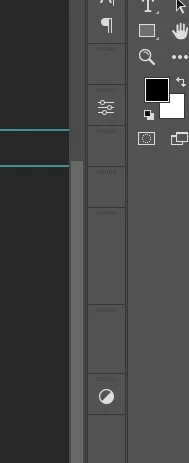
 

The 2nd issue, Photoshop just randomly crashes for no reason. It seems to happen most often when I am using the clone stamp or healing brush tools, but just now it crashed when I was trying to do something so simple as increase the size of a rectangle. What is causing these crashes and how can I stop it, so I can actually get work done?

Este tópico foi fechado para respostas.

1 Resposta

TheDigitalDog
Inspiring
May 27, 2021

Try trashing your Photoshop preferences. Press and hold Alt+Control+Shift (Windows) or Option+Command+Shift (Mac OS) immediately after launching Photoshop. You will be prompted to delete the current settings.

(Mac OS only) Open the Preferences folder in the Library folder*, and drag the Adobe Photoshop CS Settings folder to the Trash.

This action only affects the items found in the preferences dialog box. Numerous program settings are stored in the Adobe Photoshop Preferences file, including general display options, file-saving options, performance options, cursor options, transparency options, type options, and options for plug‑ins and scratch disks. Brushes (and lots of other setting) are not affected by the above instructions for deleting preferences. You may wish to make a screen capture of the settings in the Preferences dialog to reset them prior to deleting of this file.

Also: https://helpx.adobe.com/photoshop/using/preferences.html

*To manually delete Photoshop preferences:
Quit Photoshop.
Navigate to Photoshop's Preferences folder:
macOS: Users/[user name]/Library/Preferences/Adobe Photoshop [version] Settings
Windows 10: Users/[user name]/AppData/Roaming/Adobe/Adobe Photoshop [version]/Adobe Photoshop [version] Settings

Note:
The user Library folder is hidden by default on macOS. To access files in the hidden user Library folder, see How to access hidden user library files.
Drag the entire Adobe Photoshop [Version] Settings folder to the desktop or somewhere safe for a back-up of your settings 

Author “Color Management for Photographers" & "Photoshop CC Color Management/pluralsight"
Participant
June 3, 2021

Hi, I have tried all of that and am still experiencing the missing Plugins/Extensions Icons. Haven't experienced a crash yet, since doing the above.