
Participant
September 30, 2018
Answered

Random dead pixels showing up after liquify

  • September 30, 2018
  • 6 replies
  • 4890 views

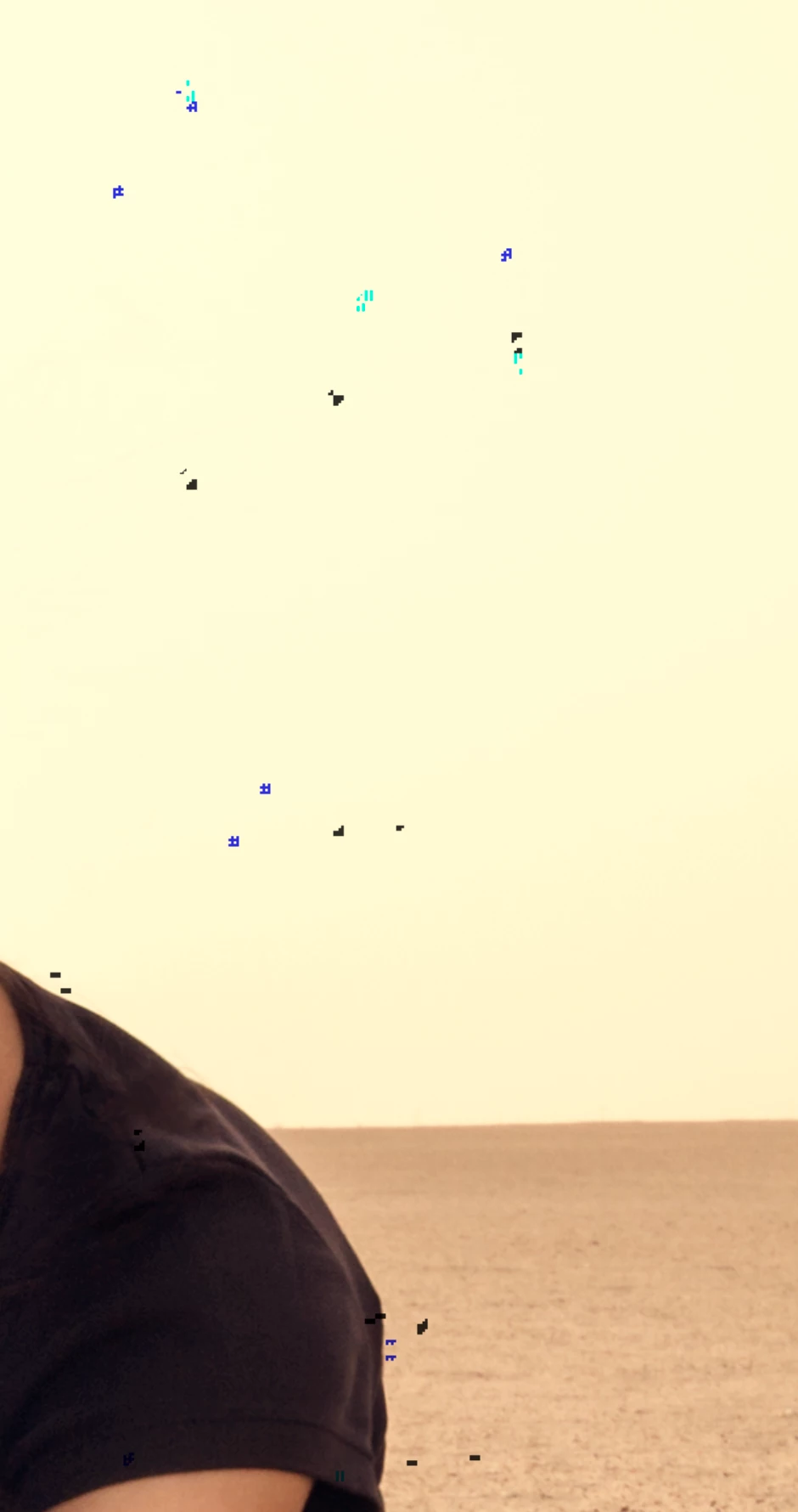
After doing liquify on a smart object/rasterized layer, there are random dead pixels showing up on the whole image and it stays as it is while saving a jpeg/tiff file. Attached is a screenshot of an area of an image after liquify. Can anyone please suggest a solution for this? I have updated PS, restarted it, worked on a different file but still the issue persists. I am currently on CC 2018. TIA          
Correct answer tuskgohan

Hi! Update to Mojave 10.14.1 The issue has been fixed.

6 replies

alliec65331811
Participant
February 19, 2019

same issue, everything is currently updated. I have been using the healing brush to clean up the pixels

victorjohn
Participant
July 5, 2022

I am having this problem even now in 2022. I have checked for dead pixel with black screen and there's no error. Just the images with CC 2020 have this problem after liquify.  Can anyone help with this? Do I need to update to 2021?

Participant
June 27, 2025

same here bro, not a dead pixel. i checked with this pixel test tool — it’s photoshop bug i think.

Participant
February 15, 2019

In Edit> Puppet Warp, you can achieve similar results, depending on what you are doing!

Ayerstairs
Participant
February 15, 2019

Yep, Puppet Warp is a great tool. I also use it as a substitute for Liquify when possible. Still waiting for a fix for Liquify. I'm using Mohave 10.14.3 and CC 20.0.3, and still no luck.

Ayerstairs
Participant
January 22, 2019

I'm running Mojave 10.14.2 and I'm still having the same problem.

Adobe recommends temporarily disabling the Use Graphics Processor until they resolve the issue (option-liquify), but I hate the way the liquify tool works when the GP is disabled. My goofy work-around is to create 3 or 4 duplicate layers, and reapply the liquify filter to all of them. All of the black artifacts are different on each layer. Keep the bottom layer-mode on Normal. On the top layers, change the layer-mode to Lighten. Pain in the ***, but it works.

Still waiting for a fix.

Participant
February 6, 2019

Same issue, I have a few dozen images to work on and this isn't really a solution. Certainly is a pain in the ass.

toris91867883
Participant
November 13, 2018

Having the same issue.

Temporary solution... In curves I pushed the midtones all the way up. Makes them easier to see. I went in with a healing brush and removed them all. Hope this gets fixed soon.

tuskgohanAuthorCorrect answer
Participant
November 13, 2018

Hi! Update to Mojave 10.14.1 The issue has been fixed.

Participant
October 28, 2018

Oh gosh! I was searching all over and just updated to Mohave and am now having the same issue!!!!!! Please help if someone finds a solution!

D Fosse
Community Expert
Community Expert
September 30, 2018
tuskgohanAuthor
Participant
September 30, 2018

Thank you for the link. It has happened only after the update and turning off GPU worked but it slows down the whole process. Is there another way to tackle this without affecting the performance? Or do we have to wait for a bug fix update?

davescm
Community Expert
Community Expert
September 30, 2018

You will need to wait for a bug fix. It is an unfortunate risk of being an early adopter when an operating system changes.

Dave