Participant
October 22, 2017
Answered

Raw to Jpeg - Poor Image Quality

  • October 22, 2017
  • 4 replies
  • 4235 views

Hi everyone,

I have just started entering our local camera club competitions and had a little success, but I have a problem converting 16 Bit Raw files taken on my D810 to Jpegs.

The images look sharp when I'm in Raw (image size example 6353 x 4240px) but when I change the image size in Photoshop to the clubs guideline of 1400 x 1050px they look very very blurred?

I understand that I'm trying to compress a lot of data, but is this normal?

This topic has been closed for replies.
Correct answer Per Berntsen

First of all, your original image (6353 x 4240) has an aspect ratio of 1.5, and if you're resizing it to 1400 x 1050 (aspect ratio 1.33), you will be distorting the image, unless you cropped it first to a 1.33 aspect ratio.

For good sharpness, I suggest this workflow:

With the raw file open in Camera Raw, make sure that it has received proper sharpening in the Detail tab. The sharpening you do here is called Capture sharpening, and is meant to compensate for softness in the digital capture. Always apply sharpening at 1:1, any other view will be inaccurate and misleading because of image scaling.

The image should look sharp, but not too sharp. Too much sharpening looks worse than too little, so if in doubt, sharpen less.

Now click the workflow options (underlined text) at the bottom of the screen.

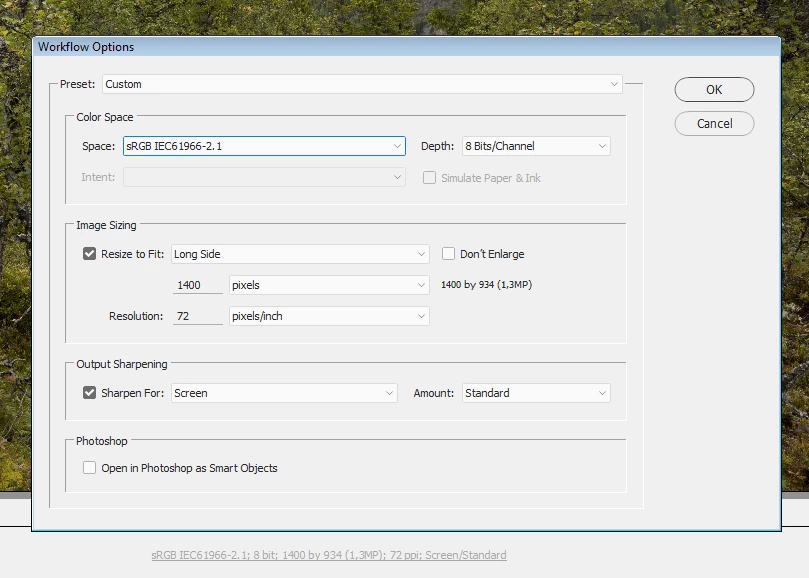
This allows you to resize the image, to apply output sharpening (which is designed to compensate for the sharpness loss cause by resizing), and to choose a color profile. Try the settings in the screenshot below. Note that the resized image will be 1400 x 934.

When the image opens in Photoshop, save it as a jpg.
4 replies

Per Berntsen
Community Expert
Per BerntsenCommunity ExpertCorrect answer
Community Expert
October 22, 2017

First of all, your original image (6353 x 4240) has an aspect ratio of 1.5, and if you're resizing it to 1400 x 1050 (aspect ratio 1.33), you will be distorting the image, unless you cropped it first to a 1.33 aspect ratio.

For good sharpness, I suggest this workflow:

With the raw file open in Camera Raw, make sure that it has received proper sharpening in the Detail tab. The sharpening you do here is called Capture sharpening, and is meant to compensate for softness in the digital capture. Always apply sharpening at 1:1, any other view will be inaccurate and misleading because of image scaling.

The image should look sharp, but not too sharp. Too much sharpening looks worse than too little, so if in doubt, sharpen less.

Now click the workflow options (underlined text) at the bottom of the screen.

This allows you to resize the image, to apply output sharpening (which is designed to compensate for the sharpness loss cause by resizing), and to choose a color profile. Try the settings in the screenshot below. Note that the resized image will be 1400 x 934.

When the image opens in Photoshop, save it as a jpg.

Participant
October 22, 2017

Thank you so much for taking the time to give me such a detailed workflow and the good news is it my image is much sharper.

I really appreciate all your responses to my dilema.

Derek Cross
Community Expert
Community Expert
October 22, 2017

Don't compress below 8 and also make sure you're not looking at them at above 100%.

Stephen Marsh
Community Expert
Community Expert
October 22, 2017

Generally speaking, interpolation from a higher resolution to a lower will slightly soften an image. There are different options when resizing, what method are you using? Some methods include a sharpening effect built into the interpolation method, or you may choose to apply unsharp mask or smart sharpen as a separate step after resizing. If your high resolution images contain repeating patterns, they can sometimes benefit from a slight blur before resizing down and then sharpening – it all depends on the image.

Legend
October 22, 2017

Changing (reducing) image size does not cause blurring on an ordinary photo. Saving as JPEG might, depending on your quality settings. When do you see the blurring? After resizing, or after saving the JPEG and reopening it? What JPEG settings do you use?

Participant
October 22, 2017

Thank you for the replies.

It occurs after re-sizing even though I save Jpegs at the maximum setting of 12 and use the Baseline setting.

Maybe I'm expecting too much as I am looking at them at 100% as I do my Raw images. The most affected ones are of a Meadow so it is quite a busy photograph (flowers/grasses).

Someone mentioned a "softening" of the image after re-sizing, I think that is a more accurate description than blurring.