
Inspiring
March 1, 2023
Answered

Re-Use my crop tool?

  • March 1, 2023
  • 2 replies
  • 4372 views

If I do a crop and I'm not perfectly happy with it so I want to un-do it is there any way to get my original crop box back?   Un-do Crop doesn't seem to do it.


Specifically, say I'm cropping something and I spend a lot of time tweaking my crop box to get it exactly where I want it and then I do the crop.    (maybe I save the results from this first crop).   But then I want to go back and do the crop again, at a slightly different spot, or maybe I want to tweak it a bit and re-do the crop.    So I don't want to start from scratch, positioning and tweaking a new crop box.   I just want to get back to my original crop box just before I committed the crop.     How do I do this?


Clicking Undo Crop (ctrl-Z) after the crop is done gives me the old uncropped image but the crop tool is gone.   Is there any way to retain/save it or do I have to start from scratch with a new crop and manually size and position it all over again?


Thanks in advance.
This topic has been closed for replies.
Correct answer Semaphoric

Nope.   That doesn't do anything.     I've attached two screenshots, before and after the crop.   After the crop I can click around with the cropping tool inside the blue border or on the image itself and I get nothing, nada, zilch.


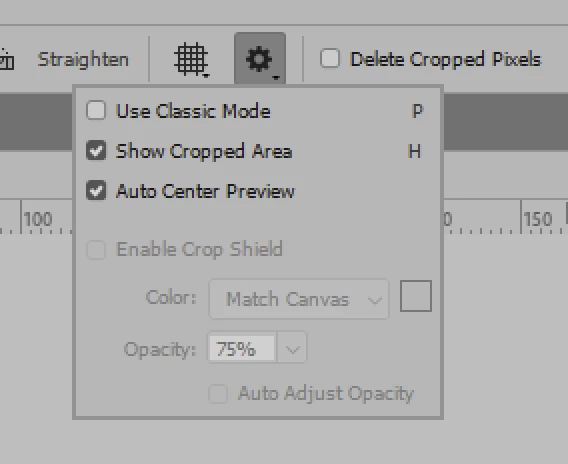
Look in the Settings menu in the options for the Crop tool, and make sure the Show Cropped Area box is checked. When I tried un-checking it, I got the same behavior you described.


2 replies

Semaphoric
Community Expert
Community Expert
March 2, 2023

In the Options for the Crop tool, make sure Delete Cropped Pixels is not checked, and that View > Show > Layer Edges is checked. After the crop is performed, you see the cropped image and its relative position to the whole image.

Clicking with the Crop tool will now show the whole image, with the crop in the same position. You can now re-adjust it.

Inspiring
March 2, 2023

In the Options for the Crop tool, make sure Delete Cropped Pixels is not checked, and that View > Show > Layer Edges is checked.

OK, did that.

After the crop is performed, you see the cropped image and its relative position to the whole image.

Yes, that's exactly what I got.  So far so good.

Clicking with the Crop tool will now show the whole image, with the crop in the same position. You can now re-adjust it.

Nope.   Nothing like that happens.    But I am not sure I understand what you mean by "Clicking with the Crop tool".   I interpreted that to mean "clicking the crop tool".     Could you please clarify this because it sounds very promising if it works.

Inspiring
March 2, 2023

Click on the image with the  Crop tool.


Nope.   That doesn't do anything.     I've attached two screenshots, before and after the crop.   After the crop I can click around with the cropping tool inside the blue border or on the image itself and I get nothing, nada, zilch.

Conrad_C
Community Expert
Community Expert
March 1, 2023

There are several ways to do this:


You can save a Crop tool preset. As with the Crop tool itself, you can constrain the tool preset to a specific aspect ratio (such as 3:2), or specific pixel dimensions (such as 300 x 200 pixels). When you drag the Crop tool using a preset, it’s locked to however you preset it; you just have to position it.


If you want the next crop to be in exactly the same position in another document, you can draw it as a rectangular selection instead, and then save the selection (Select > Save Selection). It’s saved as a new channel.  In the next image, you load the selection (Select > Load Selection) and choose Image > Crop. A major limitation of this method is that it works only if the next image has exactly the same pixel dimensions as the document in which you saved the selection.


If you want to save a crop rectangle of specific pixel dimensions and you want it to work on images of any pixel dimensions, draw it as a vector path (e.g. with the Rectangle tool set to Path mode, not Shape mode). Copy and paste the path into another document, choose Layer > Vector Mask > Current Path, and then choose Image > Trim and select the Transparent Pixels option.

Inspiring
March 1, 2023

When you drag the Crop tool using a preset, it’s locked to however you preset it; you just have to position it.

The positioing of it is what I want to retain.   I'm doing an art/video project where I'm making hundreds of crops in the same image, each one translated (moved horizontally or vertically) by a few pixels from the previous one. 

So I want to do the crop, save the the result, UN-do the crop so I get my crop-box back, move it a little, and repeat over and over again.


If I do what you suggest using the crop tool Preset, is there a way to position it precisely?   I have my rulers set to pixels but that's not precise enough on images that are thousands of pixels high and wide.   Is there any way to get Photoshop to tell you the exact current location of the crop box while you're moving it?

Legend
March 1, 2023

Use Guides. View->Guides->New Guide/New Guide Layout. You can specify exact pixel positioning and you can snap your crop tool to a guide. And the Info panel will display crop tool coordinates while you move along.