claudial48971738
Participating Frequently
February 18, 2021
Beantwortet

Reattach the toolbar to the work space

  • February 18, 2021
  • 3 Antworten
  • 7608 Ansichten

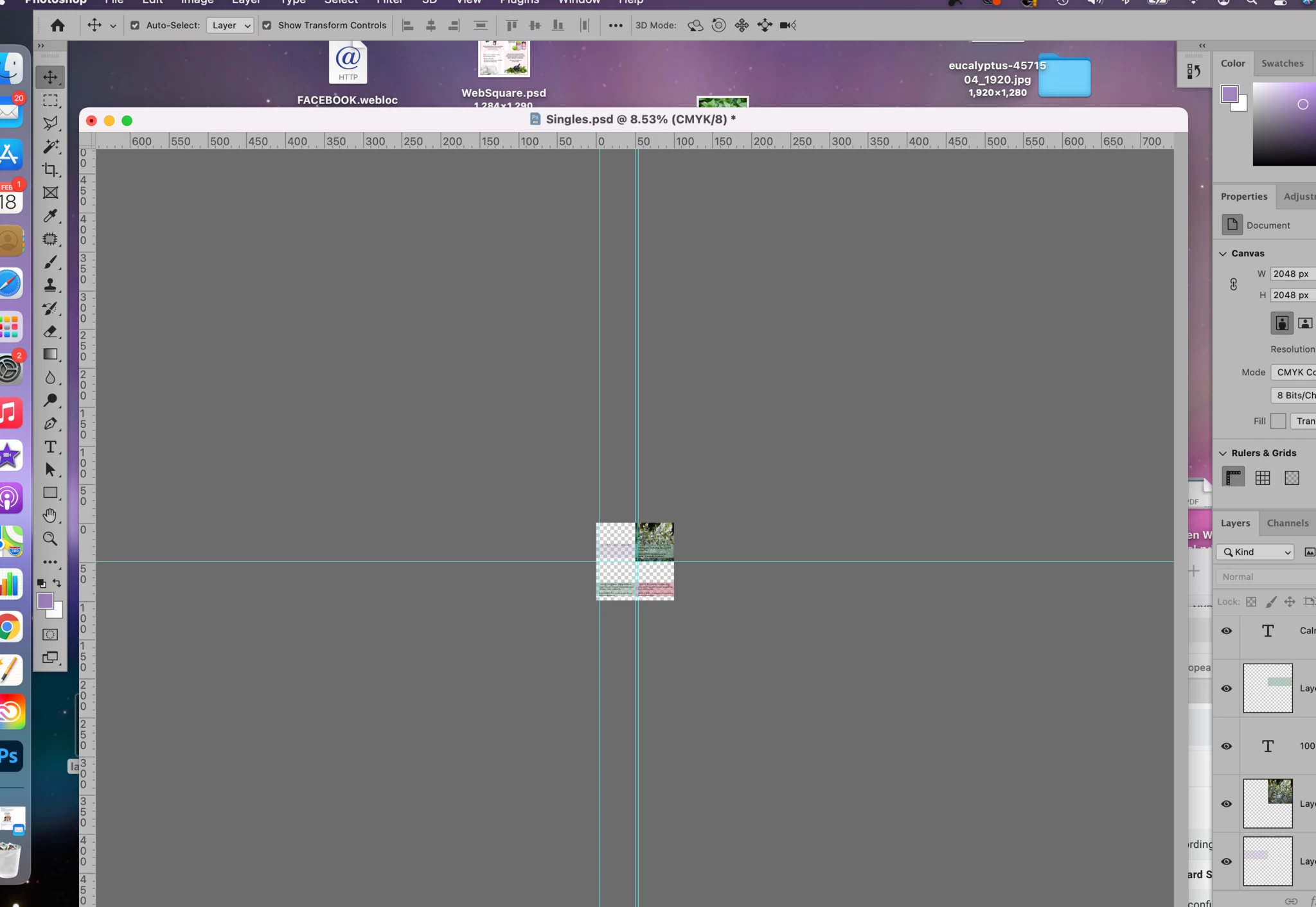
Hello - Somehow I detached the tool bar from the work space and can't figure out how to rejoin them.  I tried the suggestion posted and it did not work for me.  I have a Mac Book Pro.  Thank you.


Beste Antwort von jane-e

Hi

I think the Application frame is not the issue and your toolbar is okay. You have floated (detached) the "window" for your document. There are two ways to do this:

  • Window > Arrange > Float Window
  • Drag the title bar down, accidentally or on purpose

There are two ways to put it back:

  • Window > Arrange > Consolidate
  • Drag the title up into place and watch for the drop zone (blue lines) before releasing the mouse

Turn on the Application frame if it's off, though.

~ Jane

3 Antworten

Participant
October 17, 2022

The windows (such as tools, history, layers, etc)  were floating all over the place.  Not sure how I made it happen, but here's how I fixed it:


WINDOW >  WORKSPACE > PHOTOGRAPHY


Everything snapped back into place where it belongs!


Trevor.Dennis
Community Expert
Community Expert
October 17, 2022

That's not how it works on my Windows system.  If I rearrange some panels and reselect the same workspace, it remembers the last position of that workspace.  So if you mess up Essentials, go into Photography and then select Essentials again, it goes back to those messed up panels.  I have to Reset a workspace to tidy it up.  Note that you can only reset the currently selected Workspace.

Regular posters of this forum are forever dragging panels to make it more convenient to show screen shots for forum answers, so I have Actions that set and reset my three mosted used workspaces, and these actions are all triggered with Function keys.  This is super convenient and happens close to instant.  This is also a way to select different keyboard shortcuts as we can save custom toolbars and shortcuts with custom panels.  Motion is a good example as things don't work the same in the Motion worspace, so if working on an animation and needing to edit frame contents, it is easy to hit a Funtion key to go to my default workspace, do the edits, and go back to Motion with another Function key.

jane-e
Community Expert
Community Expert
October 17, 2022

@Trevor.Dennis wrote:

That's not how it works on my Windows system. 


That's not how it works on macOS either, Trevor.


Jane


c.pfaffenbichler
Community Expert
Community Expert
February 18, 2021

I am afraid I do not understand – where do you want the Toolbar to reside if not top left? 

Do you mean Window > Application Frame? 

Or Full Screen Mode (F)? 

War Unicorn
Community Expert
Community Expert
February 18, 2021

Definitely try what c.pfaff suggested. (Though I'm pretty sure that Application Frame was enabled by default so I don't know how it got disabled. I don't know how you guys deal with that mess; it would drive me nuts. I mean, dear Lord, I can see other elements peeking through that don't belong to Photoshop. So distracting.)

claudial48971738
Participating Frequently
February 18, 2021

Photoshop btw.  I've included screen shot


jane-e
Community Expert
jane-eCommunity ExpertAntwort
Community Expert
February 18, 2021

Hi

I think the Application frame is not the issue and your toolbar is okay. You have floated (detached) the "window" for your document. There are two ways to do this:

  • Window > Arrange > Float Window
  • Drag the title bar down, accidentally or on purpose

There are two ways to put it back:

  • Window > Arrange > Consolidate
  • Drag the title up into place and watch for the drop zone (blue lines) before releasing the mouse

Turn on the Application frame if it's off, though.

~ Jane

claudial48971738
Participating Frequently
February 18, 2021

Yes that worked.  Thank you everyone! 🌸
