carlya62212889
Participant
February 24, 2018
Answered

Reattaching The Toolbar

  • February 24, 2018
  • 5 replies
  • 21381 views

Hey, Hi, Help!!

I'm supposed to be a really cool professional designer, but I got a major prob.

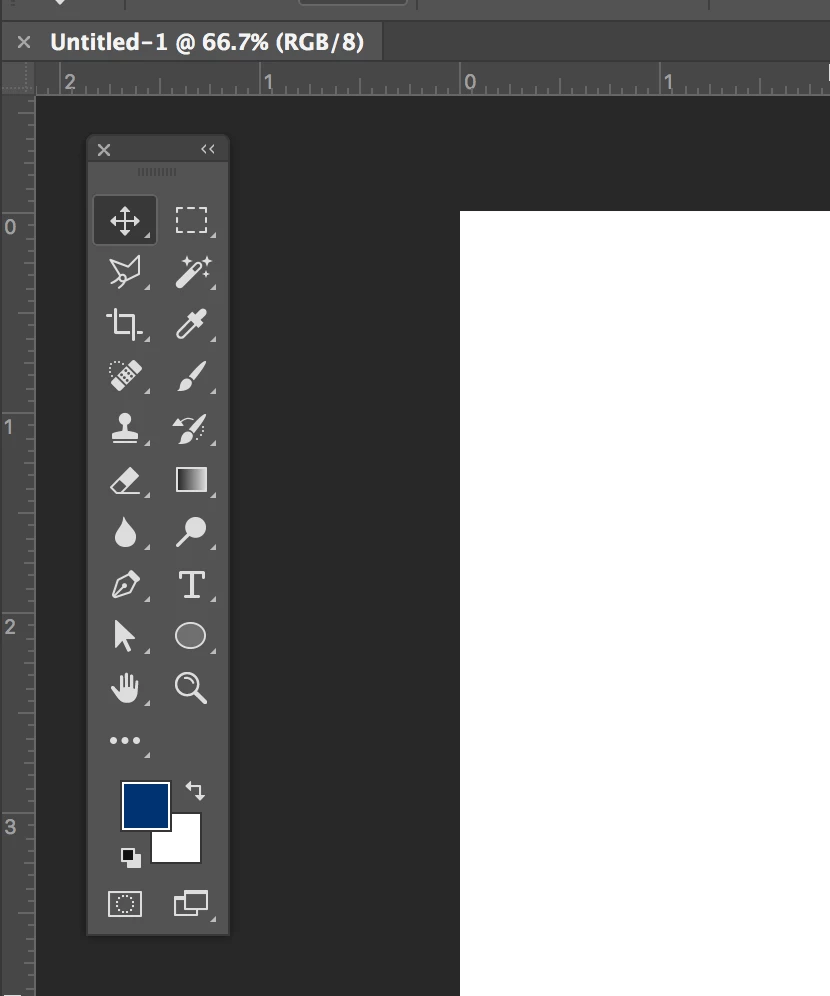
How do I reattach this bad boy?!?! 

Thanks in advance
This topic has been closed for replies.
Correct answer carlya62212889

Finally got it!!

Had to resize the whole workspace.

Thank you all so very much!!

5 replies

Participant
September 28, 2021

Reset workspace worked like a champ. No fuss no muss.

abrambailey
Participant
May 31, 2021

What worked for me in MacOS was Window ->  Workspace -> Graphic and Web

abrambailey
Participant
May 31, 2021

Actually that was not the correct solution, and I can't find a way to update my original post. Do this instead:


Window ->  Workspace -> Reset Essentials

(Reset option will likely look different if you're not in Essentials)

Participant
November 5, 2019

I was thinking the same thing!! LOL. Just could not get it back into the application frame! Thanks

Norman Sanders
Legend
February 24, 2018

Yes, it works the same way on my/your Mac.

Click and drag to the left edge from the middle of the very top band of the Tools panel. When you see the blue line, release the mouse.

One more thing: When the screen layout is exactly as you want it, choose Window > Workspace > New Workspace and name it. In the future, when Tools and Panels get moved around, you can return them to your preferred layout by choosing Window >. Workspace > Reset (name of your workspace,)

HVT_1one1
Participating Frequently
November 11, 2022

Thank you. I actually downloaded an older version of Photoshop because multiple panels of the newer version mysteriously became detached.  Also, can't save as .png on the newer version of Photoshop unless I merge everything.  Older is better.

davescm
Community Expert
Community Expert
February 24, 2018

Hi
I'm not sure on Mac but on Windows just click and hold near the top (see cursor position  below) and drag it to the left until you see the edge go blue

Then let go

Dave

carlya62212889
Participant
February 24, 2018

Ugh. Unfortunately, that doesn't work on my mine. Must only work on PC

Jeff Arola
Community Expert
Community Expert
February 24, 2018

Should work the same on a mac.

You have to move the Toolbar all the way to the edge of your screen or edge of the photoshop application, depending if you have the Application Frame off or on.

Try resetting your workspace by going to Window>Workspace>Reset (the name your saved workspace of one of the adobe provided ones).
