Copy link to clipboard
Copied
Clone Stamp, Healing Brush, or select the area you need fixed with the Lasso and then apply Dust and Scratches.
"Thank you, but I would like to do it without using AI.
Is there a simple way in order to do it ?"
Convert to greyscale.
Use "Levels" as shown on the screenshot.
And finish by removing any remaining black marks with the Eraser, the Remove tool, or a selection tool.
Copy link to clipboard
Copied
Clone Stamp, Healing Brush, or select the area you need fixed with the Lasso and then apply Dust and Scratches.
Copy link to clipboard
Copied
Yes, this should be easy to fix manually, with the tools mentioned by @ExUSA . Fifteen minutes to a half hour's work.
Copy link to clipboard
Copied
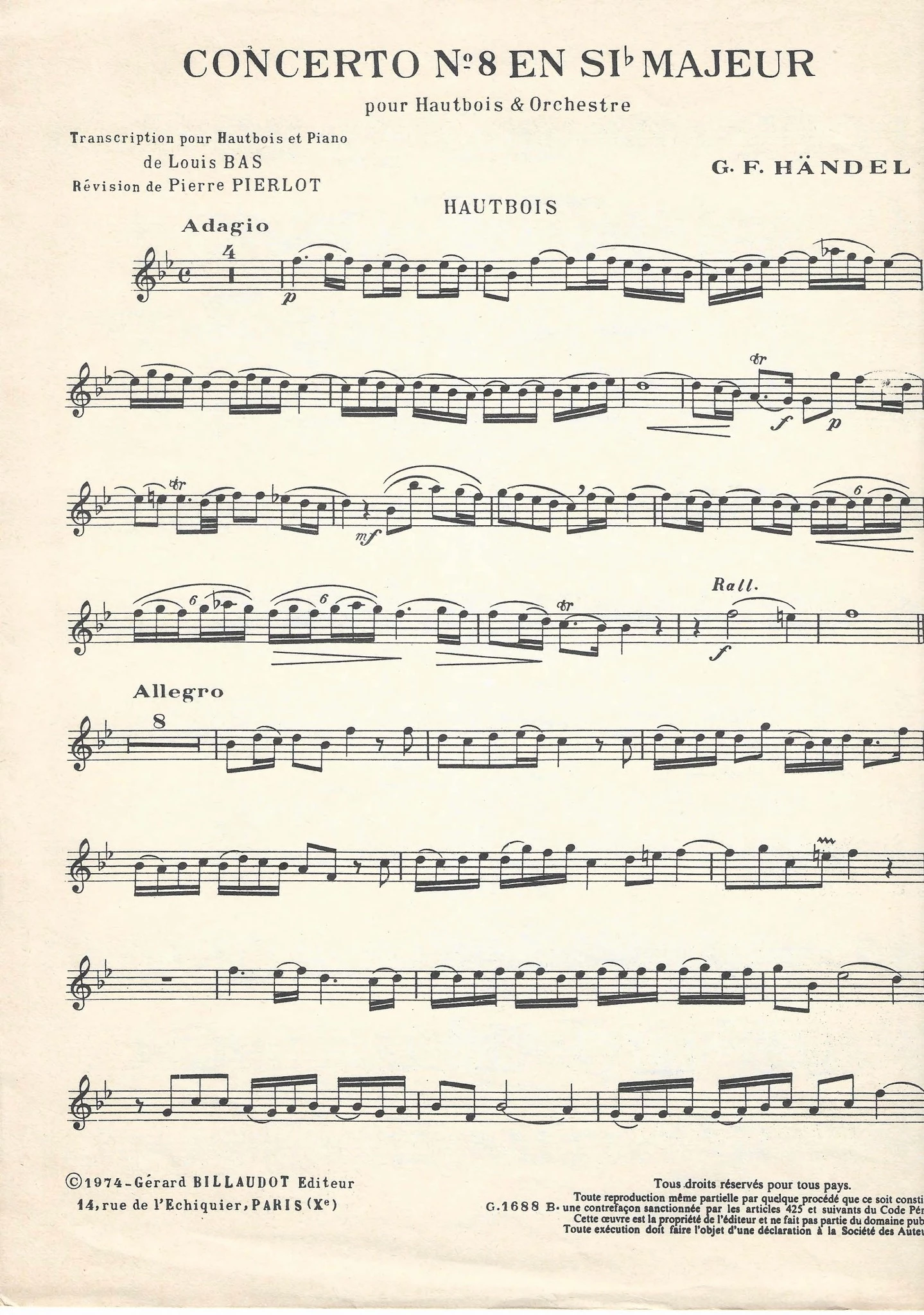
My need in that case is to remove the dust inside the notes like here :
But by example if I use the lasso tool directly on the notes (where there is dust), and use the filter "dust", the notes becomes blur. I am wotking with the background layer.
Copy link to clipboard
Copied
-
Copy link to clipboard
Copied
Select the area you want to fix before applying a filter. Or use the Clone Stamp or healing brush, as I suggested.
Copy link to clipboard
Copied
Select all the image (CRTL/CMD - A) : Generative Fill : select Gemini 2.5 (Nano Banana) and prompt : "set to black and white, remove dust".
It won't take you longer than a minute.
You may need to increase the sharpness afterwards.
Copy link to clipboard
Copied
Thank you, but I would like to do it without using AI.
Is there a simple way in order to do it ?
Copy link to clipboard
Copied
I would like to do it without using AI.
By @pierret18811376
What a relief 🙂 I mean it.
You just have to use a small enough brush with e.g. the healing brush so that you stay away from the notes. It's not difficult, it just takes a little time.
As a help, you can select the paper color and expand the selection one or two pixels. That should be enough to "eat up" the dust spots, but not too much into the notes. Then you can work a little more freely.
Copy link to clipboard
Copied
"Thank you, but I would like to do it without using AI.
Is there a simple way in order to do it ?"
Convert to greyscale.
Use "Levels" as shown on the screenshot.
And finish by removing any remaining black marks with the Eraser, the Remove tool, or a selection tool.
Get ready! An upgraded Adobe Community experience is coming in January.
Learn more